8
Cambridge
Audio
Remote control
Important!
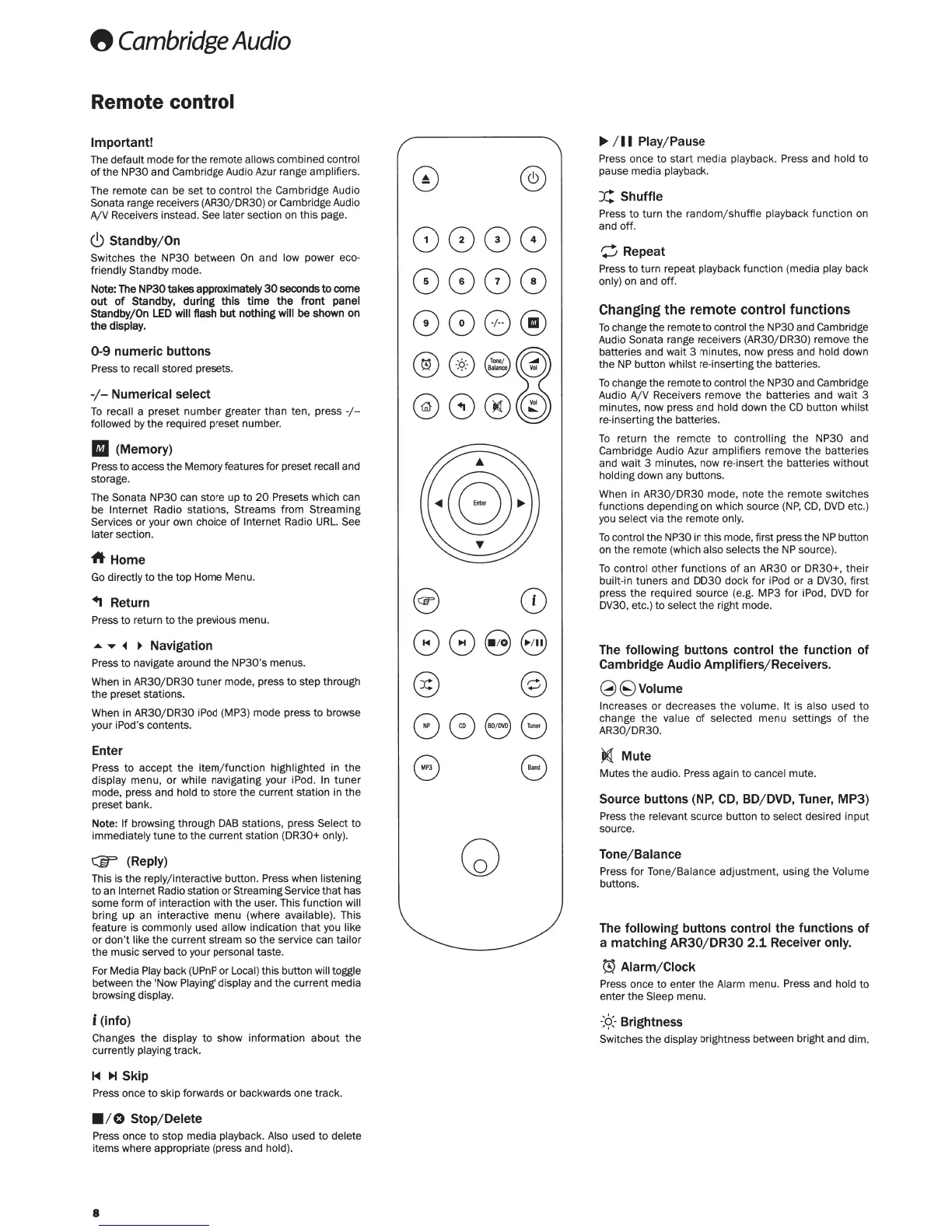
The default
mode for the remote
allows
combined
control
of
the NP30 and Cambridge Audio
Azur
range amplifiers.
The remote can be set
to
control
the Cambridge Audio
Sonata
range receivers {AR30/DR30) or Cambridge Audio
A/V
Receivers instead.
See later
section on this page.
(!)
Standby/On
Switches
the
NP30 between
On
and
low
power eco-
friendly Standby
mode.
Note:
The
NP30
takes
approximately
30
seconds
to
come
out of
Standby,
during
this
time the front
panel
Standby/On
LED
will
flash
but
nothing
will
be
shown
on
the
display.
0-9
numeric buttons
Press to
recall
stored presets.
-1-
Numerical select
To
recall
a preset number greater than ten, press -/--
followed
by
the
required preset number.
II
(Memory)
Press
to access the Memory features for preset
recall and
storage.
The
Sonata NP30
can store up to
20
Presets which can
be Internet
Radio stations,
Streams
from Streaming
Services
or your own choice
of
Internet
Radio
URL.
See
l
at
er
section.
A
Home
Go
directly
to the
top Home Menu.
..
Return
Press
to
return
to
the previous menu.
....
...
•
~
Navigation
Pr
ess
to
navigate around the NP30's menus.
When
in AR30/DR30 tuner mode, press
to
step through
the
preset stations.
When in AR30/DR30
iPod
{MP3)
mode press to browse
your
iPod's
contents.
Enter
Press
to
accept
the
item/function highlighted
in
the
display
menu,
or
while
navigating your iPod.
In
tuner
mode, press and
hold
to store the current station in the
preset bank.
Note:
If
browsing through
DAB
stations, press
Select
to
immediately tune to the current station {DR30+
only).
Ci;F
(Reply)
This is
the
reply/ interactive button.
Press
when
listening
to
an
Intern
et
Radio station or
Str
ea
ming Service
that has
some form
of
int
eraction with
the
use
r.
This function will
bring up an interactive menu {where
available).
This
feature is
commonly used
allow
indication
that
you
like
or don't
like
the
current stream so the service can
tailor
the music served to your
personal
taste.
For Media
Play
back
(
UPnP
or
Local) this button
will toggle
between
the
'Now
Playing' display and the current media
browsing display.
i
(info)
Changes
the
display
to
show information about
th
e
currently playing
track.
1<1
~Skip
Press once to skip forwards
or
backwards one track.
•1
0
Stop/Delete
Press
once to stop media
playback. Also
used
to
delete
items whe
re
appropriate {press and
hold).
8
0
8088
8888
888@
(;;:;\
Q
Tooo
;
~
......
~V
ealana
~
@8®@
s
CD
088
8
@ @
8
88
8
G
8
..,./II
Play/Pause
Press
once to
start
media playback. Press
and
hold
to
pause media
playback.
X:
Shuffle
Press
to
turn the random/shuffle
playback
function
on
and off.
C
Repeat
Press
to turn repeat
playback
function {media
play
back
only) on and off.
Changing
the
remote
control
functions
To
change the remote to
control
the
NP30
and Cambridge
Audio
Sonata
range receivers {AR30/ DR30) remove the
batteries and wait 3 minutes, now press and
hold
down
the
NP
button
whilst
re-inserting
the
batteries.
To
change the remote to
control
the
NP30
and Cambridge
Audio A/V
Receivers remove the batteries and wait 3
minutes, now press and
hold
down the
CD
b
utt
on
whilst
re-inserting the batteries.
To
return the remote
to
controlling
the
NP30
and
Cambridge Audio Azur amplifiers remove t he batteries
and wait 3 minutes, now re-insert the batteries without
holding
down any buttons.
When in AR30/ DR30 mode, note
the
remote switches
functions depending on which source
{NP,
CD,
DVD
etc.)
you
select
via the remote
only.
To
control the
NP30
in
this mode, first press the
NP
button
on the remote {which
also selects
the
NP
source).
To
control other functions
of
an AR30 or D
R3
0+, their
built-in
tuners and DD30 dock for
iPod
or a
DV30,
first
press the required source (e.g.
MP3
for iPod,
DVD
for
DV30,
etc.) to
select
the right mode.
The
following
buttons
control
the function of
Cambridge
Audio Amplifiers/ Receivers.
(3(9Volume
Increases or decreases
the
volume.
It
is
also
used to
change
the
value
of
selected
menu settings
of
the
AR30/DR30.
}1€1
Mute
Mutes the audio.
Press
again to cancel mute.
Source buttons (NP,
CD,
BD/DVD, Tuner, MP3)
Press
the
relevant
source button to
sel
ect
desired input
source.
Tone/Balance
Press
for
Tone
/ Balance adjustment, using the
Volume
buttons.
The
following
buttons
control
the functions of
a matching
AR30/DR30
2.1. Receiver
only.
~
Alarm/Clock
Press
once to enter
the
Alarm
menu.
Press
and
hold
to
enter the
Sleep
menu.
-
:Ct
Brightness
Switches
th
e
display
brightness betw
ee
n bright and dim.



 To Next Page
 Loading...