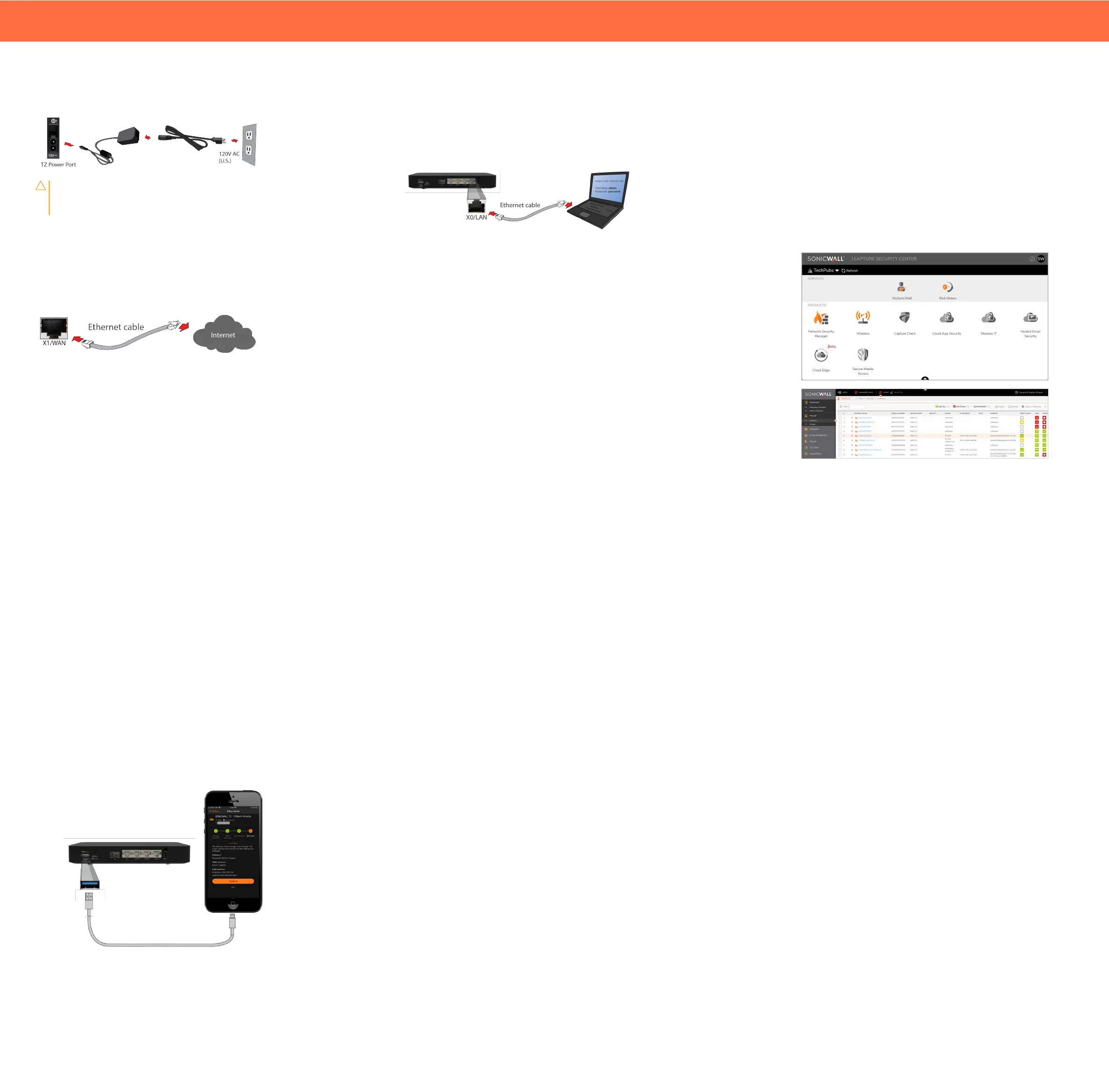
Connect Power
CAUTION: Only use the power adapter included with this
device. Do not use a power adapter that is damaged or
from another device.
Connect Interfaces
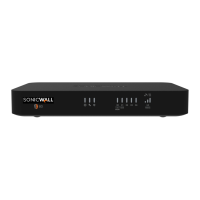
Connect the WAN interface (X1) on the back of the TZ80 to the
Internet.
Setup and Registration
IMPORTANT: The TZ80 must be licensed before it can be
configured or used.
IMPORTANT: The TZ80 must always be connected to the Internet. It
cannot be used in a closed network environment.
Local Management
Set up and manage your TZ80 by connecting it to a management
computer with an Ethernet cable.
To minimize scrolling, set your screen resolution to at least 1920 x
1080 pixels.
1. Connect the TZ80 LAN interface (X0) to your computer.
Your computer should be configured to accept DHCP
addressing.
2. Navigate to https://192.168.168.168 in your web
browser and log in with the default credentials:
l
Username: admin
l
Password: password
3. On successful login using the default password, you are
then prompted to change the password.
NOTE: The default password must be changed at the time
of your first log in and the new password to be used for
future login attempts.
4. Launch the Setup Guide wizard or manually configure to
complete initial configuration.
5. Using SonicOS, click Register and log in with your
MySonicWall credentials to register your TZ80.
Your TZ80 is now initialized and ready for use!
Cloud Management
Use SonicWall Capture Security Center (CSC) with Zero Touch to
manage and configure your TZ80.
NOTE: This option requires a Cloud Management license.
1. Log into CSC at cloud.sonicwall.com using your
MySonicWall credentials.
2. Select the MySonicWall tile to register your TZ80.
3. Enable Zero Touch and NSM licensing on your TZ80 in
MySonicWall.
4. Select the Network Security Manager tile in CSC to
manage your TZ80 from the cloud.
SonicExpress App
Use SonicWall SonicExpress on your smart phone to register and
configure your TZ80.
NOTE: After initial setup, be sure to download the latest firmware
from MySonicWall and upgrade your TZ80.
1. Download and launch the SonicExpress App on your iOS or
Android device.
2. Tap Login and log in with your MySonicWall credentials,
then select the tenant for the . Tenants can contain multiple
SonicWall appliances.
3. Connect your iOS or Android device to the TZ80 with your
smartphone USB cable (not supplied with the TZ80).
NOTE: Use your mobile device USB cable.
4. Use the SonicExpress Setup Guide to register the TZ80,
synchronize service licenses, change the password, and
configure essential interface settings.



 To Previous Page