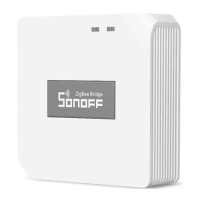
ZBBridg e
ZBBridg e
5V 1A
Wi-Fi
IEEE 802.11 b/g/n 2.4GHz
PC
Android & iOS
62x62x20mm
-10℃~40℃
ZBBridge
ZigBee
ZigBee 3.0
SONOFF TECHNOLOGIES CO., LTD.
English
1
Compatible Pairing Mode
If you fail to enter Quick Pairing Mode (Touch), please try “Compatible Pairing Mode ”
to pair.
Long press Pairing button for 5s until the Wi-Fi LED indicator changes in a cycle of
two short flashes and one long flash and release. Long press Pairing button for 5s
again until the Wi-Fi LED indicator flashes quickly. Then, the device enters
Compatible Pairing Mode.
2
Tap “+” and select “Compatible Pairing Mode ” on APP.
Select Wi-Fi SSID with ITEAD-****** and enter the password 12345678, and then
go back to eWeLink APP and tap “Next”. Be patient until pairing completes.
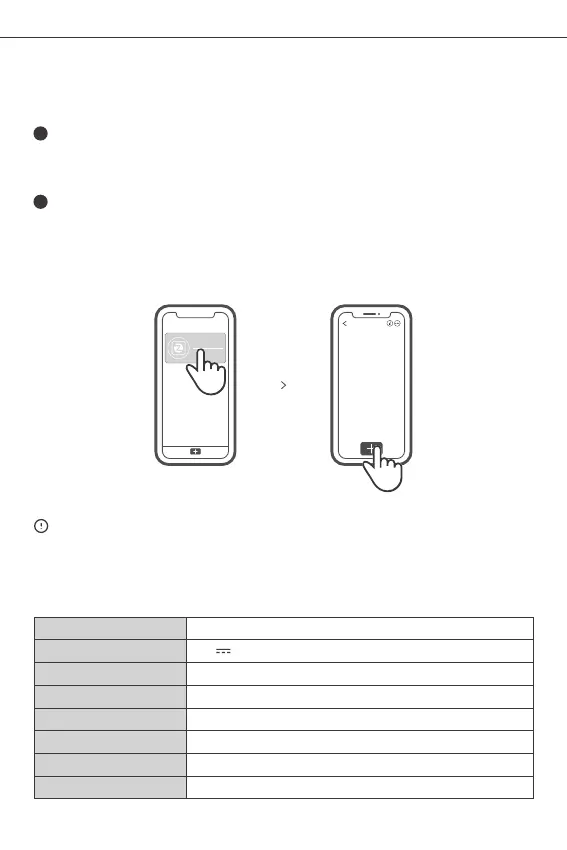
Add a ZigBee sub-device to ZigBee Bridge
Set the ZigBee sub-device to the pairing mode and tap “+” on ZigBee Bridge to pair.
ZigBee Bridge can add up to 32 sub-devices now. Itwill support adding more
sub-devices soon.
Specifications
Input
Operating systems
Working temperature
Material
Dimension
Model
6


 To Next Page