6GB
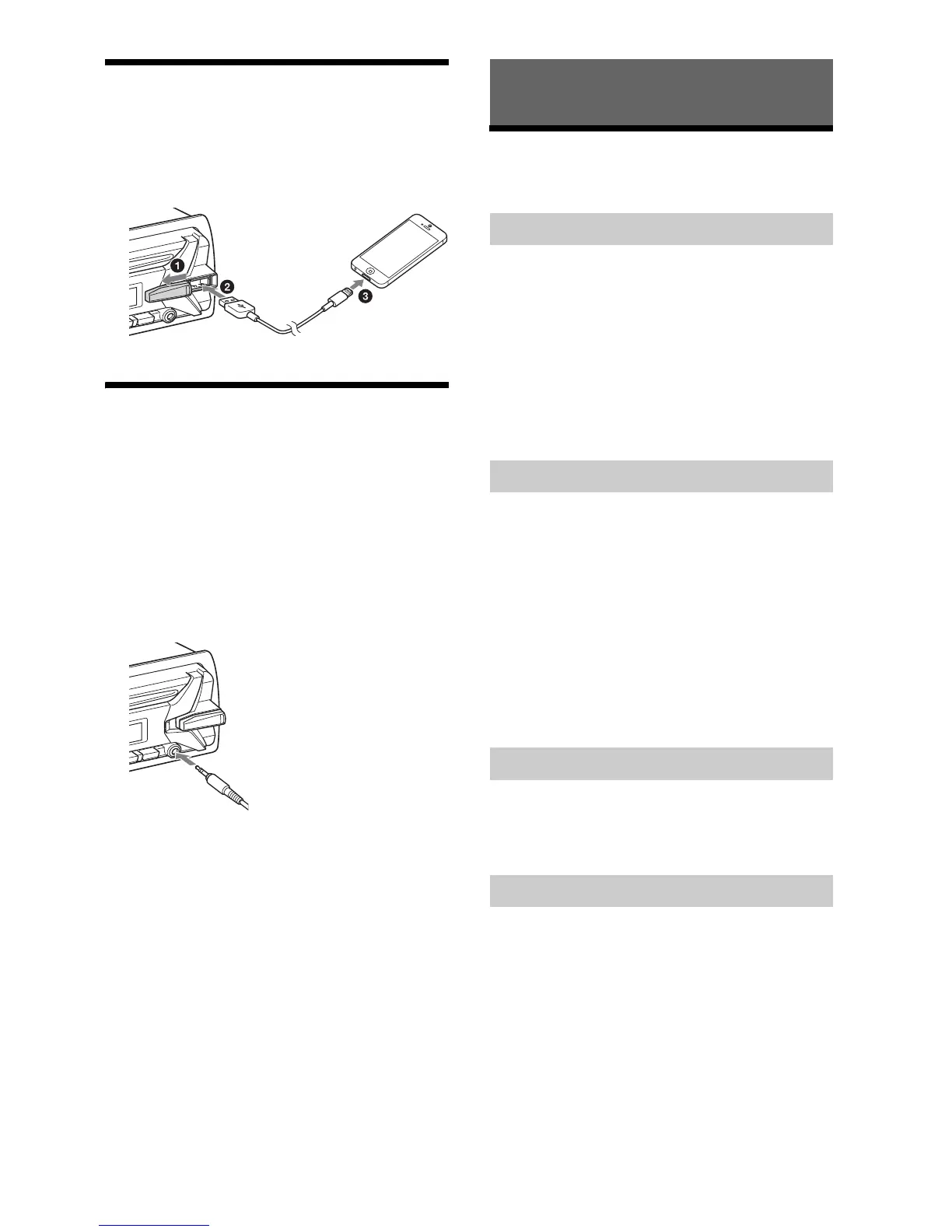
Connecting an iPod/USB Device
1 Turn down the volume on the unit.
2 Connect the iPod/USB device to the unit.
To connect an iPod/iPhone, use the USB
connection cable for iPod (not supplied).
Connecting Other Portable
Audio Device
1 Turn off the portable audio device.
2 Turn down the volume on the unit.
3 Connect the portable audio device to the
AUX input jack (stereo mini jack) on the
unit with a connecting cord (not
supplied)*.
* Be sure to use a straight type plug.
4 Press SRC to select [AUX].
To match the volume level of the connected
device to other sources
Start playback of the portable audio device at a
moderate volume, and set your usual listening
volume on the unit.
Press MENU, then select [SOUND] [AUX VOL]
(page 10).
Listening to the Radio
To listen to the radio, press SRC to select [TUNER].
1 Press MODE to change the band (FM1,
FM2, FM3, AM1 or AM2).
2 Press MENU, rotate the control dial to
select [GENERAL], then press it.
3 Rotate the control dial to select [BTM],
then press it.
The unit stores stations in order of frequency on
the number buttons.
1 Press MODE to change the band (FM1,
FM2, FM3, AM1 or AM2).
2 Perform tuning.
To tune manually
Press and hold SEEK +/– to locate the
approximate frequency, then press SEEK +/–
repeatedly to fine adjust to the desired
frequency.
To tune automatically
Press SEEK +/–.
Scanning stops when the unit receives a station.
1 While receiving the station that you want
to store, press and hold a number button
(1 to 6) until [MEM] appears.
1 Select the band, then press a number
button (1 to 6).
Listening to the Radio
Storing automatically (BTM)
Tuning
Storing manually
Receiving the stored stations


 To Next Page