Need help?
Do you have a question about the Sony CFI-1216A and is the answer not in the manual?
Steps to reconfigure and attach the base for vertical console placement.
Steps to reconfigure and attach the base for horizontal console placement.
Connect the console to the internet using a LAN cable for wired connection.
Set TV input to HDMI and power on the PS5 console.
Connect the wireless controller using a USB cable and press the PS button.
Follow on-screen instructions for language, network, and power settings.
Enjoy supported PS4 games on your PS5 console, with potential feature differences.
Connect PS4 and PS5 to transfer game saves, user data, and downloaded content.
Set restrictions for children's game play, chat, and time limits.
Understand game rating icons for age-appropriateness in different regions.
Navigate between games and media content on the console's home screen.
Access features and settings quickly from the control centre.
Insert a game disc and follow prompts to copy data and play.
Download and play games purchased from the PlayStation Store.
Connect the controller to the console via USB cable for charging.
Control microphone mute status and sound output from the controller.
Connect and assign numbers to up to four controllers.
Enter rest mode for power saving, charging, and automatic updates.
Completely shut down the PS5 console via the control centre.
Learn about safe usage, warranty, and product specifications.
Find detailed information on console configuration and functions.
Access online troubleshooting and FAQs on the PlayStation website.
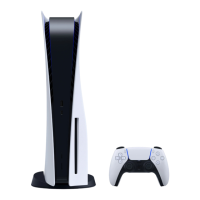
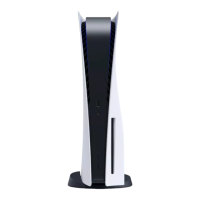
The PlayStation 5 (PS5) is a home video game console developed by Sony Interactive Entertainment. It serves as the successor to the PlayStation 4 and is designed to provide an immersive gaming experience with advanced graphics, fast loading times, and a new controller.
The PS5 primarily functions as a gaming console, allowing users to play a wide variety of video games, including both PS5-specific titles and supported PlayStation 4 games. It also serves as a multimedia entertainment hub, enabling users to access streaming services, watch videos, and listen to music through various apps. The console supports both physical game discs and digital downloads from the PlayStation Store.
Console Setup: To begin, the console's base must be attached. Whether positioning the console vertically or horizontally, the base needs to be reconfigured. For vertical placement, the console is laid with its rear side up, a cap is removed from a screw hole, and the screw is then taken from the bottom of the base. The cap is stored in the base, and the base is attached and secured with the screw, which can be tightened by hand or with a coin. For horizontal placement, the console is placed with its rear side up, and the base is aligned with a marked area on the console before being pressed firmly into place. In both orientations, ensure the hook on the base is correctly positioned before attachment.
Connectivity: The PS5 connects to a TV or monitor via an HDMI cable. It also requires an AC power cord for electricity. For internet access, users can connect a LAN cable for a wired connection or utilize Wi-Fi for a wireless connection.
Powering On and Initial Setup: To turn on the PS5, press the power button on the console. The power indicator will blink blue and then turn white. Upon initial startup, the console guides the user through a setup process, which includes selecting a language, configuring internet connection settings, and managing power save settings. Users can create a new account or sign in with an existing PlayStation Network account. The setup also allows for downloading purchased PS5 games and media apps, and transferring data from a PS4 console if applicable. The screen reader feature can be activated if the console is left idle for 60 seconds after turning on, providing audio guidance for on-screen text and important information.
Controller Usage: The wireless controller needs to be paired with the console by connecting it with a USB cable to a USB port on the console. Once connected, pressing the PS button on the controller will turn it on. The controller can be charged while the console is on or in rest mode. In rest mode, the light bar on the controller slowly blinks orange during charging and turns off when fully charged. Up to four controllers can be used simultaneously, with player indicators lighting up to show each controller's assigned number. The controller also features a mute button for the microphone, which can be pressed to toggle between muted (button lit) and unmuted (button off) states. Holding the mute button mutes the mic and turns off sound output from the controller's speakers and the TV.
Home Screen and Navigation: The home screen is divided into two main content types: games and media. Users can switch between these home screens. The games home displays installed games, access to the PlayStation Store, and other game-related apps. The media home provides access to music, video, and other non-game related apps. The "X" button confirms selected items. To return to the home screen from within a game or app, select "Home" from the control center or press and hold the PS button on the controller. The "Hub" feature provides related information for the selected game or app.
Control Centre: Pressing the PS button opens the control center, offering quick access to various features without leaving the current game or app. The control center displays "Cards" related to ongoing activities, allowing users to learn more or jump to the next activity. It also provides "Controls" to return to the home screen, turn off the PS5 console, and access other basic functions and settings frequently used during gameplay.
Playing Games: Games can be played from physical discs or as digital downloads. When a disc is inserted, game data begins copying, and a notification appears when it's ready to play. Digital games are downloaded from the PlayStation Store, with a notification indicating when they are ready. The "eject" button is used to remove a disc.
Parental Controls: The PS5 offers robust parental controls, allowing adults to manage settings for children using the console. Restrictions can be set on game content, play duration, chat features, and more. Each adult and child requires a separate account, with child accounts linked to an adult's account to form a family. Parental controls can only be set for children within the family. Child accounts can be created and parental controls set simultaneously by selecting "Add User" from the user selection screen and following the prompts. Parental control settings can be reviewed and updated via the "Settings" > "Family and Parental Controls" menu. Game rating icons (e.g., PEGI in Europe, Africa, and India; USK in Germany) help determine age-appropriate content.
Shutting Down: The PS5 has a "rest mode," a power-saving state where it can charge controllers, update system software, and suspend games or apps. To enter rest mode, select "Power" from the control center, then "Enter Rest Mode." The power indicator blinks white and then turns orange. To exit rest mode, press the PS button. To completely turn off the console, select "Power" from the control center, then "Turn Off PS5." The power indicator blinks white and then turns off. It is crucial to disconnect the AC power cord only when the power indicator is off to prevent data loss or console damage.
System Software Updates: The console's system software can be automatically updated, especially when in rest mode, ensuring optimal performance and access to the latest features.
Data Transfer and Storage: Users can transfer game save data, user information, and downloaded content from a PS4 console to the PS5. Additionally, if a USB drive was used as extended storage for a PS4, it can continue to be used with the PS5 by simply connecting it.
Power Saving Settings: The PS5 is set to "Low Power Use" in rest mode by default to conserve energy. Users can customize power saving settings, including options for supplying power to USB ports in rest mode, through the "Settings" > "System" > "Power Saving" menu.
Account Management: Users can manage their accounts, including creating new ones or signing in with existing PlayStation Network accounts. Settings can be adjusted at any time by navigating to "Settings" from the home screen.
Troubleshooting and Support: For further assistance, users can refer to the supplied "Safety Guide" for product warranty terms and specifications. The "User's Guide," accessible from the PS5 home screen via "Settings" > "User's Guide, Health and Safety, and Other Information," provides comprehensive information on configuring settings and using functions. Online support, including step-by-step troubleshooting and FAQs, is available on the PlayStation website.
 General
| Model | CFI-1216A |
|---|---|
| Platform | PlayStation 5 |
| Category | Game Console |
| Manufacturer | Sony |
| Release Year | 2020 |
| Product Line | PlayStation |
| RAM | 16 GB GDDR6 |
| Storage | 825 GB SSD |
| Expandable Storage | NVMe SSD slot |
| Resolution | Up to 8K |
| Frame Rate | Up to 120 FPS |
| Ray Tracing | Yes |
| Video Output | HDMI 2.1 |
| Audio | Tempest 3D AudioTech |
| Connectivity | Wi-Fi 6, Bluetooth 5.1, Ethernet |
| Ports | USB Type-A, USB Type-C, HDMI, Ethernet |
| Dimensions | 390mm x 104mm x 260mm |
| Weight | 4.5 kg |
| Power Consumption | 350W |
| Operating System | PlayStation 5 System Software |
| Controller | DualSense |
| CPU | AMD Zen 2, 8-core, 3.5GHz |
| GPU | AMD RDNA 2 |
| Optical Drive | 4K UHD Blu-ray |
| Backward Compatibility | PS4 games |


 To Next Page