Need help?
Do you have a question about the Sony CFI-1202A and is the answer not in the manual?
The provided document is a Quick Start Guide for the PlayStation®5 console, model CFI-1202A. It outlines the initial setup, basic usage, and parental control features of the device.
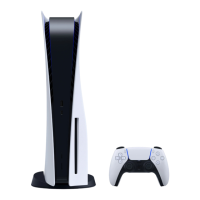
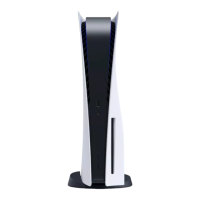
The PlayStation®5 is a home video game console developed by Sony Interactive Entertainment. It is designed to play video games and other media applications, offering both disc-based and digital game options. The console can be used in either a vertical or horizontal position, requiring a reconfigurable base to ensure stability.
The guide begins by detailing the process of attaching the base to the console. Whether the console is placed vertically or horizontally, the base must be securely attached. For vertical placement, the console is placed rear-side up, a cap is removed from a screw hole, and a screw is taken from the base's bottom to secure the base. A coin can be used to tighten the screw. For horizontal placement, the console is also placed rear-side up, and the base is aligned with a marked area on the console before being pressed firmly into place. The base has a hook that needs to be in a specific position for attachment, which is illustrated in the guide.
After attaching the base, the next step involves connecting the HDMI cable and the AC power cord. The console uses included cables for these connections, and it's advised to make all connections before plugging the AC power cord into an electricity supply. The HDMI OUT port on the console connects to the HDMI IN port on a television, and the AC IN connector on the console connects to an electricity supply via the AC power cord.
For internet connectivity, users can either connect a LAN cable (not included) for a wired connection or use Wi-Fi®. If Wi-Fi® is preferred, the LAN cable step can be skipped.
Once the physical connections are made, the user needs to turn on their TV and set the input to HDMI. Then, the PlayStation®5 console is powered on by pressing the (power) button on the front of the console. The power indicator blinks blue and then turns white, indicating the console is on. An accessibility feature is mentioned: if the console is left idle for 60 seconds after turning on, the screen reader activates, reading on-screen text and important information aloud in certain languages.
The guide then explains how to connect a wireless controller. To pair a controller, it must be connected to a USB port on the console using a USB cable. Once connected, pressing the (PS) button on the controller turns it on and initiates the pairing process. The console is then ready for personalization, where users can follow on-screen instructions to set up their console, including language selection, internet connection settings, and power save settings. Users can also set up an account, either by creating a new one or signing in with an existing PlayStation®4 account. The guide also mentions the ability to download purchased PS5™ games and media apps, and transfer data from a PS4™ console to a PS5 console. The setup is complete when "Welcome to PlayStation 5" appears on the screen.
The console offers a "Home screen" with two types of content: games and media. The games home displays games, PlayStation™Store, and game-related apps, while the media home shows music, video, and non-game related apps. Users can switch between these home screens. The home screen also includes a search function, settings, and profile editing. A "Hub" provides more information about selected games or apps. The ☑ button confirms selected items, and the Home icon or pressing and holding the (PS) button returns to the home screen.
The "Control centre" is accessed by pressing the (PS) button, allowing users to access various features without leaving their game or app. It displays "Cards" related to games and activities, offering quick access to information or actions. The control centre also provides "Controls" to return to the home screen (Home icon) or turn off the console (Power icon), as well as other basic functions and settings frequently used during gameplay.
Playing games can be done either from a disc or digitally. For disc-based games, the disc is inserted, and game data begins copying. A notification appears when the game is ready to play, and it can be selected from the games home. Discs are ejected by pressing the ▲ (eject) button. For digital games, they are downloaded from PlayStation Store. A notification indicates when the game is downloaded and ready, and it can then be selected from the games home. To purchase and download games, an internet connection and account sign-in are required. PlayStation™Network and PlayStation Store are subject to terms of use, country, and language restrictions, with users responsible for internet service fees. Age restrictions and parental consent apply for users under 18.
The guide also covers controller usage. Controllers can be charged by connecting them to the console's USB port with a USB cable while the console is on or in rest mode. The light bar blinks orange during charging and turns off when complete. Multiple controllers (up to 4) can be used, with the (PS) button assigning numbers to them, indicated by the player indicator lights. The microphone on the controller can be muted by pressing the mute button, which lights up when muted. Holding the mute button mutes both the mic and sound output from the controller and TV speakers. The console can be turned on by pressing the (PS) button on a paired controller.
The guide includes information on "Shutting down" the console. It warns against disconnecting the AC power cord while the power indicator is solid or blinking, as this can lead to data loss or corruption and damage the console.
The console can be put into "rest mode," a power-saving mode that allows for controller charging via USB ports, automatic system software updates, and suspending games or apps while powered down. Rest mode settings can be configured in Settings > System > Power Saving > Features Available in Rest Mode. To enter rest mode, users select Power from the control centre and then Enter Rest Mode. The power indicator blinks white and then turns orange. To exit rest mode, the (PS) button is pressed.
To turn off the console completely, users select Power from the control centre and then Turn Off PS5. The power indicator blinks white and then the console turns off.
Parental controls allow managing settings for children using the PS5 console, including restrictions on games, play duration, and chat features. Each adult and child needs a separate account. When a child's account is created, it links to the adult's account, forming a family. Parental controls can only be set for children within the family. Existing PS4 accounts and their family/parental control settings carry over to the PS5.
To create a child account, users press the (PS) button to open the control centre, select their profile picture, then Switch User, and finally Add User from the user selection screen. Parental control settings can be reviewed and changed by selecting Settings > Family and Parental Controls from the home screen.
Game rating icons (Australia and New Zealand) are provided to help determine age-appropriateness for games.
The guide directs users to a "Safety Guide" for safe usage, product warranty, and specifications. A "User's Guide" is available from the PS5 console's home screen (Settings > User's Guide, Health and Safety, and Other Information > User's Guide) for comprehensive information on settings and functions. A "Customer Support Website" (playstation.com/help) offers online support, troubleshooting, and FAQs.
 General
| Model | CFI-1202A |
|---|---|
| Platform | PlayStation 5 |
| Category | Game Console |
| Manufacturer | Sony |
| Dimensions | 390mm x 104mm x 260mm |
| Weight | 4.5 kg |
| RAM | 16 GB GDDR6 |
| Memory | 16GB GDDR6 |
| Optical Drive | 4K UHD Blu-ray Drive |
| Output Resolution | Up to 8K |
| Ray Tracing | Yes |
| Ports | USB Type-A, USB Type-C, HDMI, Ethernet |
| Power Consumption | 350 W |
| CPU | AMD Zen 2 |
| GPU | AMD RDNA 2 |
| Storage | 825GB |
| Resolution | Up to 8K |
| Backward Compatibility | PS4 games |
| Wireless Connectivity | Bluetooth 5.1 |
| Included Accessories | DualSense Wireless Controller |


 To Next Page