To delete an email message
1
In your email inbox, mark the checkbox for the message that you want to
delete, then tap .
2
Tap Delete.
In the email inbox view, you can also flick a message to the right to delete it.
Email account settings
To remove an email account from your device
1
From your Home screen, tap .
2
Find and tap Email.
3
Press
, then tap Settings.
4
Select the account you want to remove.
5
Tap Delete account > OK.
To change the inbox check frequency
1
From your Home screen, tap
.
2
Find and tap Email.
3
Tap
, then tap Settings.
4
Select the account for which you want to change the inbox check frequency.
5
Tap Inbox check frequency > Check frequency and select an option.
To set an Out of Office auto-reply in an Exchange Active Sync account
1
From your Home screen, tap
, then find and tap Email.
2
Press
, then tap Settings.
3
Select the EAS (Exchange Active Sync) account for which you want to set an
Out of Office auto-reply.
4
Tap Out of office.
5
Drag the slider beside Out of office to the right to turn on the function.
6
If needed, mark the Set time range checkbox and set the time range for the
auto reply.
7
Enter your Out of Office message in the body text field.
8
Tap OK to confirm.
Gmail™
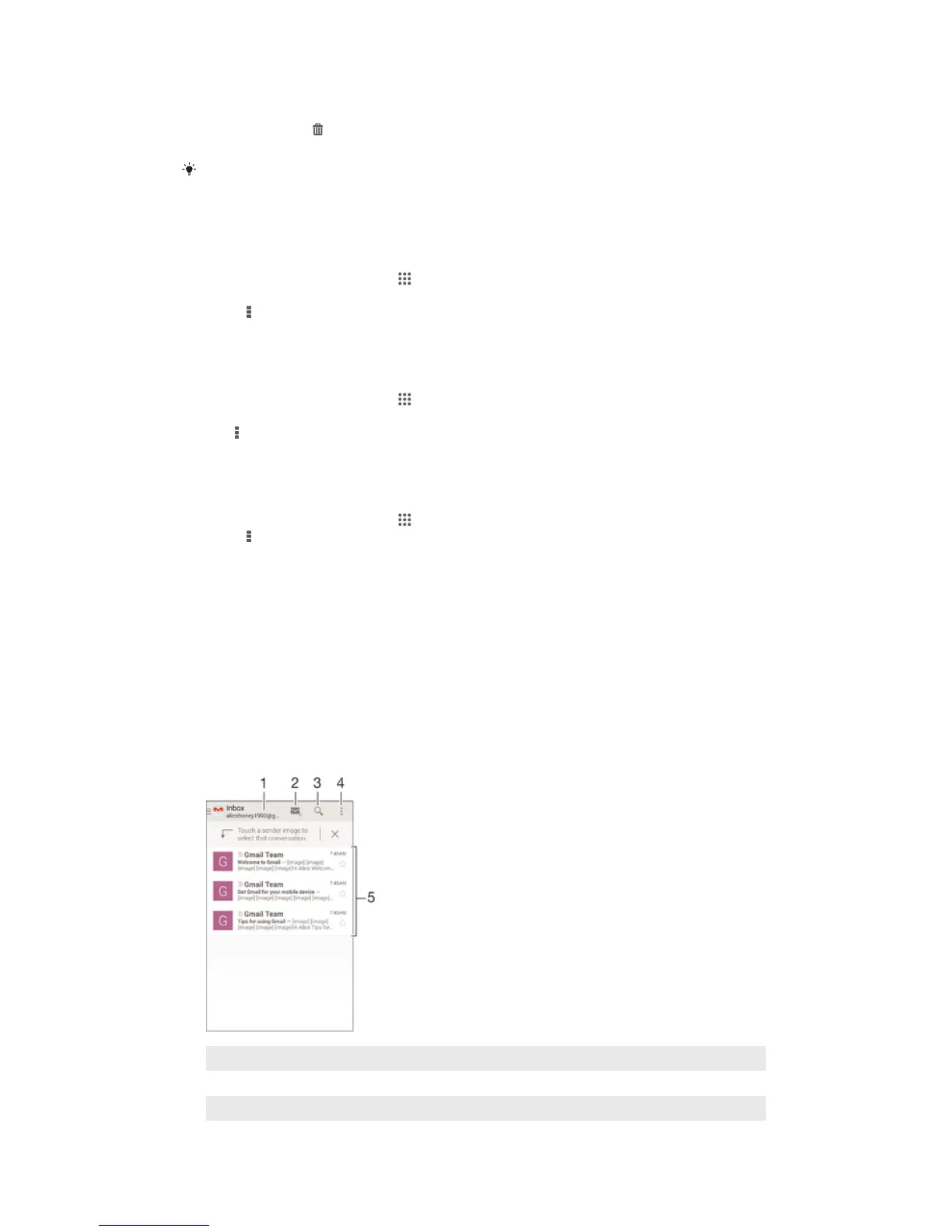
If you have a Google™ account, you can use the Gmail™ application to read and
write email messages.
1 View a list of all Gmail accounts and recent folders
2 Write a new email message
3 Search for email messages
62
This is an Internet version of this publication. © Print only for private use.






 To Next Page