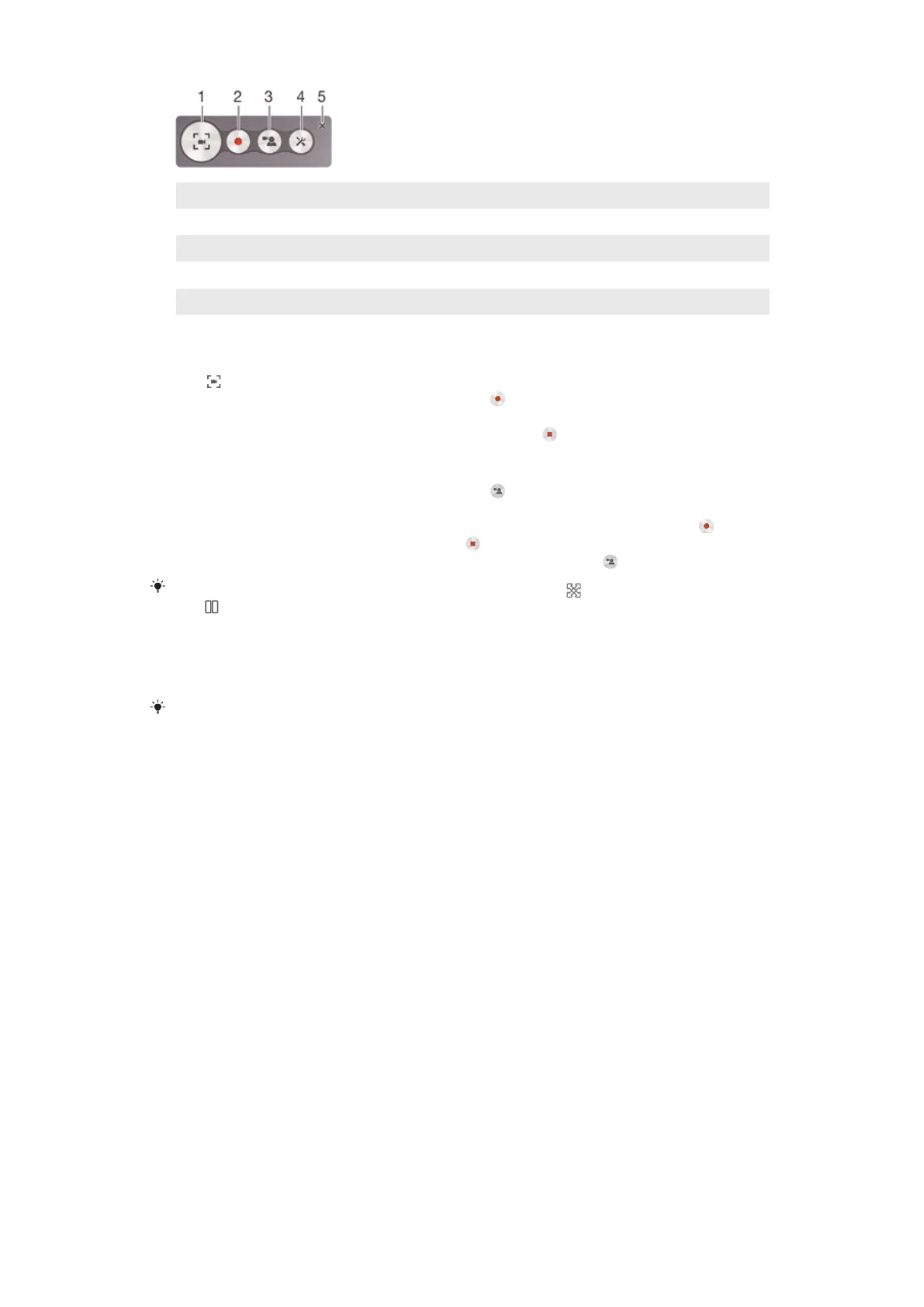
1 Minimise/Resume the record screen window
2 Record your screen
3 Record your screen when the front camera is activated
4 Access the screen recording settings
5 Close the screen recording window
To record your screen
1
Press and hold down the power key until a prompt window appears.
2
Tap
.
3
When the record screen window is open, tap . The timer for recording
appears.
4
To stop the screen recording, tap the timer, then tap
.
To record your screen when the front camera is activated
1
When the record screen window is open, tap to make front camera screen
recording window appears.
2
To start recording your screen and video captured by the front camera, tap .
3
To stop recording, tap the timer, then tap
.
4
To deactivate the front camera screen recording window, tap .
When the front camera screen recording window opens, drag
to resize the window, and
tap to record a still picture.
To view the recent screen recordings
•
After your screen recordings finish, drag the status bar downwards, then tap to
view the most recent recordings of your screen.
You can also view your screen recordings in the Album application.
Status and notifications
The icons in the status bar inform you of events such as new messages and calendar
notifications, activities in progress such as file downloads, and status information
such as battery level and signal strength. You can drag down the status bar to open
the Notification panel and handle your notifications.
22
This is an Internet version of this publication. © Print only for private use.








 To Next Page