To Edit Contact Information about Yourself
1
From your Homescreen, tap , then tap .
2
Tap Myself, then tap .
3
Enter the new information or make the changes you want.
4
When you are done, tap SAVE.
To Create a New Contact from a Text Message
1
From your Homescreen, tap , and then find and tap .
2
Tap the icon next to the phone number, and then tap Save.
3
Select an existing contact, or tap Create new contact.
4
Edit the contact information and tap SAVE.
Adding medical and emergency contact information
You can add and edit ICE (In Case of Emergency) information in the Contacts
application. You can enter medical details, such as allergies and medications that you are
using, plus information about relatives and friends who can be contacted in case of an
emergency. After setup, your ICE information can be accessed from the security
lockscreen. This means that even if the screen is locked, for example, by a PIN, pattern,
or password, emergency personnel can still retrieve your ICE information.
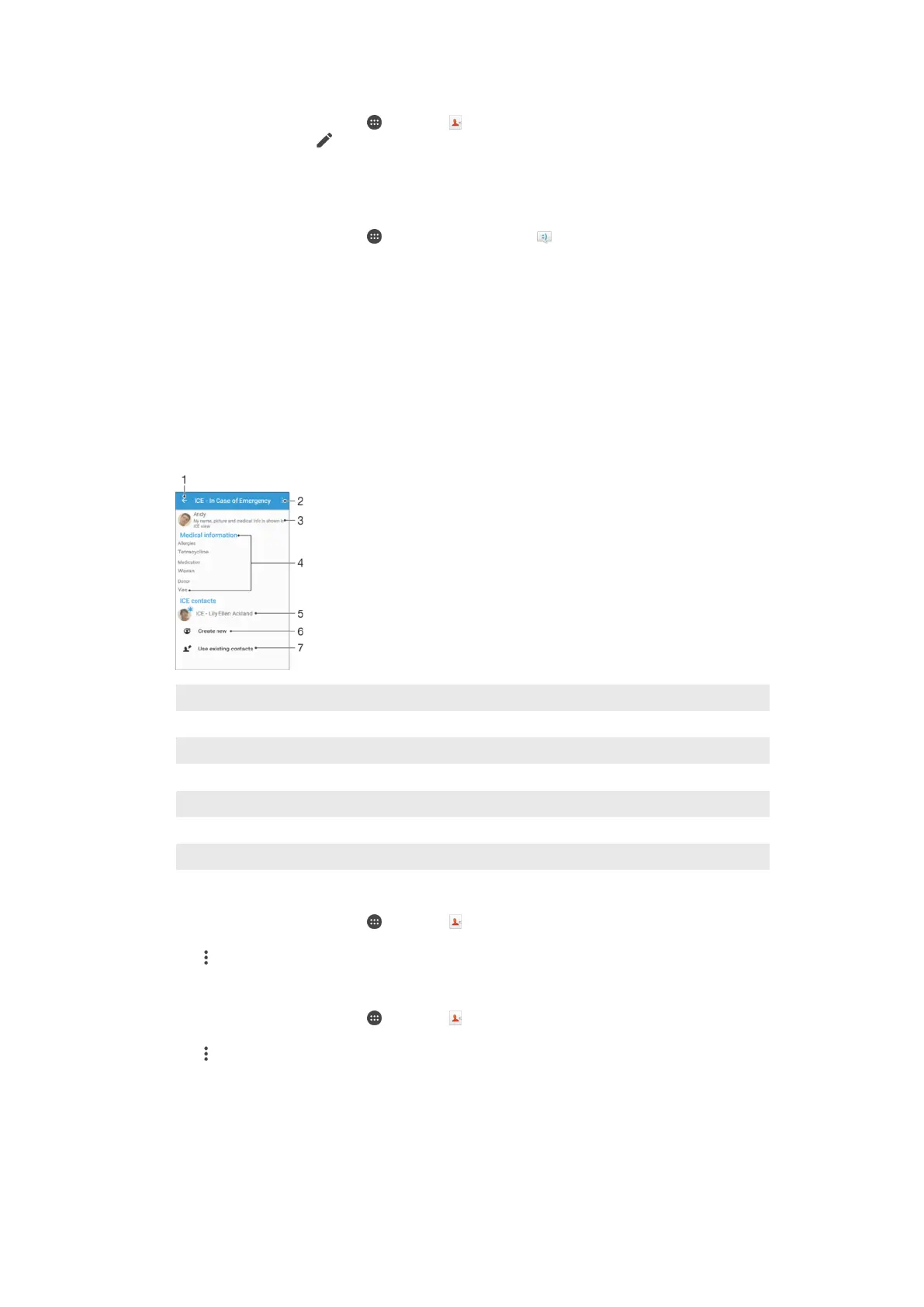
1 Go back to the main Contacts screen
2 View more options
3 Show your medical and personal information as part of the ICE information
4 Medical information
5 ICE contact list
6 Create new ICE contacts
7 Use existing contacts as ICE contacts
To show your medical and personal information as part of the ICE information
1
From your Homescreen, tap , then tap .
2
Tap ICE – In Case of Emergency.
3
Tap , then mark the Show personal information checkbox.
To Enter Your Medical Information
1
From your Homescreen, tap , then tap .
2
Tap ICE – In Case of Emergency.
3
Tap , then tap Edit medical info.
4
Edit the desired information.
5
When you are done, tap SAVE.
83
This is an internet version of this publication. © Print only for private use.






 To Next Page