masterpage:Left
specdef v20060111
filename[G:\FM\Sony\0607\DAV-X10_CEL\Source\3210565321DAVX10\gb11oth.fm]
model name [DAV-X10]
[3-210-565-32(1)]
74
GB
The brightness of the front panel display and
soft-touch buttons can be set to either of 2 levels.
Press DIMMER.
Each time you press DIMMER, the brightness of
the front panel display and soft-touch buttons
changes. The default setting is underlined.
• “DIMMER OFF”
: Bright.
• “DIMMER ON”: The front panel display and
soft-touch buttons become dark.
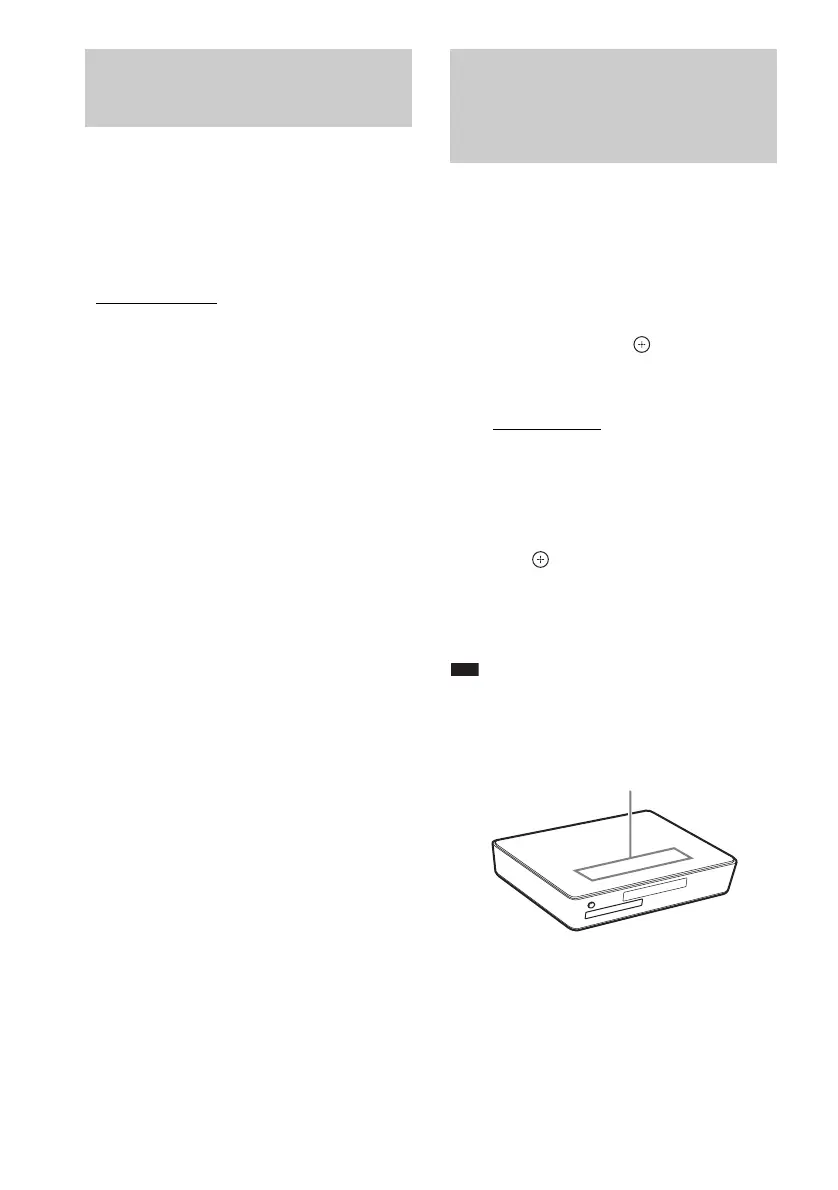
You can select the way of displaying the soft-
touch buttons located on the top of the unit.
1 Press SYSTEM MENU.
2 Press X/x repeatedly until “ILLUM
MODE” appears in the front panel
display, then press or
c.
3 Press X/x to select a setting.
The default setting is underlined.
• “STANDARD”
: sets the soft-touch
buttons lit up always.
• “SIMPLE”: sets the soft-touch buttons lit
up when you touch them. The soft-touch
buttons turn off if you do not touch them
for about 10 seconds.
4 Press .
The setting is made.
5 Press SYSTEM MENU.
The system menu turns off.
Note
• When the soft-touch buttons turn off in “SIMPLE”
mode, first touch the soft-touch button area so that the
soft-touch buttons light up, then operate the system
with them.
Changing the Brightness
of the Front Panel Display
Changing the Display
Appearance of the Soft-
touch Buttons
(ILLUMINATION MODE)
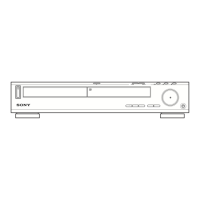
Soft-touch button area



 To Next Page