49
GB
Advanced operations
4 Select an image.
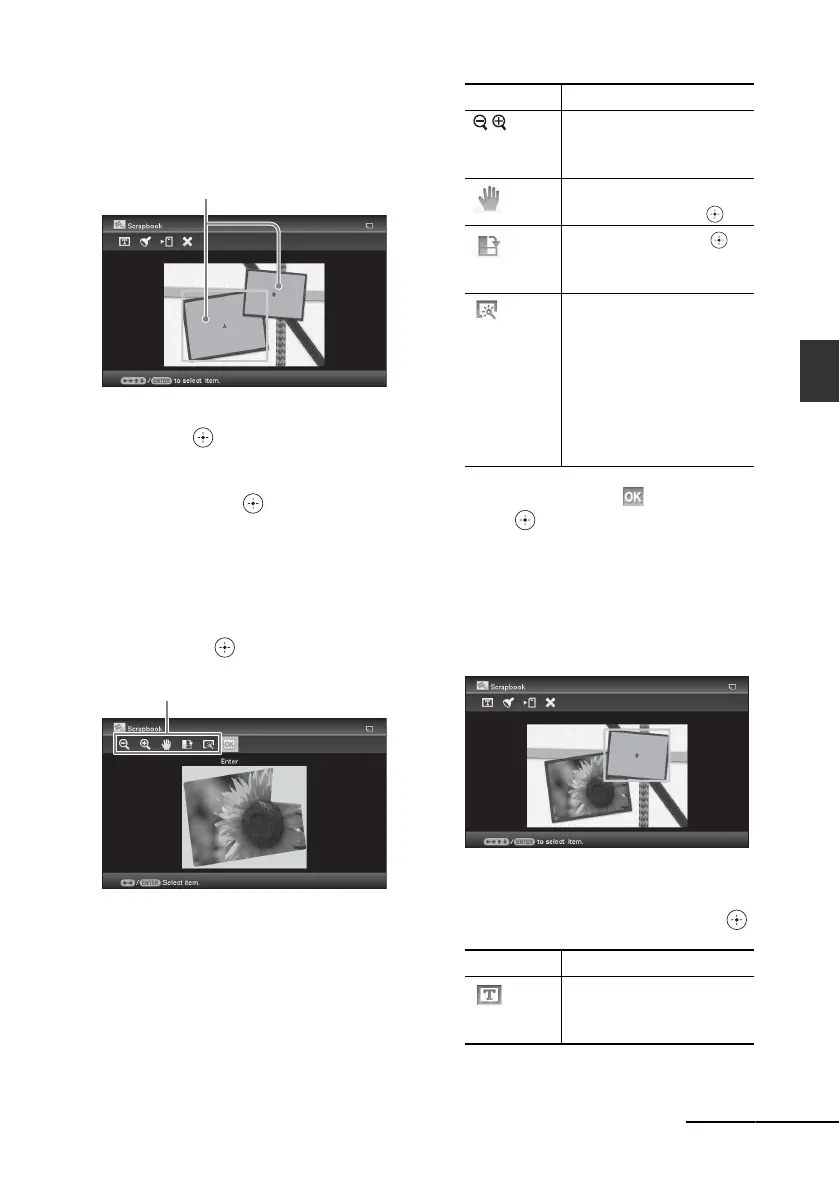
When you select a template with multiple
images, repeat the procedures below to
select an image for each area.
1Press B/b/v/V to select an image area,
then press .
The index view is displayed.
2Press B/b/v/V to select the desired
image, then press .
The window used for adjusting the
image is displayed.
5 Adjust the image size, position or
others of the selected image.
Press B/b to select the desired adjustment
item, then press .
6 Press B/b to select and then
press .
The selected image is added to the image
area.
• To add an image for another image
area, repeat steps 4 and 5.
• To superimpose characters or stamps on
the image, proceed with step 7.
7 Superimpose characters or stamps.
Press v/V to select the desired setting such
as stamp or characters, and then press .
Image area
Adjustment tools
Items Procedures
/ Increases or reduces the
size of an image when the
buttons are pressed.
Move the image with
B/b/
v/V, and then press .
Each time you press ,
the image rotates 90°
clockwise.
Automatically adjusts a
failed photo having
problems such as being
backlit, out-of-focus, or
showing the red-eye
phenomenon, when the
button is selected.
(page 60)
Items Procedures
Displays the keyboard to
input alphanumeric
characters.
Continued


 To Next Page