To download and install a system update from the Notifications panel
1
Drag the status bar downwards to open the Notifications panel.
2
Scroll down and select the desired system update, then tap Download.
3
When the download is finished, tap Install and follow the on-screen instructions
to complete the installation.
To download and install an application update from the Notifications panel
1
Drag the status bar downwards to open the Notifications panel.
2
Scroll down and select the desired application update, then tap Update. The
update installs automatically after download.
To install a new application from the Notifications panel
1
Drag the status bar downwards to open the Notifications panel.
2
Scroll down and select the desired application, then tap Install. The new
application installs automatically after download.
Updating your device using a computer
You can download and install software updates on your device using a computer
with an Internet connection. You need a USB cable and a PC or an Apple
®
Mac
®
computer running the Xperia™ Companion software.
If you don’t have the Xperia™ Companion software installed on the relevant computer,
connect your device to the computer using a USB cable and follow the on-screen installation
instructions.
To update your device using a computer
1
Make sure you have the Xperia™ Companion software installed on your PC or
Apple
®
Mac
®
computer.
2
Using a USB cable, connect your device to the computer.
3
Computer: Launch the Xperia™ Companion software. After a few moments, the
computer detects your device and searches for new software.
4
Computer: If a new software update is detected, a popup window appears.
Follow the on-screen instructions to run the relevant software updates.
When you connect the device to the computer via a USB cable, you are prompted to install the
software, or cancel, unless you have previously selected Do not show again .
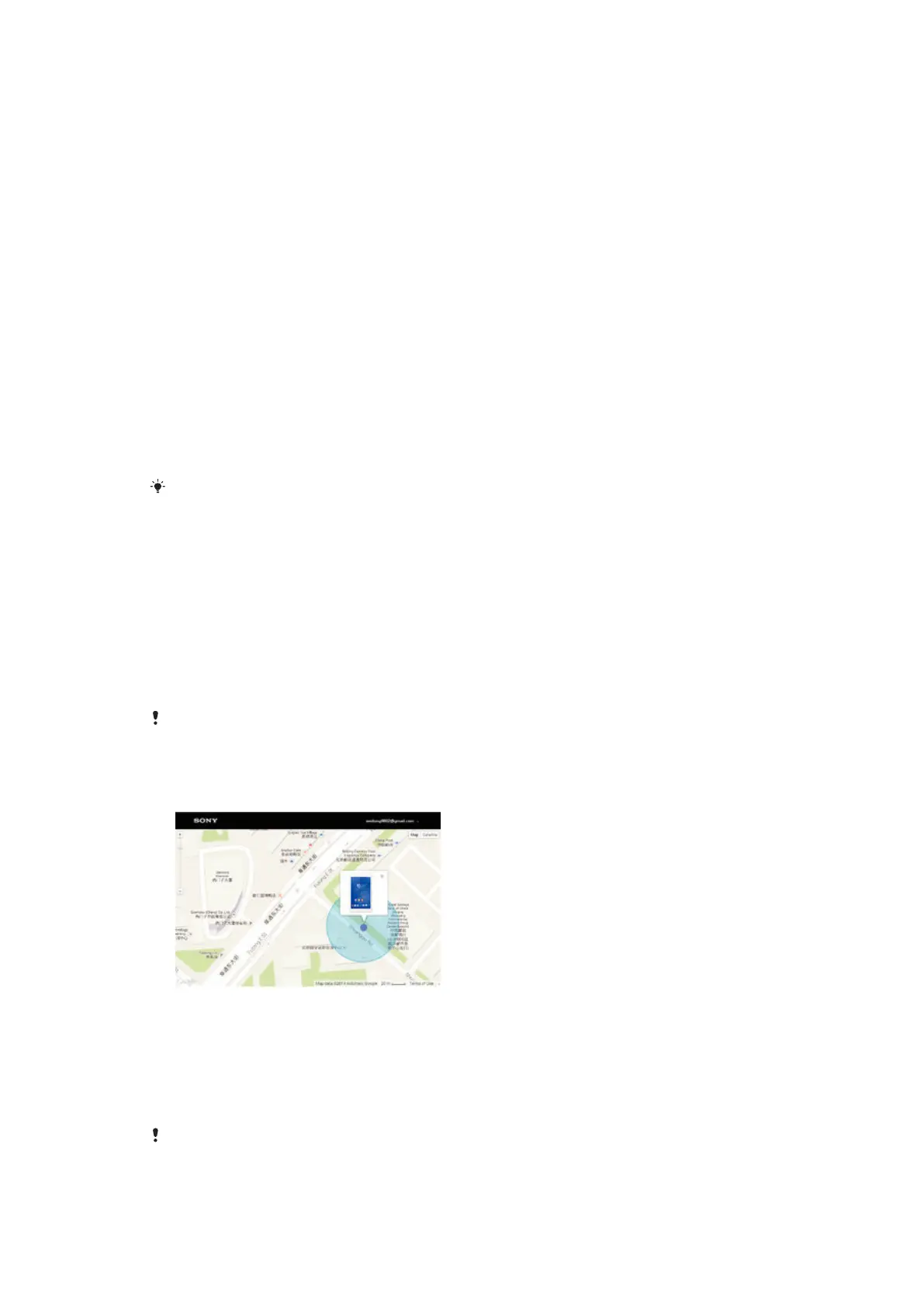
Finding a lost device
If you have a Google™ account, the my Xperia web service can help you locate and
secure your device if you ever lose it. You can:
•
Locate your device on a map.
•
Sound an alert even if the device is in silent mode.
•
Remotely lock the device and make the device display your contact information to
anyone who finds it.
•
As a last resort, remotely clear the internal and external memory of the device.
The my Xperia service may not be available in all countries/regions.
111
This is an Internet version of this publication. © Print only for private use.







 To Next Page