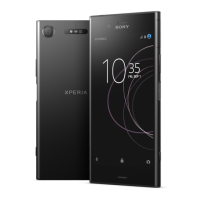
Camera
Taking photos and recording videos
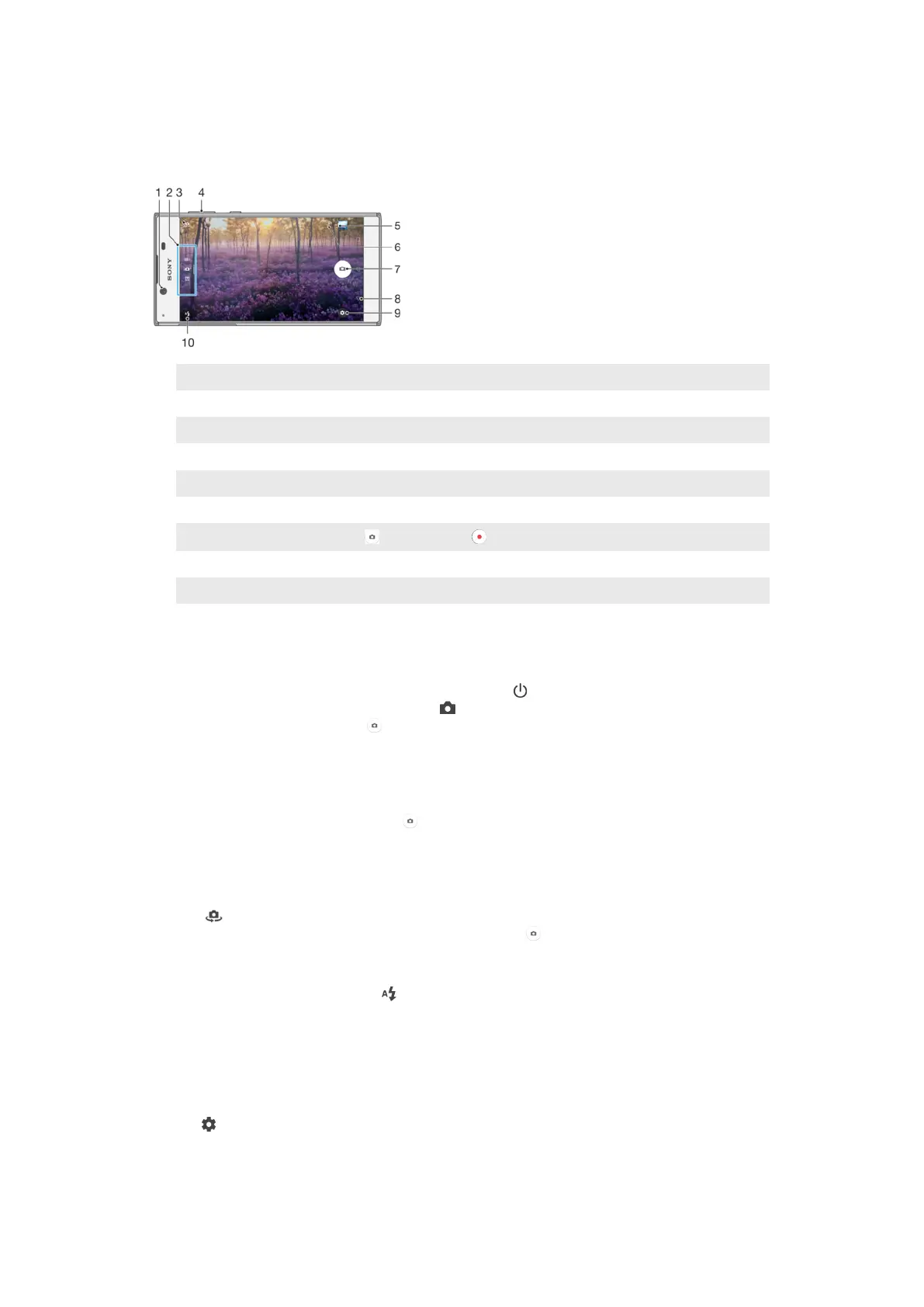
1 Front camera lens
2 Select capturing mode
3 Switch between the front and main camera
4 Zoom in or out
5 View photos and videos
6 Save location
7
Shutter button—take photos or record videos
8 Go back a step or exit the camera
9 Capturing mode settings
10 Flash settings
To Take a Photo From the Lockscreen
1
To activate the screen, briefly press the power key .
2
To activate the camera, touch and hold
, then swipe it anywhere.
3
After the camera opens, tap .
To take a photo by tapping the on-screen camera button
1
Activate the camera.
2
Point the camera toward the subject.
3
Tap the on-screen camera button
. The photo is taken as soon as you release
the camera button.
To Take a Selfie Using the Front Camera
1
Activate the camera.
2
Tap .
3
To take the photo, tap the on-screen camera button
.
To use the still camera flash
1
When the camera is open, tap .
2
Select your desired flash setting.
3
Take the photo.
To Use the Zoom Function
•
When the camera is open, pinch or spread on the camera screen.
•
You can also use the volume key, pressing up or down. To enable this function,
tap
, then tap More > Use Volume key as.
92
This is an internet version of this publication. © Print only for private use.



 To Next Page