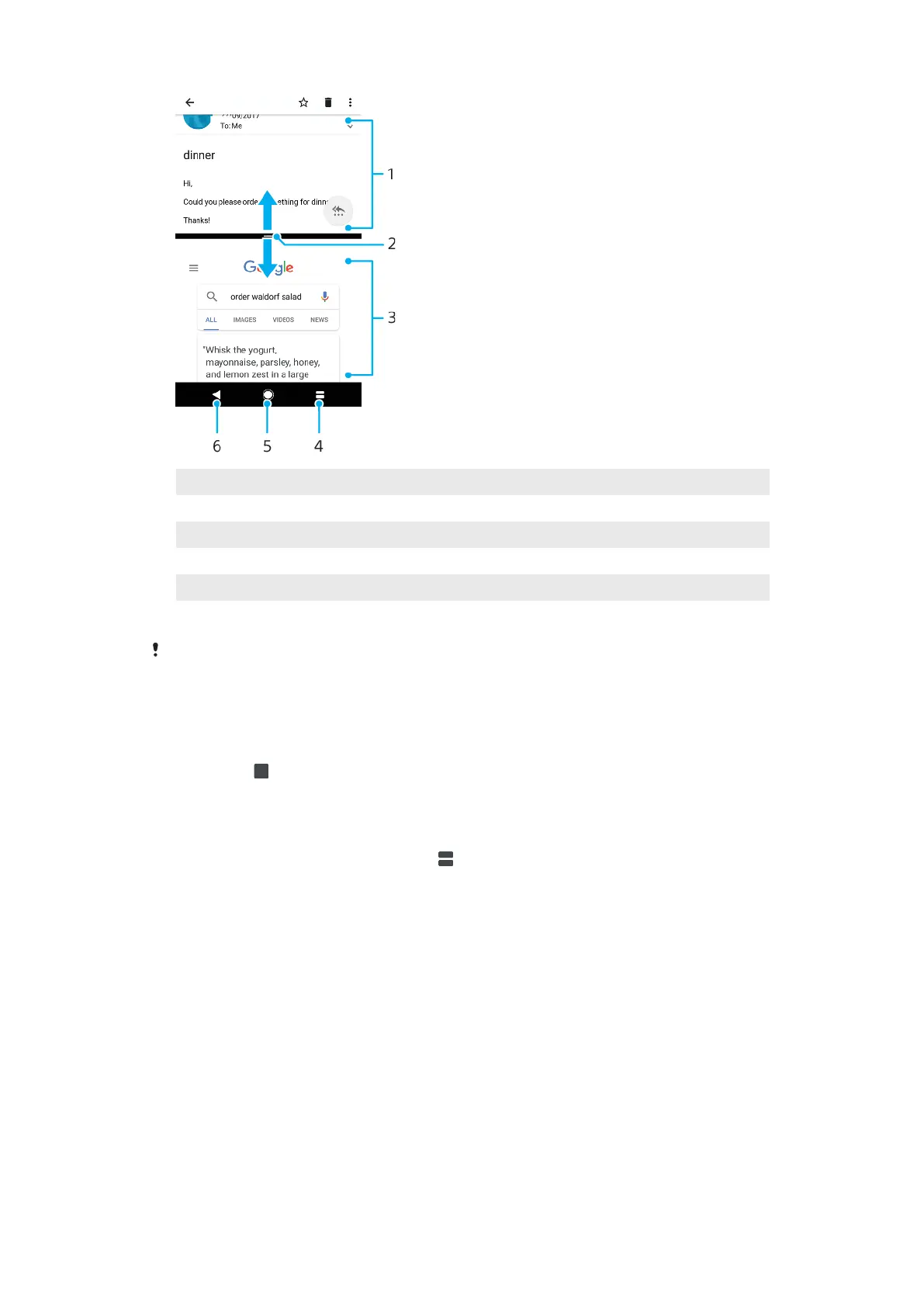
1 Application 1
2 Split screen border – Drag to resize windows
3 Application 2
4 Split screen key – Select a recently used application
5 Home key – Go back to the Home screen
6 Back key – Go back to the previous screen within an application or close the application
Not all applications support split screen mode.
To use split screen mode
1 Make sure that the two applications that you want to use in split screen
mode are open and running in the background.
2 Open the application that you would like to use in split screen mode, then
long press
. The application will be assigned to the first part of the split
screen.
3 Select the second desired application from the thumbnail list.
4 If you want to resize the split screen windows, drag the split screen border in
the centre.
5 To exit split screen mode, long press
while the split screen windows are
displayed.
One-handed mode
Enable one-handed mode to reduce display size so you can type with one hand
more easily. You can adjust the display size as desired.
To enable or disable One-handed mode
1 Find and tap Settings > Display > One-handed mode.
2 Tap the slider under One-handed mode to enable or disable the function.
3 To shrink the screen, swipe across the navigation bar.
4 To exit One-handed mode, swipe across the screen or tap an empty area on
the screen.
27
This is an internet version of this publication. © Print only for private use.










 To Next Page