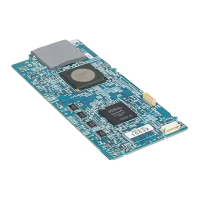
For Mac:
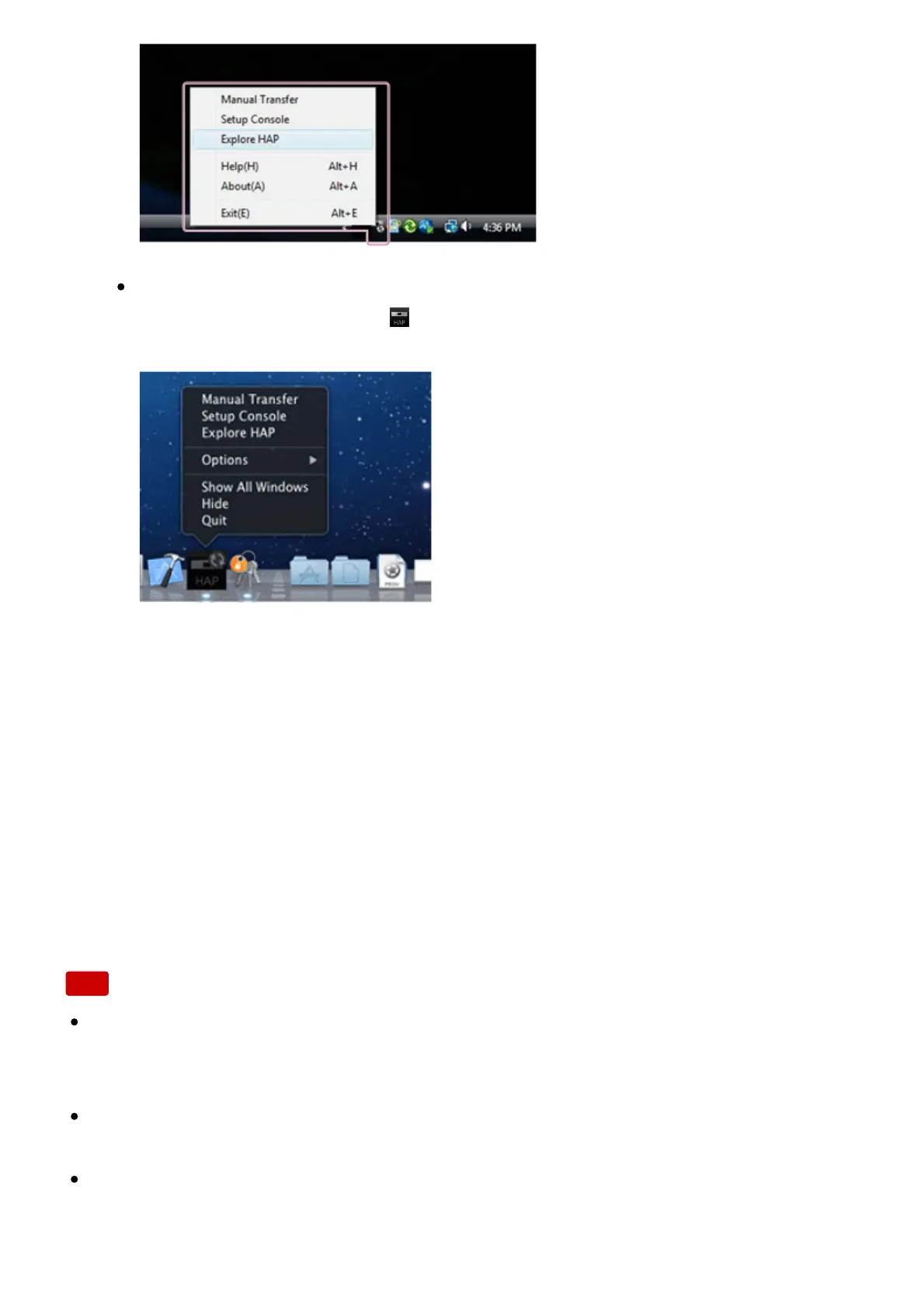
Select [Explore HAP] from
(the HAP Music Transfer icon) on the Dock of
your computer.
The Explorer window (for Windows) or the Finder (for Mac) opens and icon(s) of
the available shared folder(s) appear. ([HAP_Internal] appears for the internal
hard disk drive and [HAP_External] appears for the external hard disk drive if
one is connected.)
2. Select [HAP_Internal] (to select the internal hard disk drive) or [HAP_External]
(to select the external hard disk drive), and then keep selecting folders until you
reach the folder that contains the music files you want to delete.
3. Delete the music files.
Note
You can delete sample files that are pre-installed in the HDD AUDIO PLAYER. If
you perform the Factory Reset function on the HDD AUDIO PLAYER, the sample
files will be restored.
Do not transfer music files using HAP Music Transfer on your computer while
deleting music files in Explorer (for Windows) or in the Finder (for Mac).
Do not transfer music files from your smartphone or tablet while deleting music
files using Explorer (for Windows) or the Finder (for Mac).



 To Next Page