EasyManua.ls Logo

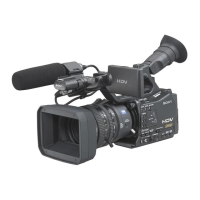
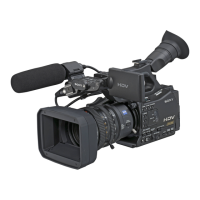
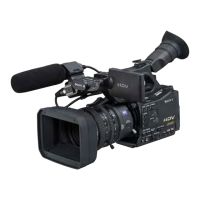
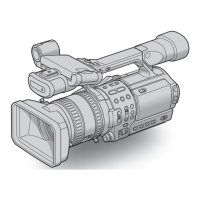
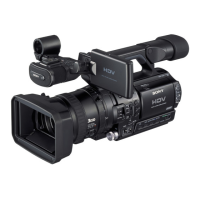
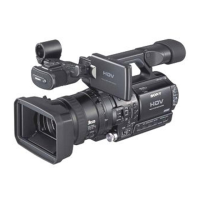
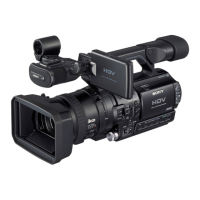
Sony HVR-Z7E/Z7P - User Manual

Sony HVR-Z7E/Z7P
146 pages
Print Icon
To Next Page IconTo Next Page
Loading...
3-280-848-11(1)
© 2008 Sony Corporation
http://www.sony.net/
Printed on 70% or more recycled paper
using VOC (Volatile Organic Compound)
-free vegetable oil based ink.
Printed in Japan
GBDigital HD Video Camera Recorder
Digital HD Video
Camera Recorder
Operating Guide
Before operating the unit, please read this manual thoroughly,
and retain it for future reference
HVR-Z7E/Z7P

Table of Contents

Questions and Answers

  • L
    lisafoxAug 19, 2025
    What to do if recording does not start on Sony HVR-Z7E/Z7P?
    • A
      awaltonAug 19, 2025
      If the Sony Camcorder doesn't start recording when you press the REC START/STOP button, ensure the POWER switch is set to CAMERA. Also, check if the tape has reached the end, and rewind or insert a new cassette. Verify that the write-protect tab of the cassette is set to REC or insert a new cassette. If moisture condensation has occurred, remove the cassette and leave the camcorder for at least 1 hour before re-inserting it. Finally, ensure that [REC CTL MODE] of [EXT REC CTRL] is set to other than [EXT ONLY].
  • T
    Tracy WilliamsAug 21, 2025
    How to fix no sound on Sony HVR-Z7E/Z7P Camcorder?
    • T
      Theresa BestAug 21, 2025
      If you experience no sound or only low sound from your Sony Camcorder, first, turn up the volume. Then, check the [DV AUDIO MIX] settings. Note that pictures recorded using [SMTH SLW REC] do not have sounds.
  • R
    Richard KingAug 25, 2025
    Why can't I view picture on TV from Sony Camcorder?
    • J
      Jay WrightAug 25, 2025
      If you cannot view the picture on the TV connected to your Sony Camcorder with the i.LINK cable, it may be due to the TV not being compatible with the HDV1080i specification. You can down convert the pictures recorded in HDV format and play back in DVCAM (DV) format (SD image quality). Alternatively, connect the TV with another connecting cable and play back pictures.
  • G
    Gerald BryanAug 26, 2025
    Why does Sony Camcorder freeze or sound break?
    • C
      Christian LeeAug 26, 2025
      If the movies freeze or the sound breaks off on your Sony Camcorder, this may occur if the tape or video head is dirty. Using the Sony mini DV cassette tape may resolve the issue.
  • A
    aliciaclarkAug 28, 2025
    How to fix blurry viewfinder on Sony HVR-Z7E/Z7P Camcorder?
    • S
      Seth FrankAug 28, 2025
      If the picture in the viewfinder of your Sony Camcorder is not clear, move the viewfinder lens adjustment lever until the picture appears clearly.
  • D
    Drew RobertsonAug 30, 2025
    How to fix auto focus on Sony HVR-Z7E/Z7P?
    • J
      Jon WoodwardAug 30, 2025
      If the auto focus on your Sony Camcorder does not function, set the focus ring to mode B and press the ASSIGN button to which [FOCUS] is assigned until the automatic focus function is enabled. If the automatic focus still doesn't work properly, adjust the focus manually.
  • C
    Courtney JoyceSep 1, 2025
    How to fix handle zoom on Sony Camcorder?
    • H
      Hailey McmillanSep 1, 2025
      If the handle zoom does not work on your Sony Camcorder, set the handle zoom speed switch to FIX or VAR.
  • L
    lmurraySep 3, 2025
    Why is my Sony HVR-Z7E/Z7P Camcorder remote not working?
    • L
      lindseyricardoSep 3, 2025
      If the Remote Commander for your Sony Camcorder isn't working, first set [REMOTE CTRL] to [ON]. Ensure there are no obstructions between the Remote Commander and the remote sensor. Keep strong light sources away from the remote sensor. Finally, insert a fresh battery in the compartment with its +/– terminals matching those of the compartment.
  • P
    parkjaimeSep 5, 2025
    How to fix Sony HVR-Z7E/Z7P not recording on Memory Stick Duo?
    • A
      Alison WilliamsSep 5, 2025
      If you cannot record on the “Memory Stick Duo” with your Sony Camcorder, assign [PHOTO] to an ASSIGN button. Check if the “Memory Stick Duo” is full and delete unnecessary pictures. If needed, format the “Memory Stick Duo” on your camcorder or insert another “Memory Stick Duo”.
  • B
    Barbara WigginsSep 7, 2025
    What to do if Sony HVR-Z7E/Z7P Camcorder does not operate?
    • T
      teresa12Sep 7, 2025
      If the Sony Camcorder does not operate even when the power is on, disconnect the AC Adaptor/Charger from the wall socket or remove the battery pack, then reconnect it after about 1 minute. You can also press the RESET button using a sharp-pointed object.

Summary

Getting Started with Your Camcorder

Checking Supplied Items

Verify all camcorder components are included.

Attaching Supplied Items

Instructions for mounting lenses and accessories.

Charging the Battery Pack

Procedure for charging the camcorder's battery.

Powering On and Holding the Camcorder

Guide to turning on the camcorder and proper handling.

Adjusting LCD Panel and Viewfinder

How to adjust the LCD screen and viewfinder for clear viewing.

Setting the Date and Time

Steps to set the camcorder's date and time.

Inserting Tape or Memory Stick Duo

Instructions for inserting recording media like tapes or Memory Sticks.

Recording and Playback Operations

Recording Movies

Step-by-step guide to recording video footage.

Changing Recording Settings

Adjusting parameters like zoom, focus, and exposure.

Assigning Functions to ASSIGN Buttons

Configuring custom buttons for quick access to functions.

Using Shot Transition

Storing and shifting camera settings for smooth scene transitions.

Marking Focal Point (Focus Marking)

Visual guide on the screen for setting focus points.

Playback Operations

How to view recorded movies and still images.

Changing Screen Display Settings

Managing on-screen indicators and data displays.

Locating Scenes on Tape

Methods for finding specific scenes by date or index.

Playing Picture on TV

Connecting the camcorder to a TV for playback.

Using the Camcorder Menu System

Navigating Menu Items

How to access and operate the camcorder's menu system.

Camera Settings Menu

Adjusting parameters like gain, white balance, and exposure.

Audio Settings Menu

Configuring audio input modes, levels, and noise reduction.

Display Settings Menu

Controlling on-screen indicators like zebra patterns and histograms.

Input;Output Settings Menu

Setting recording formats and external device connections.

Time and User Bit Settings Menu

Setting time codes, user bits, and synchronization.

Memory Card Settings Menu

Formatting, erasing, and organizing files on memory cards.

Other Basic Settings Menu

Configuring profiles, beep sounds, and remote control functions.

Dubbing and Editing Footage

Dubbing to VCR, DVD;HDD Device

Connecting and transferring footage to VCRs or HDD devices.

Recording Pictures from a VCR

Capturing video from a VCR via i.LINK.

Copying Movies to Computer

Transferring footage from tape to a computer for editing.

Troubleshooting Common Issues

Power, Screen, and Remote Issues

Resolving issues with power, LCD screen, and remote commander.

Cassette and Memory Stick Issues

Troubleshooting problems with tapes and Memory Sticks.

Recording Problems

Addressing issues that prevent recording or affect quality.

Playback Problems

Resolving issues related to playing back recorded content.

Connecting to TV Issues

Troubleshooting connection problems with TVs.

Computer Connection Issues

Resolving issues when connecting the camcorder to a computer.

Additional Information and Precautions

Using Camcorder Abroad

Information on power supply and TV color systems for international use.

Maintenance and Precautions

Guidelines for camcorder care, precautions, and format information.

About Memory Stick and InfoLITHIUM Battery

Details on Memory Stick compatibility and InfoLITHIUM battery features.

About i.LINK and x.v.Color

Explanation of i.LINK interface and x.v.Color technology.

Handling and Care of Camcorder

Instructions on proper handling, storage, and cleaning.

Quick Reference Guide

Identifying Parts and Controls

Diagrams and labels for all camcorder buttons and components.

LCD Screen and Viewfinder Indicators

Explanation of icons and indicators displayed on the screen.

Sony HVR-Z7E/Z7P Specifications

General IconGeneral
Optical Zoom12x
Filter Diameter72 mm
Video OutputHDMI, Component, Composite
TypeProfessional Camcorder
Sensor Type3x 1/3" ClearVid CMOS Sensor
Recording FormatHDV/DVCAM
Lens MountSony Bayonet Mount
Maximum Aperturef/1.6 to f/2.8
ViewfinderColor LCD
LCD Screen3.2" LCD
Shutter Speed1/10000 sec
Gain0, 3, 6, 12, 18 dB
Minimum Illumination1.5 lux
Audio InputXLR
Audio OutputXLR
Media TypeMiniDV

Related product manuals