EasyManua.ls Logo

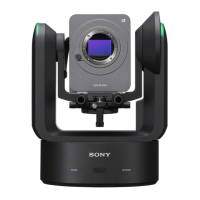
Sony ILME-FR7 - User Manual

Sony ILME-FR7
24 pages
Print Icon
To Next Page IconTo Next Page
Loading...
Interchangeable Lens
Digital Camera
VISCA Command List
Software Version 1.00
ILME-FR7 / ILME-FR7K
5-042-055-11 (1)
© 2022 Sony Corporation

Other manuals for Sony ILME-FR7

Questions and Answers

  • K
    Katrina BurnsAug 21, 2025
    What to do if Sony ILME-FR7 Digital Camera cannot be operated from the RM-IP500 Remote Controller?
    • B
      bennetttinaAug 21, 2025
      If your Sony Digital Camera cannot be operated from the RM-IP500 Remote Controller, consider these potential causes: 1. The camera's power supply isn't connected. Check that the POWER lamp lights up green or orange. 2. The camera or remote controller isn't connected to the network. Verify the connections. 3. Initial setup of the camera wasn't completed. Complete the initial setup using the Web App. 4. VISCA over IP communication isn't enabled. Set SETUP switch 3 to the ON position on the camera connector panel and reboot the unit. 5. The camera's IP address changed. Check the IP address using [Network] > [Wired LAN] in the web menu or camera menu.
  • A
    Alexis VillarrealAug 25, 2025
    What to do if no image is output from Sony ILME-FR7?
    • B
      Brenda ScottAug 25, 2025
      If no image is output from your Sony Digital Camera, check the following: * Ensure all connected devices are connected correctly. * Complete the initial setup using the Web App.
  • T
    Tamara SmithAug 26, 2025
    What to do if Sony ILME-FR7 recording does not start when pressing the record START/STOP button?
    • E
      Emily SimpsonAug 27, 2025
      If recording doesn't start on your Sony Digital Camera when you press the record START/STOP button, consider these possibilities: * The memory card is full. Replace it with one that has sufficient space. * The memory card needs restoration. Restore the memory card as described in “Restoring Memory Cards.” * The unit is running on PoE++ power. Supply power to the DC IN connector using the AC adapter. * The recording/tally lamp is configured as a tally lamp. Configure it to function as a recording lamp as described in “Connecting a Tally Signal.”
  • S
    Sarah FisherAug 28, 2025
    Why is there noise in the audio of my Sony Digital Camera?
    • E
      Emily AguilarAug 28, 2025
      Noise in the audio of your Sony Digital Camera can be caused by: * The camera, PoE++ power delivery device, and peripheral devices not being connected to ground. Connect them to ground. * Use in an environment with devices that generate strong electric and magnetic fields. Keep away from such devices. * The lens, lens support, and drive unit are in contact with the unit or an object nearby. Attach the lens correctly and check for any obstacles.
  • R
    ronaldpettyAug 30, 2025
    How to fix distorted image at the start and end of pan/tilt operation on Sony ILME-FR7 Digital Camera?
    • V
      virginia38Aug 30, 2025
      If the image looks distorted at the start and end of pan/tilt operation on your Sony Digital Camera, it might be because the image stabilization function of the lens is turned on. Try turning off the image stabilization function of the lens.
  • J
    John HaleSep 1, 2025
    What to do if no image is output from the HDMI connector of Sony ILME-FR7 Digital Camera?
    • M
      marksheltonSep 1, 2025
      If there's no image output from the HDMI connector on your Sony Digital Camera, it could be due to: * Outputting a signal that the HDMI output destination device doesn't support. Change the HDMI output format setting or use a compatible device. * Using a cable that doesn't support the output HDMI standard. Use a cable that supports the standard in use.
  • H
    Heather ThomasSep 3, 2025
    What to do if no image is output from the SDI connector of Sony Digital Camera?
    • S
      Steven GomezSep 3, 2025
      If you're not getting any image output from the SDI connector of your Sony Digital Camera, consider the following: * The cable might not support the output SDI standard. Use a compatible cable. * The monitor connected to the SDI connector might not support the output signal. Use a supported monitor. * The recording format is set for RAW output. Change the recording format to something other than RAW. * The HDMI output is set to SD resolution. Set the HDMI output to a resolution other than SD.
  • H
    hfrySep 5, 2025
    How to fix pan/tilt operating speed if it is slow on Sony ILME-FR7?
    • P
      Peggy JonesSep 5, 2025
      If the pan/tilt operating speed is slow on your Sony Digital Camera, it might be because the pan/tilt speed from the infrared remote control is set to normal mode. Set SETUP switch 4 to the ON position on the rear panel.
  • A
    Alexander MirandaSep 7, 2025
    What to do if infrared remote control does not function when pressed on Sony Digital Camera?
    • C
      Cheryl HoffmanSep 8, 2025
      If the infrared remote control isn't working with your Sony Digital Camera, check these: * Infrared remote control operation might be disabled. Set [Technical] > [IR Remote] > [Setting] to [On] in the web menu. * The battery might be discharged or have incorrect polarity. Operate the remote near the IR sensor. If the Power LED blinks, replace the battery. * Initial setup might not be completed. Complete the initial setup using the Web App.
  • V
    virginiabrownSep 9, 2025
    What to do if I cannot connect to the Web App using the 2D code (QR code) on Sony ILME-FR7 Digital Camera?
    • O
      Olivia ChanSep 10, 2025
      If you can't connect to the Web App using the 2D code (QR code) on your Sony Digital Camera, it could be because: * The device being used doesn't support mDNS. Use a device that supports mDNS or enter the IP address directly into the web browser. * The tablet or computer is on a different network than the camera. Connect them to the same network.

Summary

VISCA Over IP Communication

VISCA Over IP Overview

Explains controlling cameras via LAN using VISCA on IP-capable controllers.

VISCA Communication Protocol Types

Defines VISCA commands, inquiries, replies, and device setting commands.

Cancelling Sent VISCA Commands

Details how to cancel commands that have been sent but not yet executed.

VISCA Reply Messages

Describes ACK, completion, and error messages returned by the unit.

VISCA Command and ACK Protocol

VISCA General Command Protocol

Details the protocol for general VISCA commands, including ACK and completion messages.

VISCA Inquiry Command Protocol

Explains the protocol for VISCA inquiry commands, noting the absence of ACK messages.

VISCA Camera-Issued Messages

VISCA ACK and Completion Messages

Details the ACK and Completion messages issued by the camera when commands are accepted or executed.

VISCA Error Messages

Lists common error messages like Syntax Error, Command Buffer Full, and Command Not Executable.

VISCA Over IP Limitations

VISCA Address Limitations

Explains limitations on peripheral and controller addresses locked to 1 and 0 respectively.

VISCA Command Reference: Basic Controls

VISCA ND Filter Commands

Details commands for controlling the Neutral Density (ND) filter settings.

VISCA Iris Commands

Commands related to iris control, including AUTO IRIS and manual adjustments.

VISCA Gain and Shutter Commands

Commands for controlling gain (AGC) and shutter speed (AUTO SHUTTER).

VISCA Exposure and Compensation Commands

Commands for managing auto exposure, backlight, and spotlight compensation.

VISCA Command Reference: Black Level, Detail, Zoom, Focus

VISCA Zoom and Focus Commands

Commands for controlling zoom speed, resolution, position, and focus mode/speed/position.

VISCA Command Reference: Recording, Audio, Pan-Tilt

VISCA Pan-Tilt Drive Commands

Detailed commands for controlling pan and tilt movement, speed, and position.

VISCA Command Reference: Pan-Tilt, Presets, Controls

VISCA Pan-Tilt Operational Commands

Commands for home, reset, ramp curve, speed step, speed mode, and limit settings for pan-tilt.

VISCA Dial, Menu, and Setting Values

VISCA Multi Function Dial Command

Commands for controlling the multi-function dial's GUI cursor and setting application.

VISCA Command Setting Values

Provides hexadecimal values for various settings like ND filter and pan/tilt positions.

VISCA Camera IP Setup Configuration

Sony ILME-FR7 Specifications

General IconGeneral
BrandSony
ModelILME-FR7
CategoryDigital Camera
LanguageEnglish

Related product manuals