00022
Chapter 2: Preparation
Connecting a Computer for Settings Configuration
This section describes how to connect the unit
to a PC UI computer that can perform settings
configurations and composite adjustments, and
how to access the unit from a web browser to
display the PC UI.
[Tips]
The PC UI computer should not be the same as the
computers used for video inputs and streaming.
Recommended Computer
Use a computer that meets the following system
requirements.
Recommended OS: Windows 10
Web browser: Google Chrome
Recommended monitor size: 10 to 12 in.
[Tips]
The PC UI supports both mouse and touch panel
operations.
Use the 100% display settings for the computer display
and browser display.
Connecting the Computer to the Unit
The following connection modes are available.
LAN mode
A DHCP connection is used in this mode.
The unit and computer are connected using IP
addresses assigned by an external DHCP server.
Direct mode
The unit's IP address is fixed (192.168.0.1) in this
mode.
Configure the computer's network settings as
follows before connection.
IP address: 192.168.0.XXX
Subnet mask: 255.255.255.0
[Tips]
If connection in LAN mode is not possible, connect in direct
mode.
Connecting in LAN mode
Set the computer's network settings to DHCP
beforehand.
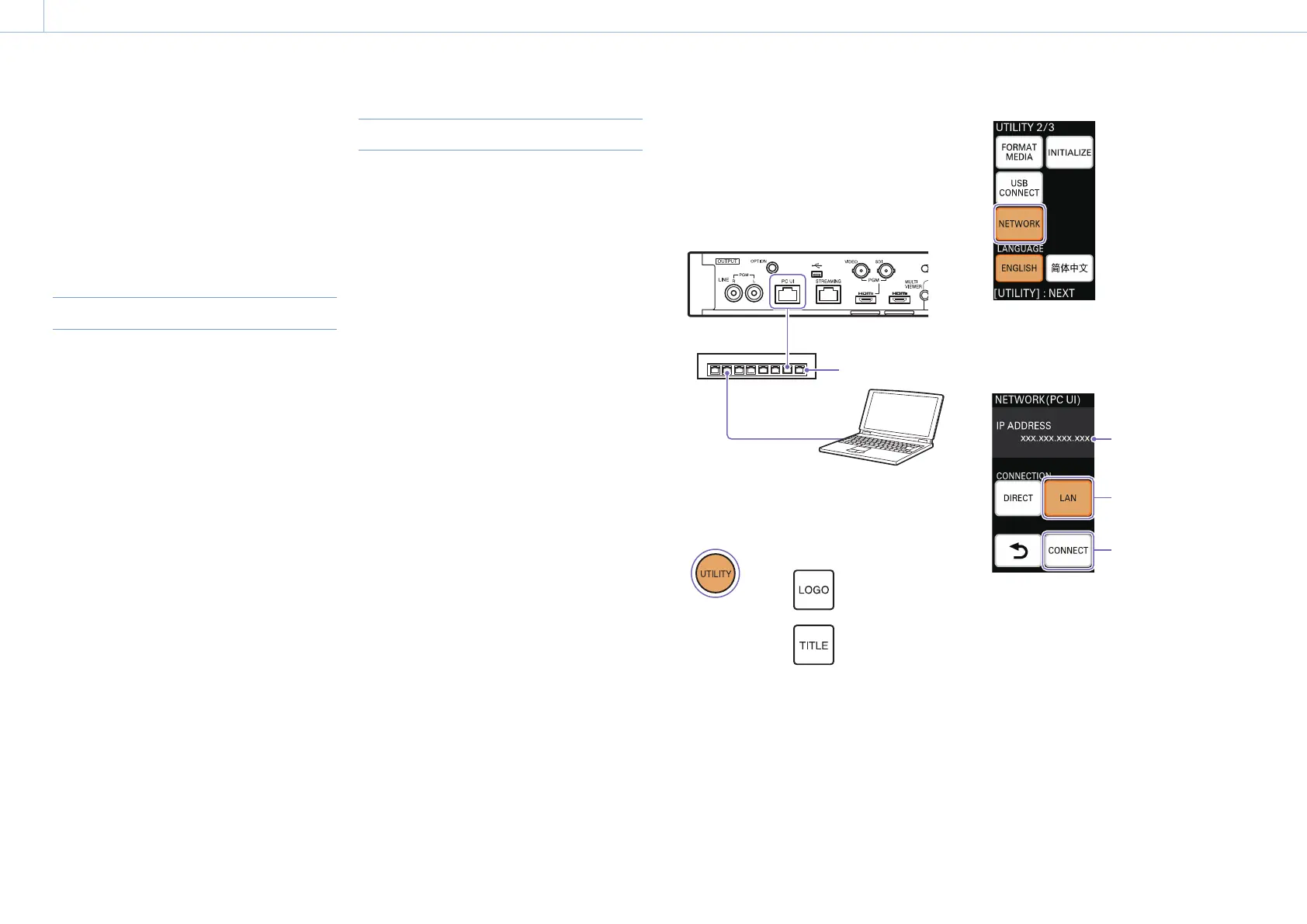
1 Use a LAN cable to connect to the LAN via the
PC UI network connector on the rear of the
unit.
Network hub
to LAN
2 Press UTILITY button on the control panel to
display the [UTILITY 2/3] menu.
3 Tap [NETWORK].
The [NETWORK (PC UI)] menu appears.
4 Tap [LAN] () to enable it, and tap [CONNECT]
(
).
IP address
The acquired IP address is displayed.
Use this IP address to access the unit via a web
browser.
[Tips]
The IP address is assigned by an external DHCP server.


 To Next Page