
 Need help?
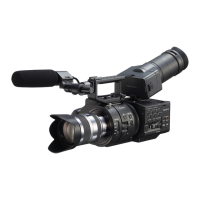
Do you have a question about the Sony NXCAM NEX-FS700 and is the answer not in the manual?
Specifies supported Windows versions, disk space, and RAM needed for the update.
Lists supported Mac OS X versions, CPU, disk space, and RAM for the update.
Details the need for an AC adapter and a specific USB cable for the firmware update.
Instructions on locating and downloading the necessary firmware update file.
Guide on launching the firmware updater application on the computer.
Steps for connecting the camera to the PC via USB after powering on.
Procedure to verify the current firmware version before proceeding.
Instructions on how to reset the camera after connecting it to the computer.
Details on initiating the firmware update process using the updater application.
Steps to finalize the update process once the progress bar is complete.
Instructions to confirm the successful installation of the new firmware version.
Guide to download the firmware update file and DriverLoader if needed.
Instructions for launching the downloaded firmware update application.
Detailed steps to launch the firmware update application after potential security prompts.
Procedure for connecting the camera to the Mac via USB.
Steps to confirm the current firmware version on the Mac.
Instructions for resetting the camera after connection.
Guide to initiate the firmware update process on the Mac.
Steps to finalize the firmware update process on the Mac.
Final verification of the installed firmware version on the camera.




 To Next Page
 General