Adjustment Using the Menus
27
WFM/ALM (waveform monitor and audio
level meter) DISPLAY SETTING
FUNCTION BUTTON SETTING
TRANSPARENCY Selects BLACK or HALF
(transparent) for the background of
T/C display.
• BLACK: The background
becomes black. Displayed
image is hidden behind the
background.
• HALF: The background becomes
transparent. Displayed
image appears under the T/C
display.
Submenu Setting
WFM/ALM Selects ON to display the WFM/ALM
display and OFF not to display.
Note
When the WFM/ALM display is
enabled, the marker display is not
available.
WFM/ALM
SELECT
• WFM: A waveform monitor is
displayed.
• ALM: An audio level meter is
displayed.
When WFM is selected, the waveform
and audio level are displayed. When
ALM is selected, the audio level is
displayed in eight channels.
The audio levels of WFM or ALM are
displayed when SDI signal is input.
Select the displayed audio level channels
in SDI AUDIO SETTING.
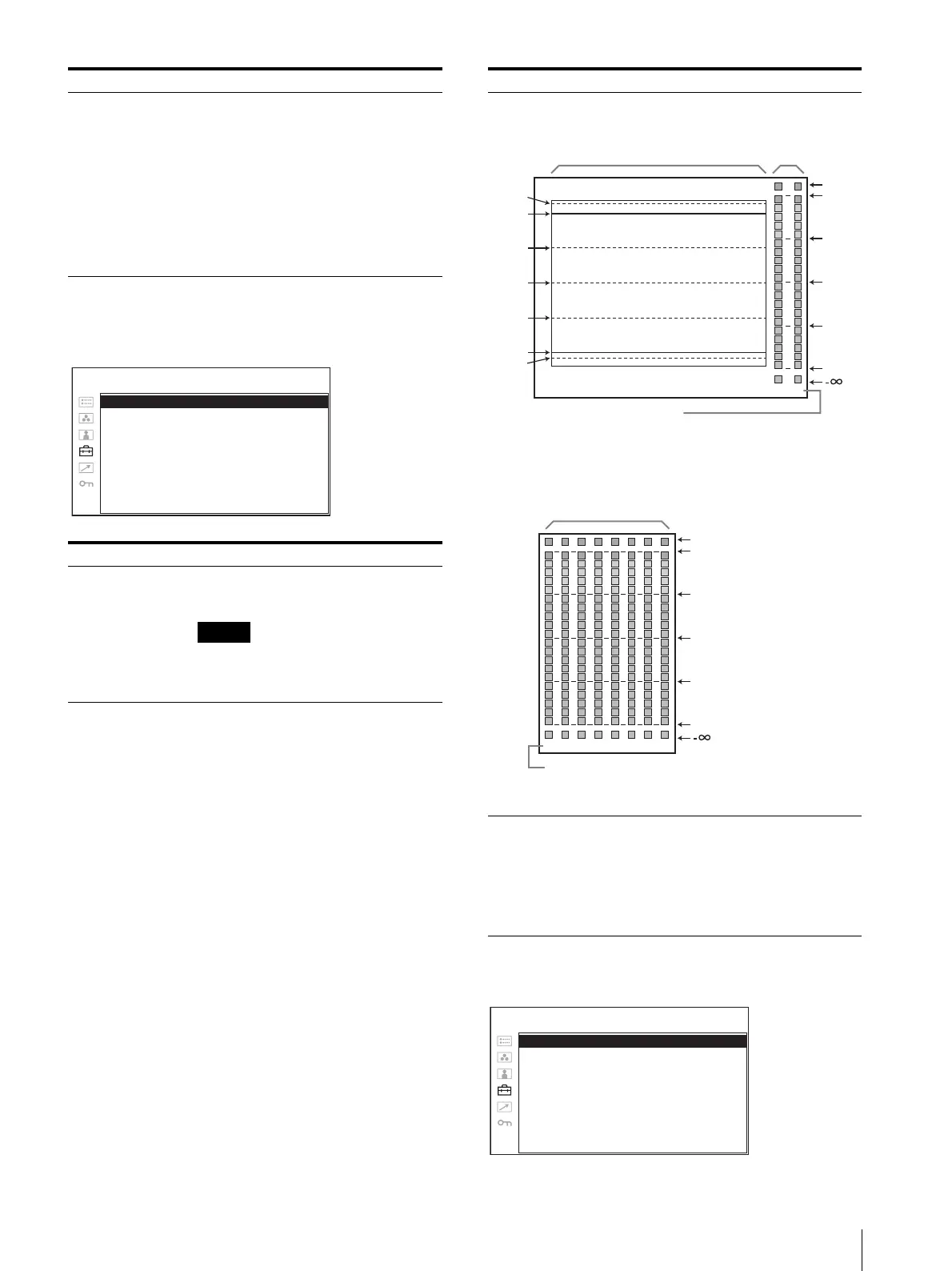
The indications of the waveform (only
when WFM is selected) and audio level
signify as illustrated below, although the
percentage of the waveform, units and
values of the scale for the audio level do
not appear on the display.
Submenu Setting
WFM/ALM: xx
WFM/ALM SELECT: xxx
POSITION: x
USER CONFIG – WFM/ALM DISPLAY SETTING
When WFM is selected
When ALM is selected
POSITION Sets the position of the WFM/ALM
display. You can select from among 1 to
4.
• 1: Bottom left
• 2: Bottom right
• 3: Top right
• 4: Top left
Submenu Setting
-4%
0%
25%
50%
75%
100%
0
OVER
(dB)
-10
-20
-30
-60
12
109%
Audio levelWaveform
Channel number
(The channel number which is selected in
SDI AUDIO SETTING is displayed.)
0
(dB)
-10
-20
-30
-60
OVER
12345678
Audio level
Channel number
(Displayed in eight channels, including the channel
which is selected in SDI AUDIO SETTING.)
F1 BUTTON: xxxx
F2 BUTTON: xxxx
F3 BUTTON: xxxx
F4 BUTTON: xxxx
F5 BUTTON: xxxx
F6 BUTTON: xxxx
F7 BUTTON: xxxx
USER CONFIG –
FUNCTION BUTTON SETTING







 To Next Page