EasyManua.ls Logo

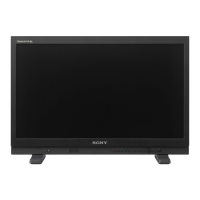
Sony PVM-L2300 - User Manual

Sony PVM-L2300
140 pages
Print Icon
To Next Page IconTo Next Page
Loading...
LCD VIDEO MONITOR
PVM-L2300
OPERATION MANUAL [English]
1st Edition (Revised 3)

Table of Contents

Other manuals for Sony PVM-L2300

Questions and Answers

  • J
    Jasmine RamosAug 18, 2025
    What to do if the picture is not displayed on my Sony Monitor?
    • L
      Lisa GibsonAug 18, 2025
      If the picture you wish to display is not showing on your Sony Monitor, it could be that the setting of the Input Configuration menu does not correspond to the input signal. To fix this, check the Status menu to confirm the setting. If the setting differs from the input signal, adjust it in the Input Configuration menu.
  • A
    Ashley BallAug 21, 2025
    Why is the color not displayed correctly on my Sony PVM-L2300?
    • P
      Paul OconnorAug 21, 2025
      Incorrect color display on your Sony Monitor can stem from several causes: the color temperature might not be set correctly; the emulation of the color gamut or the Matrix/Gamma setting is incorrect; or condensation may have formed on the RGB sensor surface of the backlight. To resolve this, set the color temperature in the Color Temp menu of the Input Configuration menu. Also, check the Color Gamut menu or Matrix/Gamma menu in the Input Configuration menu. If condensation is the issue, turn off the power and allow the unit to dry.
  • S
    Scott AllenAug 23, 2025
    Why are the signals not displayed in the multi display on my Sony PVM-L2300 Monitor?
    • C
      courtney05Aug 23, 2025
      If signals aren't displaying correctly in multi display mode on your Sony Monitor, there are a few potential causes: you might have selected the input signals of INPUT 1 and INPUT 2 of one input adaptor. You can fix this by installing two or more adaptors and using a different input adaptor for signal A and signal B. Another reason might be that the reference signal is not input (No Sync status), so input the reference signal. Note that the internal signal is not displayed in the multi display.
  • P
    Peter DeanAug 26, 2025
    What to do if the signal input from BKM-227W or BKM-229X is not displayed correctly on Sony Monitor?
    • C
      Cheryl WilliamsAug 26, 2025
      If the signal input from BKM-227W or BKM-229X is not displayed correctly on your Sony Monitor, it may be because the auto chroma/phase/matrix adjustment has not been performed. Perform the auto chroma/phase/matrix adjustment to display the signal input from BKM-227W or BKM- 229X.
  • A
    amanda65Aug 28, 2025
    Why is the signal not displayed in interlace mode on my Sony Monitor?
    • R
      Rebecca TaylorAug 28, 2025
      If the signal is not displayed in interlace mode on your Sony Monitor, it could be due to several reasons. First, ensure that the interlace signal is actually being input. Second, verify that the signal is not set to 1080PsF in the 1080I/ PsF setting of the Input Configuration menu; if it is, set it to 1080I. Finally, confirm that the native scan mode is selected.
  • C
    cfloresAug 31, 2025
    Why is the whole area not displayed on my Sony PVM-L2300 Monitor?
    • P
      preedAug 31, 2025
      If the entire area is not displayed on your Sony Monitor, it could be because when the V (vertical) size of the display is over 1080, some area is covered with the 16:9 frame. Remove the 16:9 frame to set the aspect ratio to 16:10.
  • K
    Kristine AlvarezSep 2, 2025
    Why is the signal not displayed in black frame insertion mode on my Sony PVM-L2300?
    • D
      Daniel JohnsonSep 2, 2025
      The signal might not be displayed in black frame insertion mode on your Sony Monitor for a few reasons. It could be that the signal is displayed in the interlace display mode. To resolve this, set Interlace to Off. Also, the signal is not displayed in black frame insertion mode when the 24P or 24PsF signal is input. Finally, the signal is not displayed in the black frame insertion mode when the DVI Computer signal or the computer signal of HDMI is input.
  • N
    Nicole KiddSep 5, 2025
    How to fix the setting that is different from the setting in the menu of my Sony Monitor?
    • J
      Joshua PatelSep 5, 2025
      If the setting on your Sony Monitor differs from what's in the menu, it's likely because the setting has been changed with the function button of the controller after setting in the menu. The last setting becomes effective.
  • J
    John SpearsSep 7, 2025
    What to do if the function button of the controller does not function on my Sony PVM-L2300 Monitor?
    • J
      jasonmillerSep 7, 2025
      If the function button of the controller on your Sony Monitor isn't working, it's likely because the setting has been changed in the menu after setting with the function button. Remember, the last setting becomes effective.
  • J
    Jeff RojasSep 9, 2025
    Why is the function of the function button of the controller different from that of the panel display on my Sony Monitor?
    • B
      Brent MartinSep 10, 2025
      If the function of the function button of the controller differs from that of the panel display on your Sony Monitor, it means another function has been assigned to the button. See the Function Key menu of the Controller menu to confirm the function assigned to the function button.

Summary

Safety and Warnings

Electrical and Fire Hazards

Warnings about fire or electric shock and opening the cabinet.

Earthing and Environmental Precautions

Requirements for earthing and avoiding liquid exposure.

Regional Compliance Information

Rack Installation Guidelines

Chapter 1: Overview - Precautions

On Safety

Safety instructions for operation, power, and servicing.

On Installation

Guidelines for air circulation and avoiding heat sources.

Handling the LCD Screen

Precautions for LCD screen care and pixel issues.

Chapter 1: Overview - Features and Options

Chapter 2: Preparations - Installation

Installing an Input Adaptor

Step-by-step instructions for installing optional input adaptors.

Chapter 2: Preparations - Connections

Connecting the Controller (BKM-16 R)

Detailed steps for connecting the BKM-16R monitor controller.

Chapter 2: Preparations - Settings

LAN Setup for Multiple Units

Configuring IP addresses and monitor IDs for network control of multiple units.

Chapter 2: Preparations - Adjustments

Chroma and Phase Adjustment

Details automatic and manual adjustment of chroma and phase.

Color Temperature Adjustment

Procedures for adjusting color temperature using probes or manual methods.

Chapter 3: Menu - Basic Operations

Chapter 3: Menu - Specific Menu Structures

Adjustment Menu Structure

Overview of the adjustment menu structure and its sub-menus.

Input Configuration Menu Structure

Structure of the input configuration menu.

Chapter 3: Menu - System and File Management

System Configuration Menu Structure

Structure of the system configuration menu.

Chapter 3: Menu - Adjustments

Adjustment Menu Overview

Overview of the adjustment menu for picture, color temperature, and position.

Picture Adjust Functions

Detailed functions within Picture Adjust, including color bar and manual adjustments.

Color Temperature Adjust Functions

Detailed functions within Color Temperature Adjust.

Chapter 3: Menu - Signal Configuration

Input Configuration Menu Overview

Overview of the input configuration menu for setting input signal parameters.

Chapter 3: Menu - Gamma and Display Settings

Matrix;Gamma Settings

Setting Matrix/Gamma data based on input signal format and standards.

Chapter 3: Menu - RGB Range and Display Settings

Display Setting Menu Overview

Overview of the display setting menu for color reproduction and frame adjustments.

Chapter 3: Menu - Display Functions

Display Function Menu Overview

Overview of the display function menu for picture-related settings.

Chapter 3: Menu - System Configuration

System Configuration Menu Overview

Overview of the system configuration menu for network, power, and password settings.

Network Settings (IP, SNMP, Protocol)

Network configuration, SNMP settings, and protocol settings.

Chapter 3: Menu - Controller and Security

Monitor Upgrade Procedures

Procedures for upgrading monitor software, kernel, and FPGA data.

Chapter 3: Menu - File Management

File Management Menu Overview

Overview of the file management menu for system data operations.

Chapter 3: Menu - Status Information

Chapter 3: Menu - Controller Operations

Controller Menu Overview

Overview of the controller menu for network settings and function key assignments.

Controller Network Settings

Network configuration for the controller, including trap settings and community names.

Controller Function Key Assignments

Assigning functions to the controller's F1-F16 buttons.

Monitor ID Display and Controller Upgrade

Setting monitor ID display and upgrading the controller.

Chapter 3: Menu - Security

Chapter 4: Operations - Display Modes

Selecting Display Mode

How to select display modes like progressive, black frame insertion, and interlace.

Setting Native Scan Mode Display

Configuring the picture display type for native scan modes.

Selecting Native Scan;Scan Mode

Methods to select native scan and scan modes (normal, under, over).

Displaying Two Signals (Picture&Picture)

How to display two input signals simultaneously in a side-by-side format.

Chapter 4: Operations - Picture Enhancement

Magnifying Picture (Pixel Zoom)

How to magnify a portion of the picture using pixel zoom.

Displaying Picture in Black Detail Mode

How to display the picture in black detail mode for assessing low color gradation.

Capturing HD Signal Picture (Frame Capture)

Capturing and saving HD signal frames to a Memory Stick.

Chapter 4: Operations - Signal Information

Chapter 4: Operations - Data Management

Copying Settings to Another Monitor

Saving settings/adjustments to Memory Stick and copying to another monitor.

Upgrading Monitor and Controller

Procedures for upgrading monitor and controller firmware via Memory Stick.

Upgrading the Monitor Firmware

Step-by-step guide to upgrade monitor software, kernel, or FPGA data.

Appendixes - Display Features

Appendixes - Troubleshooting and Dimensions

Troubleshooting Common Issues

Common symptoms, assumed causes, and remedies for operational problems.

Sony PVM-L2300 Specifications

General IconGeneral
Screen Size23 inches
Aspect Ratio16:9
Brightness250 cd/m²
Contrast Ratio1000:1
Viewing Angle178° (H) / 178° (V)
Response Time8 ms
Resolution1920 x 1080 (Full HD)
Panel TypeLCD (IPS)
Input ConnectorsHDMI

Related product manuals