DVD Editing
71
Copying a scene (Copy)
You can copy and add a selected scene.
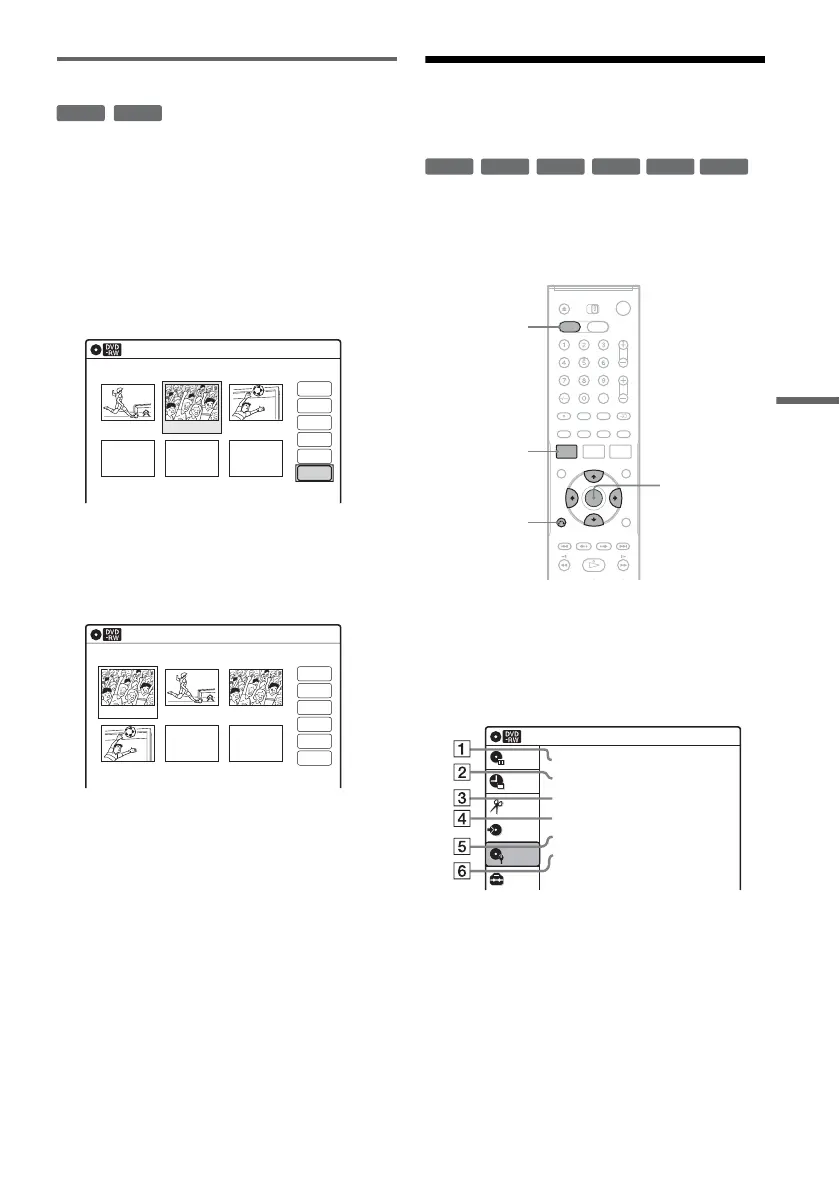
1 Follow steps 1 to 7 of “Editing a Playlist”
(page 67).
The “Edit Scene” display appears.
2 Select the scene you want to copy, and
press ENTER.
3 Select “Copy,” and press ENTER.
4 Select a location to copy to using </,
and press ENTER.
The scene is copied to the selected location.
To copy other scenes, repeat from step 2.
Formatting/Renaming/
Protecting a Disc
The “Disc Setting” display allows you to check the
disc information or change the disc name.
Depending on the disc type, you can also format or
set protection.
1 Press DVD to operate the DVD recorder.
2 Press SYSTEM MENU while the recorder is
in stop mode.
3 Select “Disc Setting,” and press ENTER.
The “Disc Setting” display appears.
4 Select an option, and press ENTER.
A “Disc Name”: Allows you to rename a
disc. For details on how to enter
characters, see page 65.
B “Disc Protect” (DVD+RWs/DVD-RWs
(VR mode)/DVD-Rs (VR mode) only):
Protects all titles on the disc when
“Protected” is selected. To cancel the
protection, select “Not Protected.”
-
RWVR
-
RVR
Edit Scene
10:10
Scene No.02/03
03 00:04:2002 00:00:1001 00:00:34
Check
Erase
Modify
Move
Add
Copy
Playlist No.01
Edit Scene
10:10
Scene No.01/04
04 00:04:20
03 00:00:1002 00:00:3401 00:00:10
Playlist No.01
Check
Erase
Modify
Move
Add
Copy
+
RW
-
RWVR
-
RW
Video
+
R
-
RVR
-
R
Video
SYSTEM
MENU
DVD
M/m/</,,
ENTER
O RETURN
Disc Setting
Disc Name :
Disc Protect : Not Protected
Disc Format : VR Mode
Disc Finalize : Unfinalized
Disc Information
Erase All Titles
Setup
Disc Setting
Edit
Title List
Timer
Dubbing
10:10
,continued


 To Next Page