12
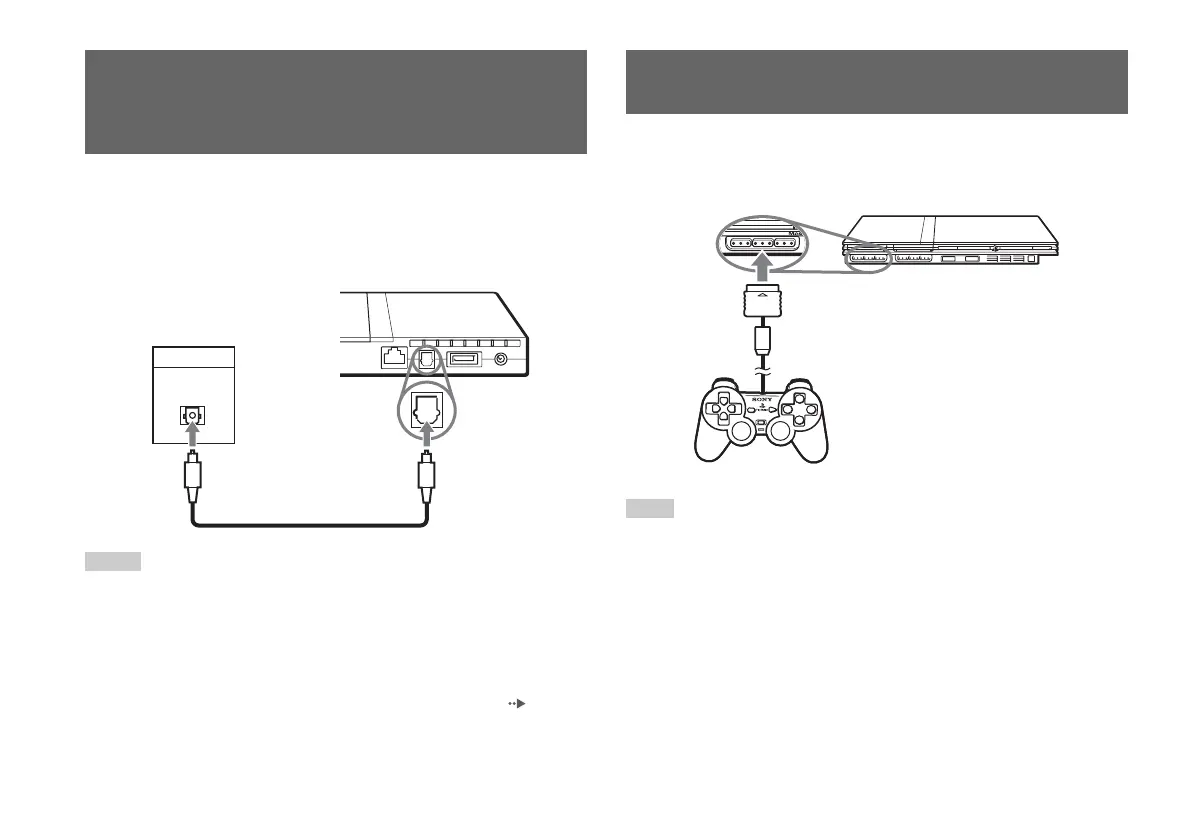
Connecting digital audio equipment
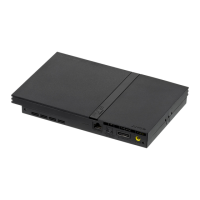
By using a commercially available optical digital cable, you can enjoy
surround sound with the effect of being in a movie theatre or a concert hall.
When connecting the console to audio equipment with digital connectors,
refer to the instructions supplied with the device to be connected.
Notes
• If you connect the console to audio equipment using an optical digital cable, it may
affect the audio output of some PlayStation®2 format software with the result that
no sound is produced. If this happens, use a cable such as the supplied AV Cable
(integrated audio/video) and connect it to the console's AV MULTI OUT
connector. Do not use an optical digital cable.
• After connecting digital audio equipment, set "Digital Out (Optical)" to "On" in the
System Configuration menu. For details, see "Digital Out (Optical)" ( page 37).
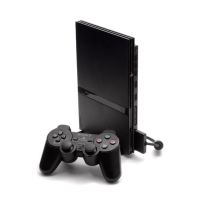
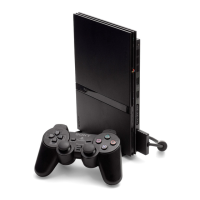
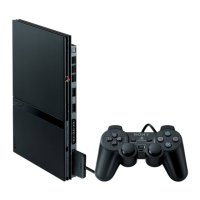
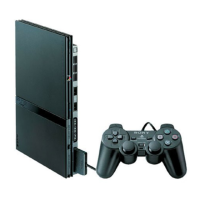
1 Insert the Analog Controller (DUALSHOCK®2) into a controller
port of the console.
Note
Some software titles designate a specific controller port to be used. Refer to the
instructions supplied with the software for details.
Connecting digital audio
equipment
DIGITAL IN
OPTICAL
Console rear
Connected device
Commercially available optical
digital cable
Connecting the controller
Console front
Analog Controller
(DUALSHOCK
®2)



 To Next Page