Additional Operations 21
Operation (when
recording on this VCR)
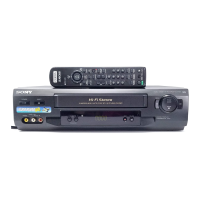
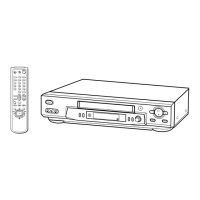
You can make a copy of a tape using
this VCR for recording or playback.
The unit cannot record TV
programmes directly since it does not
have a TV tuner.
Before you start editing
• Turn on your TV and set it to the
video channel.
1 (SLV-PH88EE only)
Set INPUT SELECT to LINE 1
(or LINE 2).
2 Insert a source tape with its
safety tab removed into the
other (playback) VCR. Search
for the point to start playback
and set it to playback pause.
3 Insert a tape with its safety tab in place into this (recording) VCR.
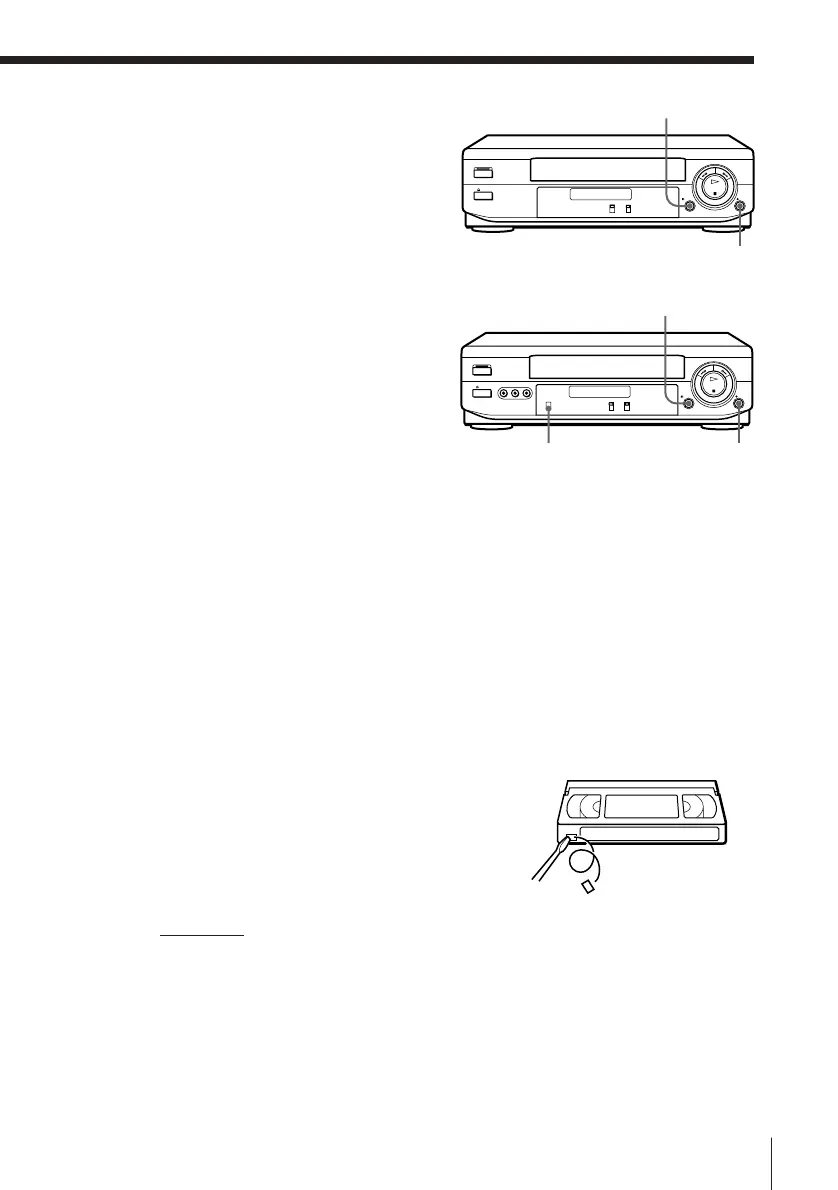
Search for the point to start recording and press P PAUSE.
4 Press r REC on this VCR to set it to recording pause.
5 To start editing, press the P PAUSE buttons on both units at the same
time.
To stop editing
Press the p STOP buttons on both units.
To save a recording
To prevent accidental erasure, break off the
safety tab as illustrated. To record on a tape
again, cover the tab hole with adhesive tape.
Tips
• To edit more precisely, press the P PAUSE buttons
on the units to release pause.
• To cut out unwanted scenes while editing, press P PAUSE on this VCR when an
unwanted scene begins. When that scene ends, press P PAUSE again to resume
recording.
Note
• You can record tapes only in SP mode.
P PAUSE
r REC
SLV-P58EE
P PAUSE
r REC
SLV-PH88EE
INPUT SELECT
REC
Safety tab
REC



 To Next Page