To navigate the Widget screen
•
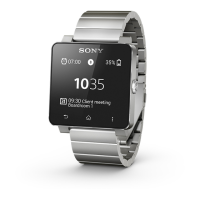
To view widgets located in extensions of the Widget screen, flick left or right.
To navigate the Application screen
•
To view applications located in extensions of the Application screen, flick left
or right.
To open notifications
1
Find and tap a widget or an application you want to open.
2
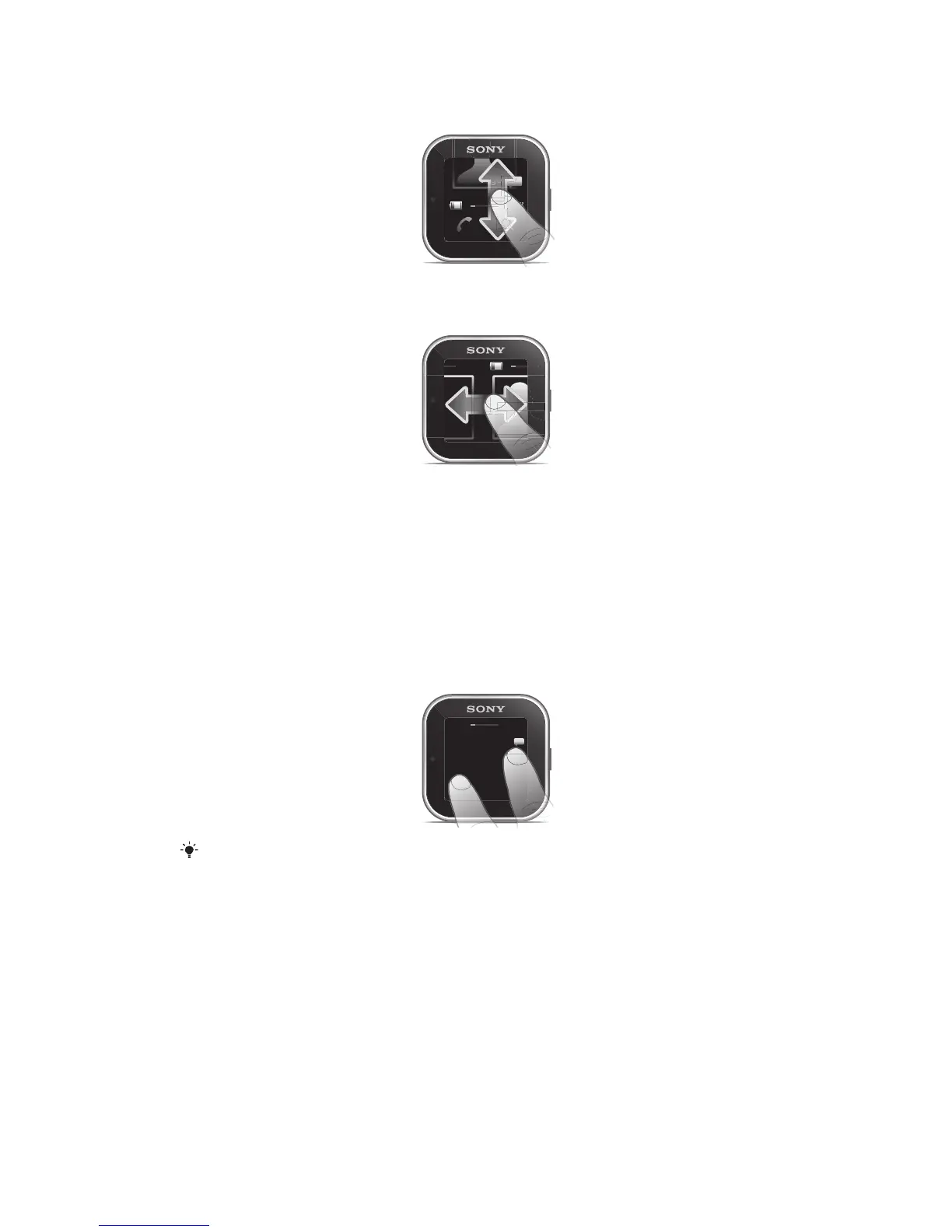
Flick left or right to scroll through notifications.
3
Flick up or down to read a notification.
To go back to the previous screen
•
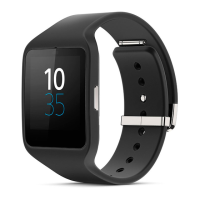
Tap the screen with two fingers at the same time.
You will go back to the clock screen if you tap the Widget screen or the Application screen
with two fingers at the same time.
Customising the display
To choose a clock type to be displayed
1
Phone: Drag the status bar downwards, then tap SmartWatch > Clocks.
2
Select an option.
To select which widgets to display on the Widget screen
1
Connect your SmartWatch device with your phone.
2
Phone: Drag the status bar downwards, then tap SmartWatch > Applications.
3
Tap the application that you want to enable.
4
Mark the checkbox next to the application name.
5
Mark the Display as widget checkbox.
8
This is an Internet version of this publication. © Print only for private use.


 To Next Page