Help Guide
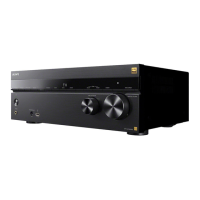
Multi Channel AV Receiver
STR-AZ7000ES/STR-AZ5000ES/STR-AZ3000ES
Setting up a wireless LAN connection
Please confirm the following information before starting the network settings.
The network name (SSID) (*1) of the wireless LAN router/access point
The security key (passkey) (*2) for the network
Hint
See [Network Connection Status] in the [Network Settings] menu when checking the network settings.
Related Topic
Preparing a wireless LAN antenna (for wireless LAN connections only)
5-037-021-11(1) Copyright 2022 Sony Corporation
SSID (Service Set Identifier) is a name that identifies a particular access point.
*1
This information should be available from a label on your wireless LAN router/access point, from the operating instructions, from the person who set up your wireless network, or from the information provided by your
Internet service provider.
*2
Select [Setup] - [Network Settings] from the home menu.
1
Select [Internet Settings].
2
Select [Next] when [Perform Wi-Fi setup.] is displayed on the TV screen.
A list of network names (SSID) is displayed on the TV screen.
3
Select a network name (SSID).
The receiver starts connecting to the network.
To connect to a network not listed, select [New connection registration] and follow the on-screen instructions.
4
Confirm the connection result displayed on the TV screen.
When the receiver is successfully connected to the network, [NETWORK] lights up on the display panel of the receiver.
If the connection to the network has failed, select [Advanced Settings], and then follow the on-screen instructions to set the network name (SSID), wireless LAN router security
method, and IP address.
5




 To Next Page