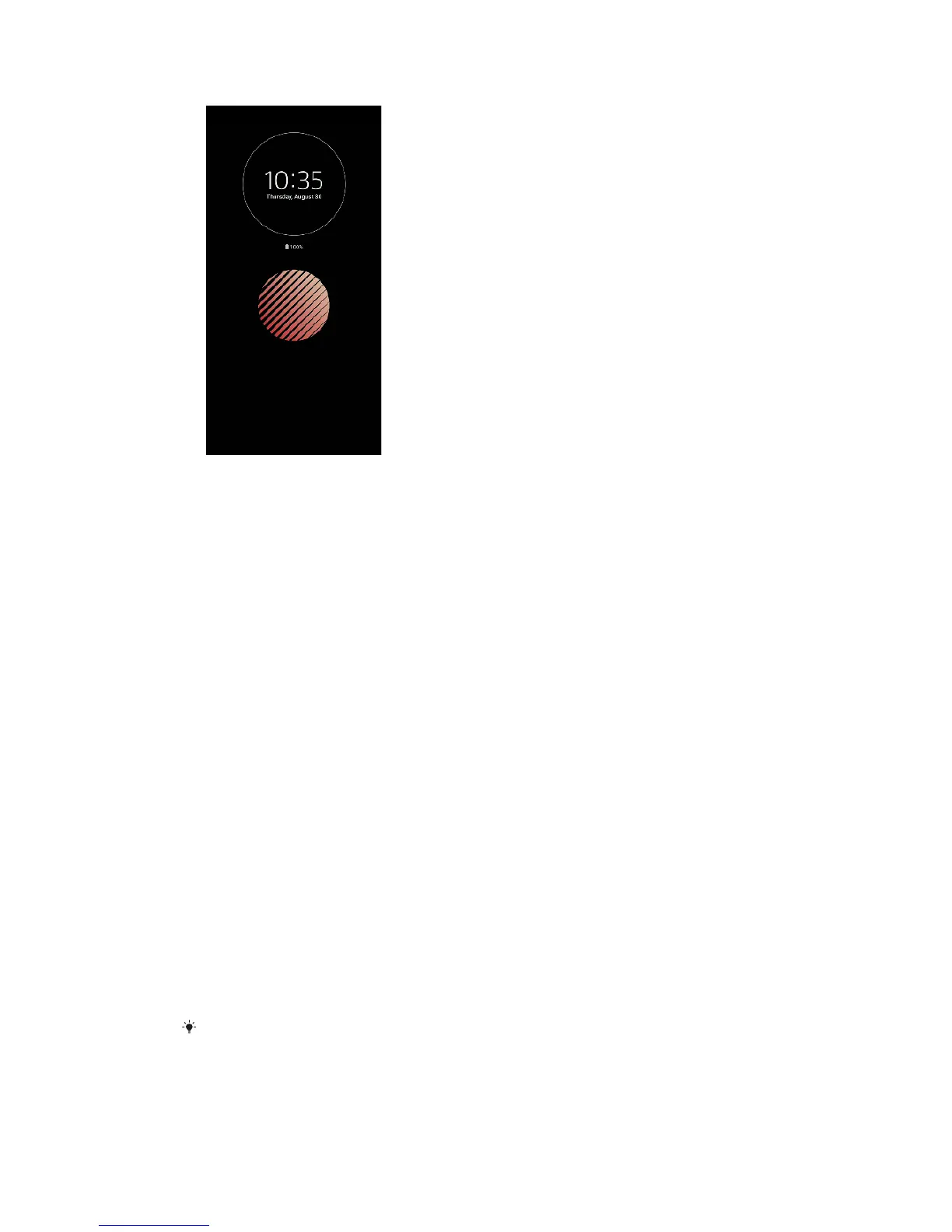
To activate the Ambient display
1 Tap Settings > Lock screen & security > Lock screen preferences.
2 Tap Ambient display > Activate when device is lifted.
3 Close the setting menu. The setting is saved.
To display an image on the Ambient display
1 Tap Settings > Lock screen & security > Lock screen preferences.
2 Tap Sticker, and then select your desired sticker or photo.
3 Close the setting menu. The setting is saved.
Application settings
Some apps will ask for permissions once you start using them. You can allow or
deny permissions individually for each app, either from the Settings menu or from
the Permission confirm dialog. Permission requirements depend on the app’s
design.
Allowing or denying permissions
You can choose whether to allow or deny permissions when the dialog is shown. If
you have used another Android version previously, most apps will have already
been granted the necessary permissions.
To allow a permission
• To allow a permission, tap Allow. You can mark the Don't ask again
checkbox if you wish.
To deny a permission
• To deny a permission, tap Deny when the dialog is shown.
Some applications can still be used even if you have denied permissions.
Critical permissions
Some permissions are mandatory for apps to work as intended. In such cases, a
dialog will inform you.
56
This is an internet version of this publication. © Print only for private use.









 To Next Page