* /ENTER
has a
tactile dot.
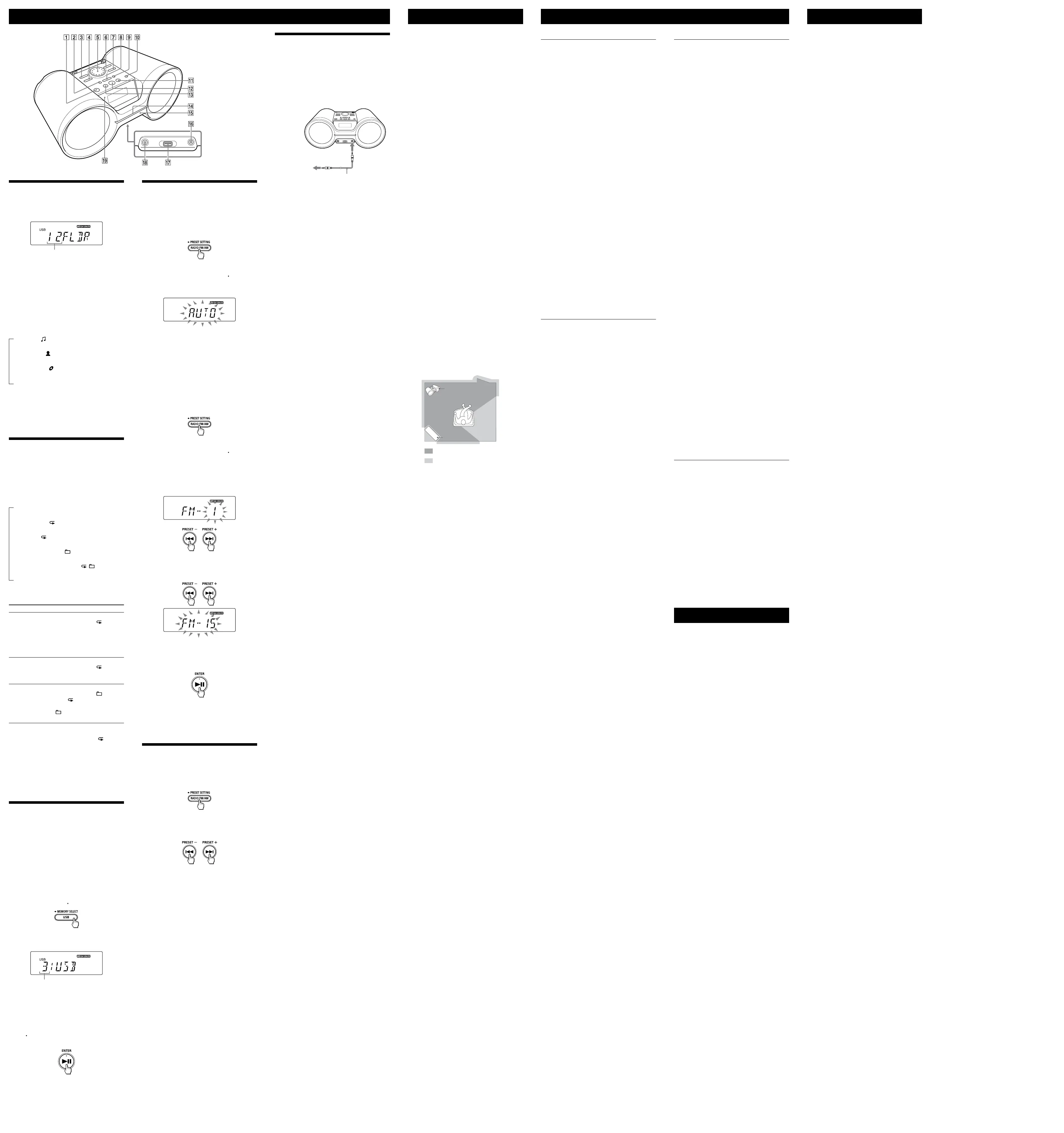
Using the display
You can check information about the currently
playing audio file from the USB device using the
display.
Total folder number
Tips
If there are no MP3/WMA/AAC files on the USB
device, “NO FILE” appears on the display.
If MP3/WMA/AAC files are present only on the
root of the USB device, “1FLDR” appears on the
display.
To check file information
Press DISPLAY
repeatedly while playing an
MP3/WMA/AAC file on the USB device. The
display changes as follows:
Song title ( )*
Artist name (
)*
Album name (
)*
Current file number and playing time**
* If the file does not have corresponding ID3
information, the file name, “NO ARTIST,” and “NO
ALBUM” scroll instead of the song title, artist
name, and album name, respectively.
** The artist name or album name will change to this
in a few seconds.
Selecting play mode
You can set the unit to play tracks repeatedly or
in random order while a USB device is playing or
paused.
Press PLAY MODE
repeatedly.
Each time you press the button, the indication
changes as follows:
Normal play (None)
Single repeat (
1)
All repeat (
)
Selected folder play (
)
Selected folder repeat play (
, )
Shuffle play (SHUF)*
* The “SHUF” indicator flashes for about 3 seconds
until shuffle play mode is confirmed by the unit.
To repeat Do this
An MP3/WMA/
AAC file
1 Press PLAY MODE
repeatedly until “
1”
appears.
2 Press
or
to
select an audio file that you
want to repeat.
3 Press
.
All MP3/WMA/
AAC files on
the USB device
1
P
ress PLAY MODE
repeatedly until “
”
appears.
2 Press
.
A selected
folder
1
P
ress PLAY MODE
repeatedly until “
” (Folder)
and “
” appear.
2 Select the folder by pressing
+ or
.
3 Press
.
To cancel Repeat Play
Press PLAY MODE
repeatedly until “ ”
disappears from the display.
To cancel Shuffle Play
Press PLAY MODE
repeatedly until “SHUF”
disappears from the display.
Tip
During Shuffle Play, you cannot select the previous
MP3/WMA/AAC file by pressing
.
Selecting a memory on the
USB device
If the USB device has more than one memory (for
example, an internal memory and a memory
card), you can select which memory to use and
then start playback.
Make sure to select a memory before starting
playback as you cannot select a memory during
playback.
1 Connect the USB device to the
(USB)
port
.
2 Press USB
to turn on the USB function.
3 Press and hold USB MEMORY SELECT
.
4 Press
or
repeatedly to
select a memory number.
Memory number
The memory name appears. The name will be
displayed in various types, depending on the
specifications of the USB device.
Proceed to step 5 if only one memory can be
selected.
To cancel the memory select operation, press
USB
MEMORY SELECT
again.
5 Press ENTER
.
Other Operations
Presetting radio stations
You can store radio stations in the unit’s memory.
You can preset up to 30 radio stations, 20 for FM
and 10 for AM.
1 Press RADIO FM/AM
repeatedly to
select the band.
2 Tune to a station you want.
3 Press and hold RADIO FM/AM PRESET
SETTING
until “AUTO” flashes on the
display.
4 Press ENTER
to store the station.
If you want to store other stations, repeat
steps 2 through 4. The stations are stored in
memory from lower frequencies to higher
ones.
If a station cannot be preset
automatically
You need to preset a station with a weak signal
manually.
1 Press RADIO FM/AM
repeatedly to
select the band.
2 Tune to a station you want.
3 Press and hold RADIO FM/AM PRESET
SETTING
until “AUTO” flashes on the
display.
4 Press
or
to select
“MANUAL,” and then press ENTER
.
“FM-xx” appears on the display.
5 Press PRESET +
or
until the
preset number you want for the station
flashes on the display.
6 Press ENTER
to store the station.
If another station is already assigned to the
selected preset number, that station is
replaced by the new one.
Tip
The preset radio stations remain in the unit’s
memory even in the following situations.
The AC power cord is unplugged.
The batteries are removed.
Listening to the radio from
preset radio stations
1 Press RADIO FM/AM
repeatedly to
select the band.
2 Press PRESET +
or
to select a
stored preset number for the desired
radio station.
Connecting optional
components
You can enjoy the sound from an optional
component, such as a portable digital music
player, through the speakers of this unit.
Be sure to turn off the power of each component
before making any connections.
For details, refer to the instruction manual of the
component to be connected.
Audio connection cable
(not supplied)
To component
(e.g.,portable
digital music
player)
To AUDIO
IN jack
1 Connect the AUDIO IN jack
to the line
output jack of the portable digital music
player or other component using an
audio connection cable (not supplied).
2 Turn the connected component on.
3 Press AUDIO IN
and start playing
sound on the connected component.
The sound from the connected component is
output from the speakers.
To connect the unit to a TV or VCR, use an
extension cable (not supplied) with a stereo-
mini jack on one end and two phono plugs on
the other end.
Notes
If connected to the monaural output jack of a
digital music player, sound may not come through
the right speaker of the unit.
If connected to the line out jack of a digital music
player, distortion may occur. If the sound is
distorted, connect to the headphones jack
instead.
If connected to the headphones jack of a digital
music player, increase the volume of the digital
music player, and then adjust the volume of the
unit.
General
The demonstration appears on the
display.
Disable the demonstration function by
pressing PLAY MODE
until “DEMO MODE
OFF” appears on the display.
The power does not turn on when the AC
power cord is connected.
Make sure the AC power cord is connected to
the wall outlet securely.
The power does not turn on during
battery operation.
Make sure the batteries are inserted correctly.
“LOW BATTERY” flashes on the display
and the unit turns off automatically.
Replace all the batteries with new ones.
The unit enters standby mode
unexpectedly.
This is not a malfunction. The unit enters
standby mode automatically in about 20
minutes when there is no operation or audio
signal output. See “To use the power-
management function (European models
only).”
There is no sound.
Make sure the appropriate function is selected
for the music or sound source you want to
listen to.
Unplug the headphones when listening
through speakers.
The sound is noisy.
Is someone using a mobile phone or other
equipment emitting radio waves near the unit?
If so, move the unit and the Bluetooth device
away from such devices. Devices such as
mobile phones, etc. can affect Bluetooth
communication.
USB device
Are you using a compatible USB device?
If you connect an incompatible USB device, the
following problems may occur.
The USB device is not recognized.
File or folder names are not displayed on this
unit.
Playback is not possible.
The sound skips.
There is noise.
The sound output is distorted.
“OVER CURRENT” appears.
An abnormal level has been detected in the
electrical current from the
(USB) port
.
Turn off the unit and remove the USB device
from the
(USB) port
. Make sure there is
no problem with the USB device. If this
message persists, contact your nearest Sony
dealer.
There is no sound.
The USB device may be connected incorrectly.
Turn off the unit and reconnect the USB device.
Then turn on the unit.
There is noise, skipping, or distorted
sound.
Turn off the unit and reconnect the USB device.
Then turn on the unit again.
The music data itself contains noise, or the
sound is distorted. Noise may have entered
during the creation of audio files. Try
re-creating audio files and use them to play on
this unit.
The USB device cannot be connected to
the
(USB) port
.
The connector on the USB device or the USB
cable is being inserted backwards. Insert it to
the
(USB) port
in the correct direction.
“READING” is displayed for an extended
time, or it takes a long time before
playback starts.
The reading process can take a long time in the
following cases:
There are many folders or files on the USB
device.
The file structure is complex.
The memory is almost full.
The internal memory is fragmented.
To avoid the above problems, we recommend
that you adhere to the following guidelines:
Keep the total number of folders on a USB
device to 100 or less.
Keep the total number of files per folder to
100 or less.
Erroneous display
The data stored on the USB device may be
corrupted. Send the music data to the USB
device again.
This unit can display only numbers and letters
of the alphabet. Other characters will not be
displayed correctly.
The USB device is not recognized.
Turn off the unit and reconnect the USB device,
then turn on the unit.
The USB device is not functioning properly.
Refer to the USB device operation manual for
details on how to deal with this problem.
Play does not start.
Turn off the unit and reconnect the USB device.
Play does not start from the first track.
Set the play mode to Normal Play.
MP3/WMA/AAC files cannot be played
back.
The audio files may have inappropriate file
extensions. The file extensions supported by
this unit are as follows:
MP3: file extension “.mp3”
WMA: file extension “.wma”
AAC: file extension “.m4a” and “.mp4”
The audio files may have been created in
formats other than MP3/WMA/AAC formats.
The USB storage device uses a file system
other than FAT16 or FAT32.*
The USB storage device is partitioned. Only
MP3/WMA/AAC files in the first partition can
be played.
Playback is possible up to 8 directory levels.
The number of folders on the device exceeds
256 (including the “ROOT” folder).
The number of files on the device exceeds
65,535.
The number of files per folder exceeds 999.
The files are encrypted or protected by
passwords.
* This unit supports FAT16 and FAT32, but some USB
storage media may not support both file systems.
For details, refer to the operation manual of the
USB storage device in question or contact the
manufacturer.
Precautions
Troubleshooting
Bluetooth device
There is no sound.
Make sure that this unit is not too far from the
Bluetooth device (or smartphone), or that this
unit is not receiving interference from a
wireless LAN, an other 2.4 GHz wireless device,
or a microwave oven.
Check that the Bluetooth connection was
completed properly between this unit and the
Bluetooth device (or smartphone).
Perform pairing again (See “To pair with a
Bluetooth device”).
Keep away from metal objects or surfaces.
Make sure that the Bluetooth function is
activated on the Bluetooth device (or
smartphone).
The sound skips or the correspondence
distance is short.
If a device that generates electromagnetic
radiation, such as a wireless LAN, other
Bluetooth device(s), or a microwave oven is
nearby, move away from such sources if
possible. Or use the device and the unit away
from such sources.
Remove any obstacle between this unit and
the device or move the device and the unit
away from the obstacle.
Locate this unit and the device as close to each
other as possible.
Re-position this unit.
Try using the Bluetooth device or smartphone
in other position.
A connection cannot be established.
Perform pairing again (See “To pair with a
Bluetooth device”).
Check that the Bluetooth device is compatible
with this unit. For the latest information on
compatible Bluetooth devices, check the
information on the website. The URL is under
“Compatible Bluetooth devices.”
Pairing fails.
Bring the Bluetooth device closer to the unit.
Delete the model name of this unit from the
Bluetooth device and perform pairing again
(See “To pair with a Bluetooth device”).
Check that the Bluetooth device is compatible
with this unit. For the latest information on
compatible Bluetooth devices, check the
information on the website. The URL is under
“Compatible Bluetooth devices.”
Pairing using the NFC function fails.
Try pairing manually (See “To pair with a
Bluetooth device”). Some NFC-compatible
smartphones may not be paired using the NFC
function of this unit, depending on the features
or specifications of the device.
Relaunch “NFC Easy Connect” and move the
smartphone slowly over the N-marked part
.
Check that the smartphone meets the
compatibility requirements (See “Compatible
smartphones”).
Radio
The sound is weak or reception is poor
quality.
Replace all the batteries with new ones.
Move the unit away from any nearby TV.
For FM reception, extend the aerial to its full
length, and reorient it for best FM reception.
For AM reception, reorient the unit itself to find
the best reception.
The TV picture is unstable.
If you are listening to an FM program near a TV
with an indoor antenna, move the unit away
from the TV.
After trying the suggested remedies, if the
problem persists, unplug the AC power cord or
remove all the batteries. After all the indications
on the display disappear, plug in the AC power
cord again, or re-insert the batteries. If the
problem persists, consult your nearest Sony
dealer.
Messages
DATA ERROR: An audio file is corrupted.
LOW BATTERY: The batteries are almost
exhausted.
NO BT: Bluetooth connection is not established.
NO DEVICE: No USB device is connected or the
connected USB device has been removed.
NO FILE: No Playable files are available on the
USB device.
NOT IN USED: You tried to perform a specific
operation under conditions where that
operation is prohibited.
NOT SUPPORT: An unsupported USB device is
connected.
USB section
Supported bit rates
MP3 (MPEG 1 Audio Layer-3):
32 kbps 320 kbps, VBR
WMA:
48 kbps 192 kbps, VBR
AAC (MPEG 4 AAC-LC):
16 kbps 320 kbps, VBR
Sampling frequencies
MP3 (MPEG 1 Audio Layer-3):
32/44.1/48 kHz
WMA:
32/44.1/48 kHz
AAC (MPEG 4 AAC-LC):
32/44.1/48 kHz
Bluetooth section
Communication System
Bluetooth Specification Version 3.0
Modulation method
FHSS
Output
Bluetooth Specification Power Class 2
Maximum communication range
Line of sight approx. 10 m*
1
Frequency band
2.4GHz band (2.4000 GHz 2.4835 GHz)
Supported Bluetooth Profiles*
2
A2DP (Advanced Audio Distribution Profile)
AVRCP*
3
(Audio/Video Remote Control Profile)
Supported codec*
4
SBC (Subband Codec)
*
1
The actual range will vary depending on factors
such as obstacles between devices, magnetic
fields around a microwave oven, static
electricity, reception sensitivity, aerial
performance, operating system, application
software, etc.
*
2
Bluetooth standard profiles provide the
specifications for Bluetooth communication
between devices.
*
3
Some operations may not be available
depending on the device.
*
4
Codec: Audio signal compression and
conversion format
Radio section
Frequency range
European, Australian, Taiwan and Thai models
FM: 87.5 MHz 108 MHz (50 kHz step)
AM: 531 kHz 1,602 kHz (9 kHz step)
Uruguay, Paraguay, Peru and Chile models
FM: 87.5 MHz 108 MHz (100 kHz step)
87.5 MHz 108 MHz (50 kHz step)
AM: 530 kHz 1,610 kHz (10 kHz step)
531 kHz 1,602 kHz (9 kHz step)
Latin American models except for Uruguay,
Paraguay, Peru and Chile models
FM: 87.5 MHz 108 MHz (100 kHz step)
AM: 530 kHz 1,710 kHz (10 kHz step)
Other models
FM: 87.5 MHz 108 MHz (50 kHz step)
87.5 MHz 108 MHz (100 kHz step)
AM: 531 kHz 1,602 kHz (9 kHz step)
530 kHz 1,610 kHz (10 kHz step)
Intermediate frequency
FM: 128kHz
AM: 45kHz
Antennas
FM: Telescopic antenna
AM: Built-in ferrite bar antenna
Input
AUDIO IN
Stereo mini jack
(USB) port
Type A, maximum current 500mA, USB 2.0 Full
Speed compatible
Output
(headphones) stereo mini jack
For 16
32 impedance headphones
General
Speaker
Full range, 10 cm dia., 3
, cone type (2)
Power output
2.5W + 2.5W (at 3
, 10% harmonic distortion)
Power requirements
European, Australian, Uruguay, Paraguay, Peru
and Chile models
230 V AC, 50 Hz (AC power supply)
9 V DC (6 R14 (size C) batteries)
Latin American models except for Uruguay,
Paraguay, Peru and Chile models
120 V AC, 60 Hz (AC power supply)
9 V DC (6 R14 (size C) batteries)
Thai model
220 V AC, 50 Hz (AC power supply)
9 V DC (6 R14 (size C) batteries)
Other models
230 V 240 V AC, 50 Hz (AC power supply)
9 V DC (6 R14 (size C) batteries)
Power consumption
AC 13W
Battery Life*
1,
*
2
Playback of USB device
Approx. 11 hours (at 100 mA load)
Approx. 3.5 hours (at 500 mA load)
FM reception
Approx. 16 hours
*1 Measured by Sony standards. The actual battery life may
vary depending on the circumstances of the unit or
operating conditions.
*2 When using Sony alkaline batteries
Dimensions
Approx. 398mm × 159mm × 220mm (W/H/D)
(incl. projecting parts)
Mass
Approx. 2.9 kg (incl. batteries)
Supplied accessories
AC power cord (1)
Design and specifications are subject to change
without notice.
Specifications
On safety
Should any solid object or liquid fall into the
unit, unplug the unit, and have it checked by
qualified personnel before operating it any
further.
On power sources
For AC operation, use the supplied AC power
cord; do not use any other cord.
Unplug the unit from the wall outlet if it is not
to be used for an extended period of time.
When not using the batteries, remove them to
avoid damage that can be caused by battery
leakage or corrosion.
On placement
Do not leave the unit in a location near heat
sources, in a place subject to direct sunlight,
excessive dust or mechanical shock, or in a car
subject to the direct rays of the sun.
Do not place the unit on an inclined or
unstable surface.
Do not place anything within 10 mm of the rear
of the cabinet. The ventilation openings must
be unobstructed for the unit to operate
properly and prolong the life of its
components.
Since a strong magnet is used for the speakers,
keep personal credit cards using magnetic
coding or spring-wound watches away from
the unit to prevent possible damage from the
magnet.
On operation
Condensation may form on outer surfaces or
internally, and cause the unit to malfunction if
the unit is suddenly moved from a cold to a
warm environment. If condensation forms, turn
off the unit, and leave the unit off until the
moisture evaporates. Do not use the unit until
the condensation has fully evaporated.
On cleaning the cabinet
Clean the cabinet, panel and controls using a
soft cloth slightly moistened with a mild
detergent solution. Do not use any type of
abrasive pad, scouring powder, or solvent, such
as alcohol or benzine.
On Bluetooth communication
Bluetooth wireless technology operates within
a range of about 10 meters.
The maximum communication range may vary
depending on obstacles (human body, metal,
wall, etc.) or the electromagnetic environment.
Optimal performance
Limited performance
The unit
Steel cabinet
The following conditions may affect the
sensitivity of Bluetooth communication.
There is an obstacle such as a person, metal,
or wall between this unit and the Bluetooth
device used.
Devices or equipment such as wireless LAN
devices, microwave oven, cordless telephone,
etc., using a 2.4 GHz frequency band, are in
use near the unit.
The unit is placed on a shelf made of steel.
Because both the Bluetooth and the wireless
LAN (IEEE802.11b/g/n) devices use the same
frequency band (2.4 GHz), microwave
interference may occur, resulting in
communication speed deterioration, noise, or
invalid connection if this unit is used near
wireless LAN devices. In such cases, do the
following.
Place or use this unit at least 10 m away from
the wireless LAN devices.
If this unit is used within 10 m of other
wireless LAN devices, turn off the wireless
LAN devices if possible, or place this unit at
least 10 m away from the wireless LAN
devices.
Use the Bluetooth device as close to the unit
as possible.
Microwaves emitting from a Bluetooth device
may affect the operation of electronic medical
devices. Turn off the power on this unit and the
Bluetooth device in the following locations, as
they may cause an accident.
Where inflammable gas is present, in a
hospital, train, airplane, or a petrol station
Near automatic doors or a fire alarm
This unit supports security capabilities that
comply with the Bluetooth standard to provide
a secure connection when Bluetooth wireless
technology is used, but security may be
insufficient, depending on the setting. Be
careful when communicating using Bluetooth
wireless technology.
Sony cannot accept any responsibility for
leakage of information when using the
Bluetooth function of this unit.
Connection with all Bluetooth devices cannot
be guaranteed.
Bluetooth devices used with this unit must
conform to the Bluetooth standard specified
by Bluetooth SIG, Inc., and must be certified
to comply.
Even when the connected Bluetooth device
conforms to the above mentioned Bluetooth
standard, some devices may not be
connected or work correctly, depending on
the features or specifications of the device.
Depending on the device to be connected, it
may require some time to start
communication.
If you have any questions or problems
concerning your unit, consult your nearest Sony
dealer.


 To Previous Page
 Loading...