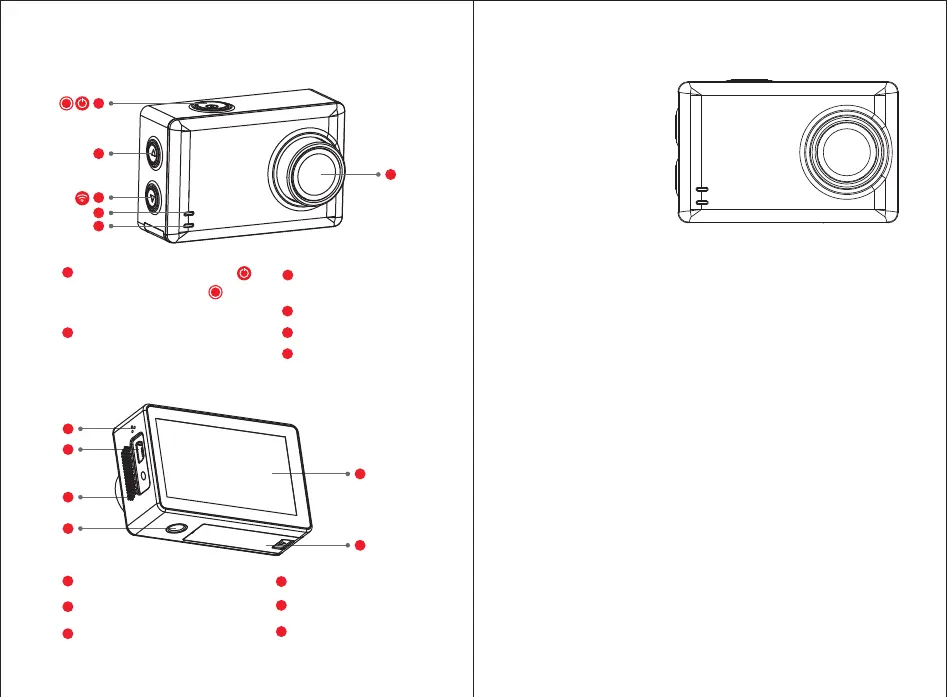
1、Structure
2、Instruction
1)Camera ON/OFF
ON: Short press
OFF: Long press
2)Wifi ON/OFF
WIFI ON: when camera is turned on, long press Down/WIFI button until
hearing the beep sounds. There is a WIFI icon, WIFI SSID andpassword
displaying on screen. WIFI indicator flashes in blue colorduring conne
ction, and keeps on in blue when WIFI is successfully connected.
3)Mode Switch
4)Status Indicators and Power Indicator
WIFI OFF: long press Down/WIFI button until hearing the beep sound,
WIFI icon on screen disappears, indicator turns off when WIFI disconnect.
Camera interface turns back to video standby when WIFI is disconnected.
1
2
Power button/OK button
4
5
3
Down/Menu setting
/WIFI button
WIFI/Working indicator
Charging indicator
Video/Photo button
1
2
3
5
6
Up/Mode select button
8
7
9
7
8
9
Mini-USB charger connector
10
11
12
Battery cover
2.35 inch HD touch screen
Tripod connector
10
11
12
Microphone
Loudspeaker holes
4
6
Lens
When camera is turned on, Slide UP on screen or short press UP
button to enter 6 modes selection. Touch on screen or Press
Up/Down buttons to select the mode.
Video: short press Power button to start video, short press
Powerbutton again to stop video;
Photo: under Photo mode, short press Photo button to take a
photo and photo is saved automatically.
Status Indicator is in Green color.
Indicator keeps on during camera standby and flashes when it
takes photos;
Indicator keeps slow flashing when it takes videos.
Charging indicators is in Red color. It keeps on during charging
and turns off when battery is fully charged.
WIFI indicator is in blue color. It flashes during connection, andkeeps
on when WIFI is connected, and turns off when WIFI is disconnected.
PC-Cam confirm
Long press to Playback mode


 To Next Page