Installing Drivers (Windows)
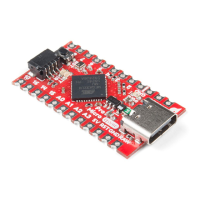
Getting the Qwiic Pro Micro set up on your computer and in your Arduino environment can be difficult. Follow
along on this page for a step-by-step guide through the driver installation and Arduino-enabling process.
Windows Driver Installation
Note: On a Windows 10 OS, the driver should automatically install. You may not need to download the driver
for the Atmega-32U4-based Arduino. If that is the case, you can move to installing the board add-on for the
Arduino IDE.
Step 1: Download the Driver
Before plugging your board in, get a head start by downloading the drivers. Check the GitHub Repository for the
latest files. The same driver file works for both the Pro Micro and the Fio v3. The drivers for both the Fio and the
Pro Micro are signed for Windows users. You can download them directly using the link below.
FIO AND PRO MICRO DRIVERS (ZIP)
Unzip that zip file, and don't forget where you've left its contents. In that zip file, you should find the .inf and .cat
files, which contains all the information Windows needs to install the Pro Micro's driver. The sparkfun.inf driver and
sparkfun.cat digitally signed catalog file will be found in ...Arduino_Boards-master/sparkfun/avr/signed_driver .
Step 2: Plug in the Qwiic Pro Micro
When you initially plug the board in, an "Installing device driver software" bubble notification should pop up in the
lower-right corner of your taskbar. After the green dot circles the grey box a number of times, you’ll probably get a
sad bubble like this:
Never fear! Windows just doesn't know where to find our driver.
Note: Some users have experienced issues when plugging the Pro Micro into a USB 3.0 port. If you
experience issues on USB 3.0 ports, try switching to use a USB 2.0 port.
Step 3: Open the Device Manager
From here, the most straightforward way to install the driver is through the Device Manager. To get to the Device
Manager, click the Start button, then open the Control Panel. In the Control Panel, click System and
Maintenance, and then open the Device Manager.
Alternatively, you can open the Run prompt (Windows key+R) and type 'devmgmt.msc' and click OK.


 To Next Page
 Loading...