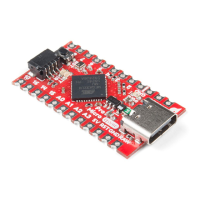
Notice there are two options for the Pro Micro - 8MHz and 16MHz. It's very important that you select the Pro
Micro option that matches your board's voltage and speed. This should be listed under the Tools >
Processor. For the Qwiic Pro Micro, you will need to ensure that you select the ATmega32U4 (5V, 16MHz).
You should also see your Pro Micro's COM port under the 'Tools > Serial Port' menu. Select it, and head over to
the Example 1 page where we'll upload our first piece of code.
Installing the Arduino Addon Mac and Linux
Following these directions is critical to getting your Pro Micro supported within your Arduino environment!
Using the Board Manager
Since the release of Arduino v1.6.4, adding third party boards to the Arduino IDE is easily achieved through the
board manager. If you're running an older version of Arduino (v1.6.3 or earlier), we recommend upgrading now. As
always, you can download the latest version of Arduino from arduino.cc.
DOWNLOAD THE ARDUINO IDE
To begin, you'll need to point the Arduino IDE board manager to a custom URL. Open up Arduino, then go to the
Preferences (File > Preferences). Then, towards the bottom of the window, paste this URL into the "Additional
Board Manager URLs" text box:


 To Next Page
 Loading...