17
SportLog will automatically detect which port
your P-Brain is plugged into. You may need
to check your computer’s communication
port settings to be sure that your serial port
is enabled. To attach the SpeedZone P•Brain
into the download module, slide the comput-
er forward onto the mounting until it ‘snaps’
into place with an audible click. To remove
the computer, push it backward until it
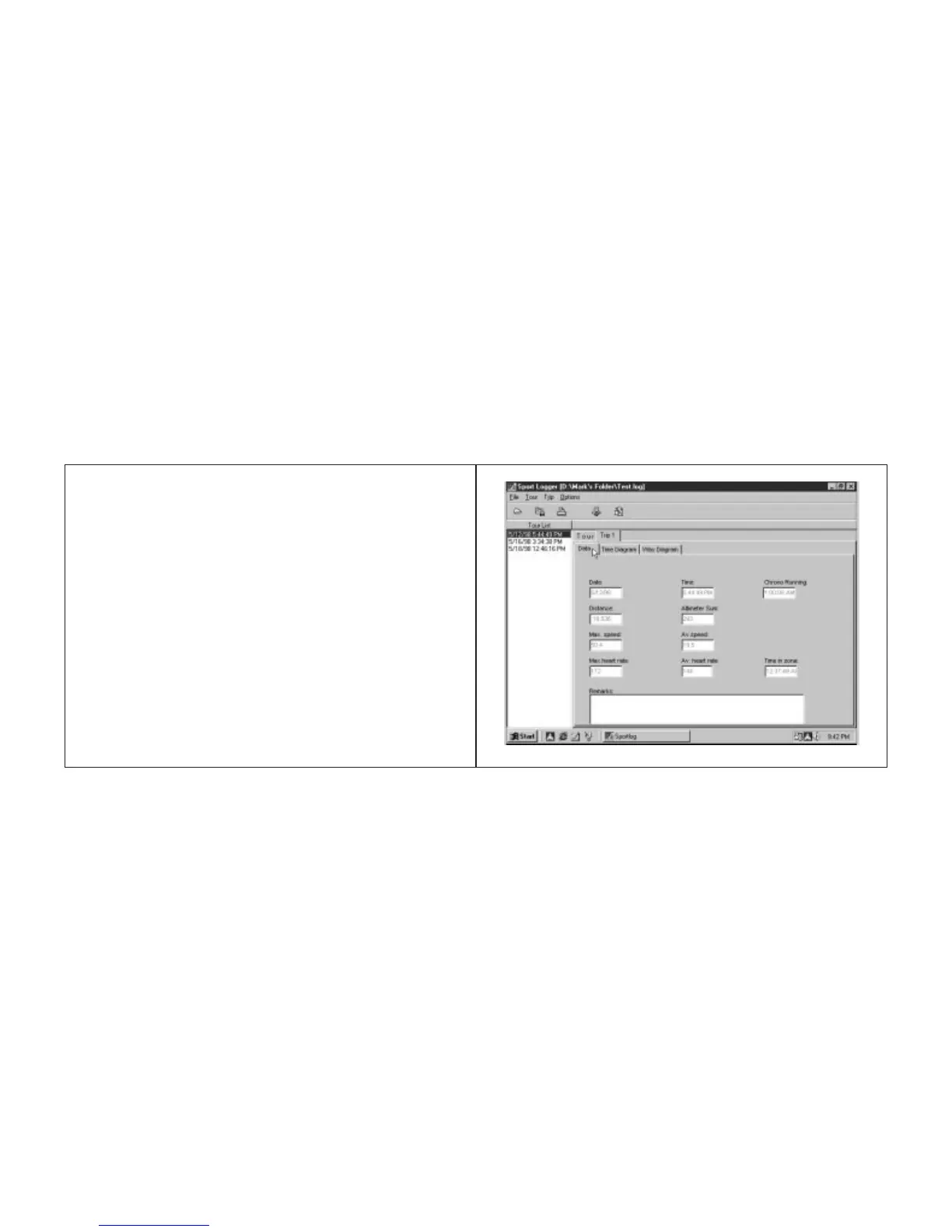
releases from the mount. Click on the
“Transfer” icon (the picture of a computer
with a red arrow) or select “Transfer” from
the “Tour” pull-down menu. The tour stored
in your SpeedZone P•Brain will now be
transferred to your computer and will
appear on your “Tour List” on the left-hand
side of the screen. The tour will be identified
by the date that it was created.
Note:
You cannot download data from
your P-Brain while in Data Collection Mode.
If Data collection mode is on, press the top
button once to turn it off.
Tech Note:
SportLog is designed to use
Windows default port settings. If you are
having difficulty communicating with your
P•Brain, check the settings of the COMM
port you are connected to. The correct set-
tings are: BAUD Rate-9600bps, Data Bits-8,
Parity-None, Stop Bits – 1, Flow Control-
XonXoff.
Opening saved tours
To open a stored tour, click on the “Open”
icon (picture of a folder) or select “Open”
from under the “File” pull-down menu. A
dialog box will open and allow you to select
the tour you want to view.
Viewing your data
From the "Tour List" on the left hand side of
the screen select the tour you would like to
review by clicking on it once. In the window
on the right side of the screen, you can select
one of the file tabs to view the data from
either your "Tour" or from one of the "Trips"
that make up the Tour. For each of the Trips,
you can view a graph that shows your heart
rate, speed, altitude and either your distance
or time. The "Time Diagram" will create a
16



 To Next Page