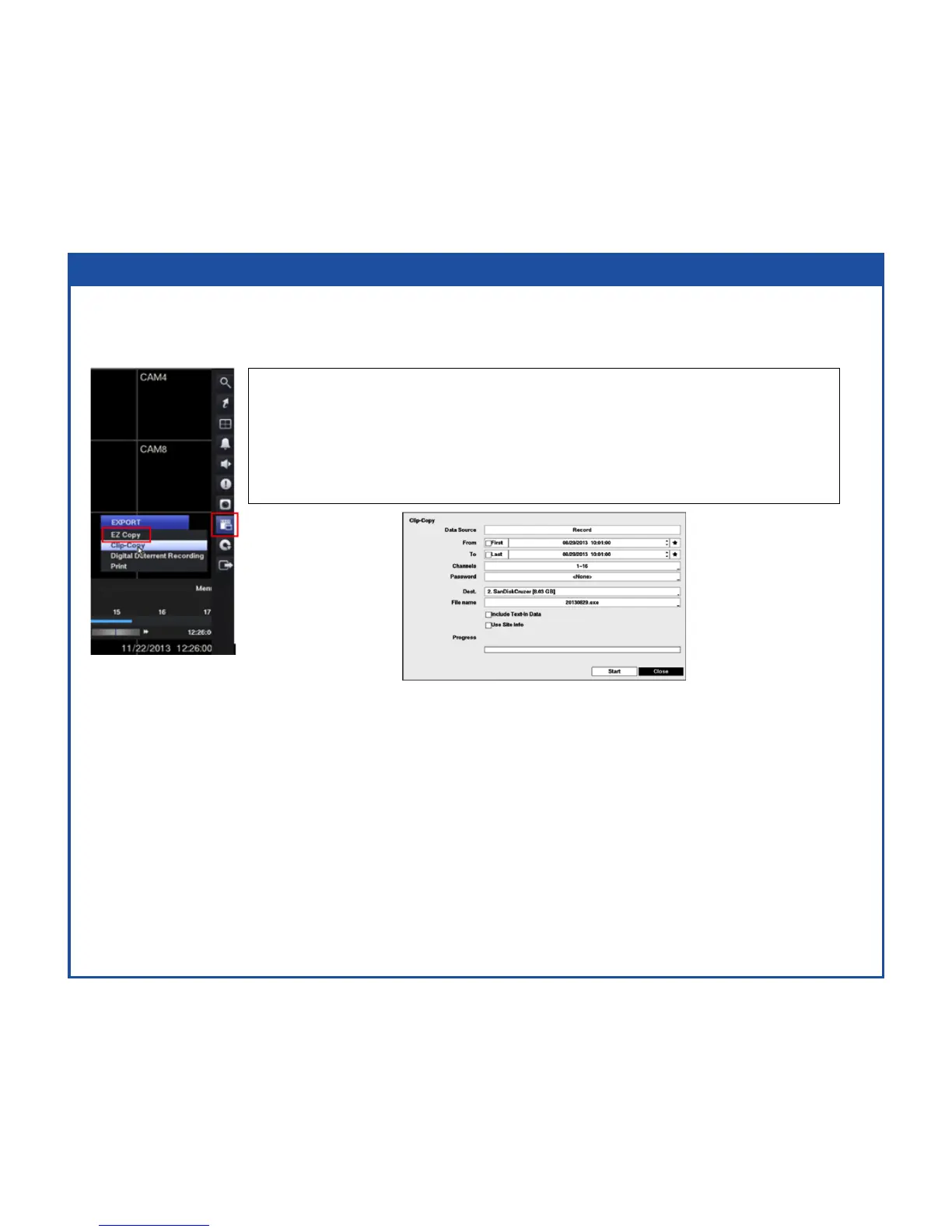
EZ Copy
VideoclipscanbecopiedtoanexternalUSBharddiskorashdrive.Thecopiedvideo
clipscanbeviewedoncomputersrunningMicrosoftWindows2000,XP,Vistaor7.
HighlighttheboxbesideFrom/Toandpressthe(Play/Pause)buttontotogglebetweenOnandOff.
WhensettoOff,youcanenteraspecicDateandTime.WhensettoOn,thesearchwillbefrom
therstrecordedimage.
HighlighttheboxbesideChannelsandpressthe(Play/Pause)button.Youcanselectthecameras
thatyouwouldliketoincludeinyourvideoclip.
HighlighttheboxbesidePasswordandpressthe(Play/Pause)button.Avirtualkeyboardappears
allowing you to enter the password for reviewing the video clips.
HighlighttheboxbesideDest.andpress(Play/Pause)thebutton.Youcanselectthestoragedevice
onwhichyouwouldliketorecordthevideoclip.
StartbuttonbeginstheexportingofthevideotoyourDestinationdevice.(USBashdrive/HDD)
SelectingEZCopyintheSearch–ExportmenuorpressingtheCOPYbuttonduring
playbackwillsetthestartingpointofthevideotobeclipcopied,andtheicon
displaysatthebottom-leftcornerofthescreen.
SelectingEZCopyintheSearch–ExportmenuorpressingtheCOPYbuttonagainwill
settheendingpointofthevideotobeclipcopiedbydisplayingtheClip-Copyscreen.



 To Next Page