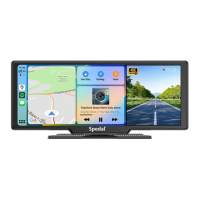
This document describes the MINIEYE AI Collision Avoidance Device, an intelligent multi-function warning device designed to enhance driving safety through advanced driver-assistance systems (ADAS).
Function Description
The MINIEYE AI Collision Avoidance Device provides several anti-collision functions and driving assistance features:
- Forward Collision Warning (FCW) / Headway Monitoring Warning (HMW) / Urban Forward Collision Warning (UFCW): These functions ensure the car maintains a safe distance from the vehicle in front in various driving scenarios, including urban environments.
- Stop & Go: This feature reminds the driver to start moving when the front car departs in congested traffic conditions.
- Emergent Collision Warning: The device automatically starts recording when a potential collision is detected, providing critical evidence.
- Video Preview / Playback / Share: Users can preview real-time images, play back video from the previous 2 hours, and access a photo album to view all driving record videos. Saved files can be viewed, downloaded, and shared through the "Device Album" in the app.
- Voice Command: The device supports quick voice commands for controlling functions such as taking pictures or turning off recording.
The device utilizes world-leading computer vision and deep-learning technology to identify vehicles, pedestrians, lane lines, and other traffic elements, providing visual or sound warnings. It is an ADAS and not an automatic driving system; drivers must remain attentive and in control of the vehicle at all times.
Important Technical Specifications
- Size: 110mm x 40mm x 27mm
- Material: PC plastic, PC+ABS plastic, Aluminum alloy
- Operating Temperature: -20°C ~ 65°C
- Storage Temperature: -30°C ~ 75°C
- Working Input: 12V / 1A
- Memory Card Support: Supports Class 10 high-speed memory cards with a maximum capacity of 128GB.
- FCC Compliance: Complies with Part 15 of the FCC Rules, ensuring it does not cause harmful interference and accepts any interference received. It also complies with FCC RF radiation exposure limits for an uncontrolled environment, requiring a minimum distance of 20 centimeters between the radiator and the user's body.
Usage Features
Installation Guide:
- Install the electrostatic sticker: Clean the windshield and place the electrostatic sticker on a flat, smooth area, avoiding the edges. It is recommended to place it behind the rear-view mirror. Ensure no air bubbles are present.
- Stick the camera mount to the windshield: Insert a TF card into the card slot. Remove the protective film from the 3M glue on the bracket and attach it to the electrostatic sticker in the designated dotted area, pressing firmly.
- Connecting the power supply: Route the power cord along the top of the windshield, down the A-pillar, and around the glove compartment to reach the cigarette lighter. Connect the power cable to the car charger and plug it into the cigarette lighter socket.
- Rear Camera Installation (Optional): Connect the rear camera to the Rear camera cable, and insert the other end into the AV-IN port of the device. Paste the Rear Camera on the glass after tearing off its protective film.
- Adjust device orientation: Turn the device up or down to ensure it faces forward horizontally.
- Automatic power-on: The device automatically turns on when the car starts, emits a power-on prompt, and begins continuous video storage.
APP Connection and Activation:
- Download the APP: Scan the QR code provided or search "MINIEYE International" in the iOS/Android App Store.
- Authorize Connection:
- While the device is on, add the MINIEYE AI Collision Avoidance Device in the APP's "Device" page by clicking the "+" button.
- Select the Wi-Fi network named "MINIEYE-Device ID" (Device ID is found at the bottom of the package) and enter the default password "12345678". For Android phones, select "Continue" if prompted to use the wireless network.
- Authorize the connection by clicking the button on the top of the monitor or entering the voice verification code to ensure APP-to-Device communication security.
- APP Activation:
- Select your car type in the APP to optimize the anti-collision algorithm's prediction of collision risks.
- Measure the horizontal distance between the camera and the central axis of the windshield using the scale line in the manual to ensure accurate ground model construction for the anti-collision algorithm.
- Use the real-time image preview in the APP for adjustment. Anti-collision functions will activate upon completion.
- For accurate adjustment calculation, drive at speeds over 30km/h on a horizontal road with clear lane lines for 3-5 minutes without changing lanes. The device will complete its accurate adjustment during normal driving.
Anti-Collision Functions Setting:
- Access "Anti-Collision Settings" through the "Device" Page in the APP to set various parameters for the anti-collision functions.
- Warm Tip: To achieve more accurate and safe driving, users can improve vehicle model data, reset installation distance parameters, or re-adjust the image if the camera offset is too large.
Maintenance Features
General Maintenance:
- Cleanliness: Keep both the windshield and camera surface clean and dry to ensure clear vision for the camera. Avoid touching or playing with the camera.
- TF Card Management: Cut off the power supply before inserting or removing the memory card. Use high-quality memory cards from regular suppliers. If the TF card is full, format it through the APP. If there are errors or the card is not recognized, format it or use a new genuine TF card.
- Troubleshooting:
- If the device cannot boot, check the power supply connection and try booting without inserting the TF card.
- If the device crashes, remove the TF card to rule out a card-related issue, and unplug the power cord to force restart the machine.
Safety Precautions:
- Driving Safety: Always pay attention to driving. Do not debug the device or operate the APP while driving. The device's installation position should not obstruct driving sight or interfere with airbags.
- Environmental Conditions: The device's functions may be affected by bad weather (rain, snow, fog, haze, dust, typhoon, tornado, extreme cold/hot), poor lighting (backlighting, tunnels, insufficient lighting, strong light sources like high beams, lasers), and poor road conditions (worn lane markings, foreign objects covering lane signs).
- External Interference: Stains, oil, water, dust, or fingerprints on the windshield and camera can cause anti-collision function failure. Self-luminous, strongly reflective, or high-brightness objects (e.g., white paper, plastic bags, metal/ceramic/glass products) on the dashboard may reflect images on the windshield, interfering with camera vision.
- Object Identification: The device may not accurately identify certain special vehicle types (military, ancient, exotic, engineering vehicles, trailers with special shaped items) or people with special postures or low-visibility clothing (camouflage, squatting, kneeling, lying down, performing sports movements, riding horses, carriages).
- Sudden Objects: The sudden appearance of unknown objects (balloons, drones, flying toys, balls, high-altitude parabolic and floating garbage) may temporarily cause anti-collision function failure.
- Firmware Updates: Upgrading the AI anti-collision algorithm version will continuously decrease the functional failure rate in special scenes. Refer to the actual experience for performance.
- Battery Care: If the battery is deformed, expanded, or leaked, discontinue use of the product.
- Product Modification: Do not modify the product yourself. Use standard components (car charger, power cables) to ensure normal operation and prevent damage, explosion, or fire.
- Legal Compliance: Use the product within the scope permitted by law.

 Need help?
 General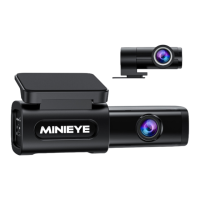

 To Next Page