Copyright 2020. Speech Recognition Solutions, LLC.
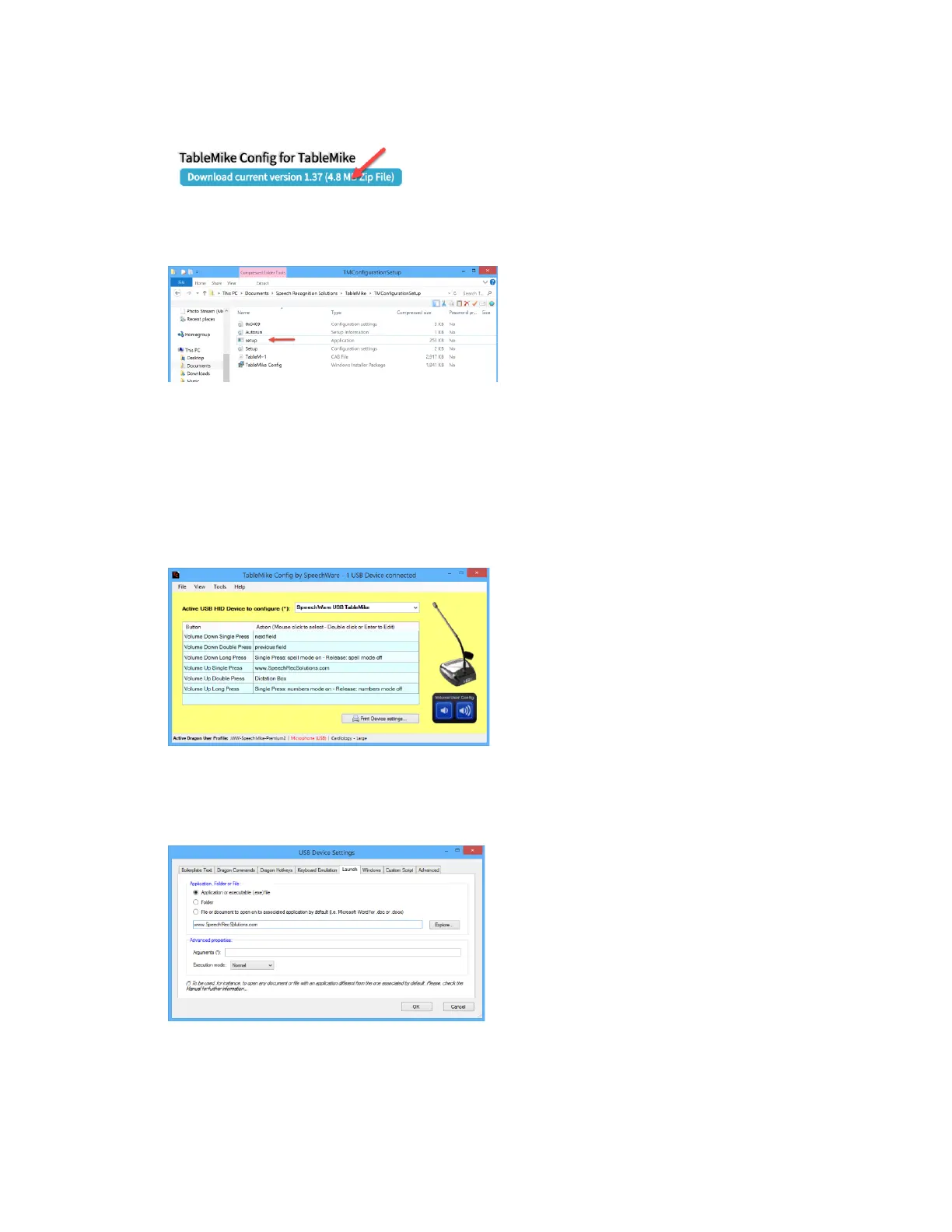
3. Click on Download TableMike Config
4. Once downloaded, unzip the file and begin the installation by clicking on the “setup”
icon
Using TableMike Config Utility
1. Open the utility by going to the Start Menu > All Applications > SpeechWare
2. Once launched you will see the main window depicted below. You will notice that for
each of the two buttons you can program a separate behavior for a single press, double
press, or a long press (a total of 6 actions can be executed).
3. Double click on the button and behavior you want to program and this will launch the
USB Device Settings window from where you can program the detailed behavior you
desire.



 To Next Page