Copyright 2020. Speech Recognition Solutions, LLC.
b. To confirm your TableMike is the default recording device, select the Recording
tab from the sound control panel and confirm that it is the chosen default
device. If it isn’t right click on the device and select “set as default device”.
c. To confirm your device is working, set the device in either the blue or green
mode and while speaking near the microphone confirm there are sound
deflection on the control panel.
Dragon NaturallySpeaking Set-up
Setting up a USB microphone with Dragon varies based on the operating system you are using
and the version of Dragon you are using. Setting up a new microphone is Dramatically easier
with Windows 10 and any Dragon 15 version.
Dragon 15 (Home, Pro, Legal and DMPE4)
The beauty of Dragon 15 (including Dragon 15 Professional, Dragon 15 Legal, and DMPE4) is
that it has greatly simplified the handling of microphones. If it starts up and does not find the
last sound source it used or if it detects multiple sound sources, it will query you about which of
the available sound sources it should use. All you need do is attach your microphone (and any
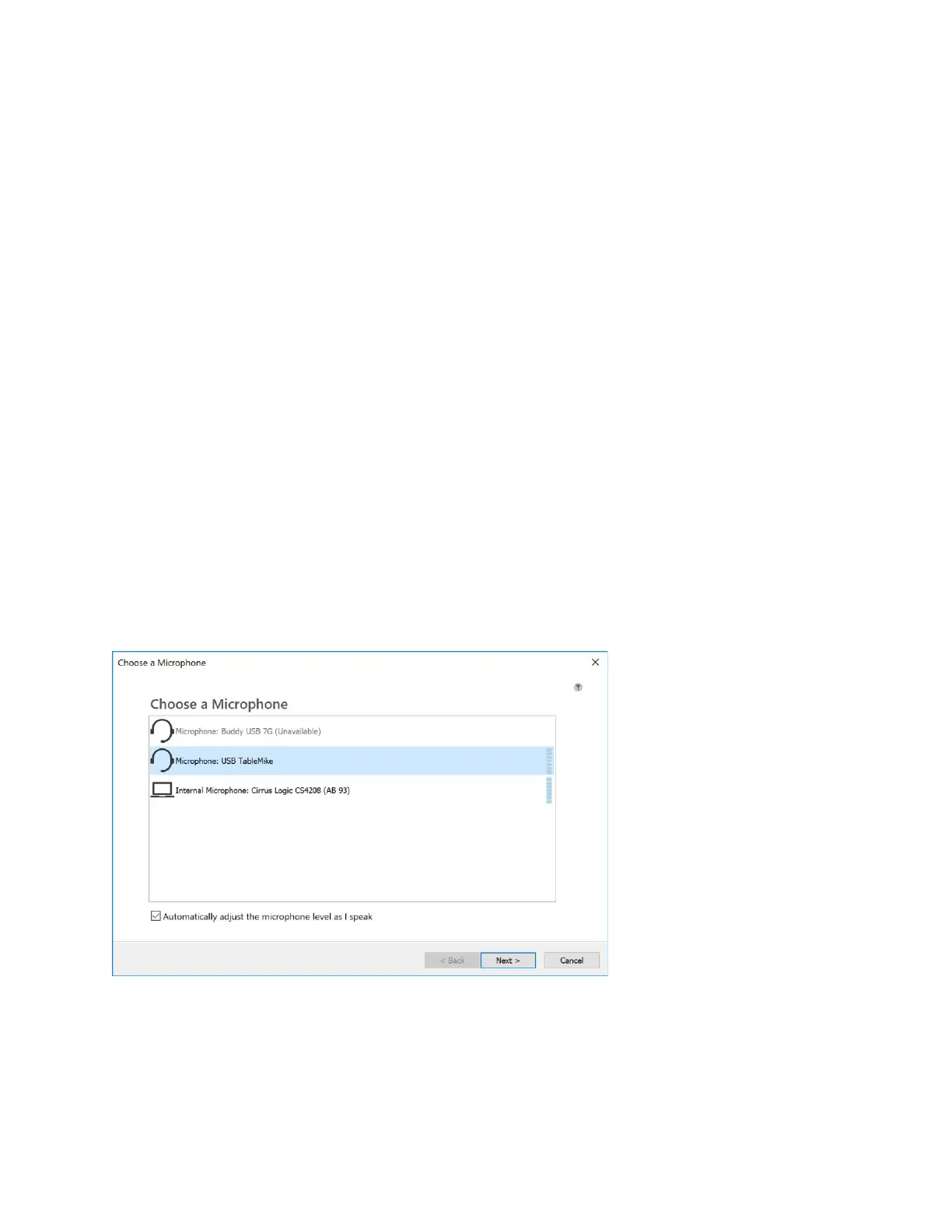
included USB sound adapters) before starting Dragon and you will get a message shown below
once you start any version of Dragon 15:
In the case shown above, Dragon is seeing 3 potential sound sources and you simply need
select the one you plan to use (Microphone: USB TableMike) and then click “Finish”. If you like,
you can run the microphone check by selecting Settings > Microphone > Check Microphone.



 To Next Page