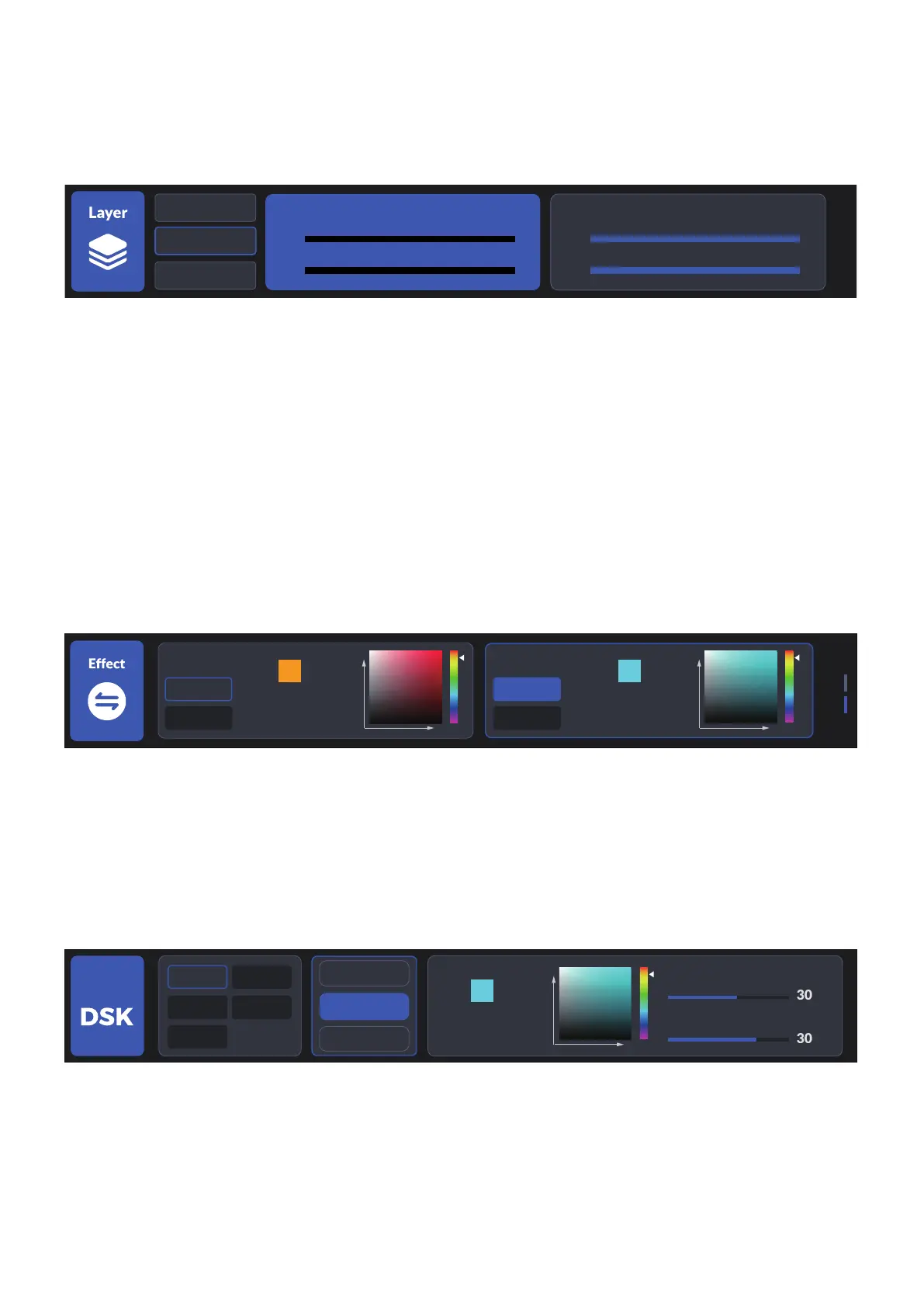
you can change the screen by switching the signal source.
Position and Zoom can adjust the size and position of the corresponding layer,
and the five-way key can select the X-axis and Y-axis.
3.4 Transition
a. Transition settings mainly include the switching of transition effects and the
setting of special effects, which can also be accessed by EFFECT button.
b. In transition setting, you can use the knob to select the transition effects,
press the knob to confirm the effect.
c. DIP and FTB
DIP transition and FTB are allowed to set as the specific colors or pictures. The
colors can be adjusted by the knobs and the five-way keys.
DIP color and FTB color can be adjusted separately.
3.5 Chroma Key
Enter the chroma keying menu, select the HDMI signal of the PIP layer to be
keyed and turn on the chroma key switch, you can key in the chroma key; sup-
port manual color picking through the knob and five-way key. Add the bottom
layer as needed.
3.6 Media
a. In Media menu, You can switch the LOGO and picture file.
b. (1) when the LOGO key is always on, the LOGO will display on PGM directly.
c. (2) when the LOGO key blinks , You can adjust logo position by the five-di-
FTB
Color
Image
HSV:180,29,41
RGB:3641,41
DIP
Color
Image
HSV:180,29,41
RGB:3641,41
HS
V
HS
V
Smooth
OFF
Chromakey
Lumakey
HSV:180,29,41
RGB:3641,41
HDMI 1
HDMI 3 HDMI 4
HDMI 2
Media
HS
V
Key
Similarity
POS 44,6
60% 50%
T-Bar Mode
X
Y
PST BG
HDMI 2
POS 44,6
60% 50%
(1920,1080)(0,0)
X
Y
Scale Digital Zoom


 To Next Page