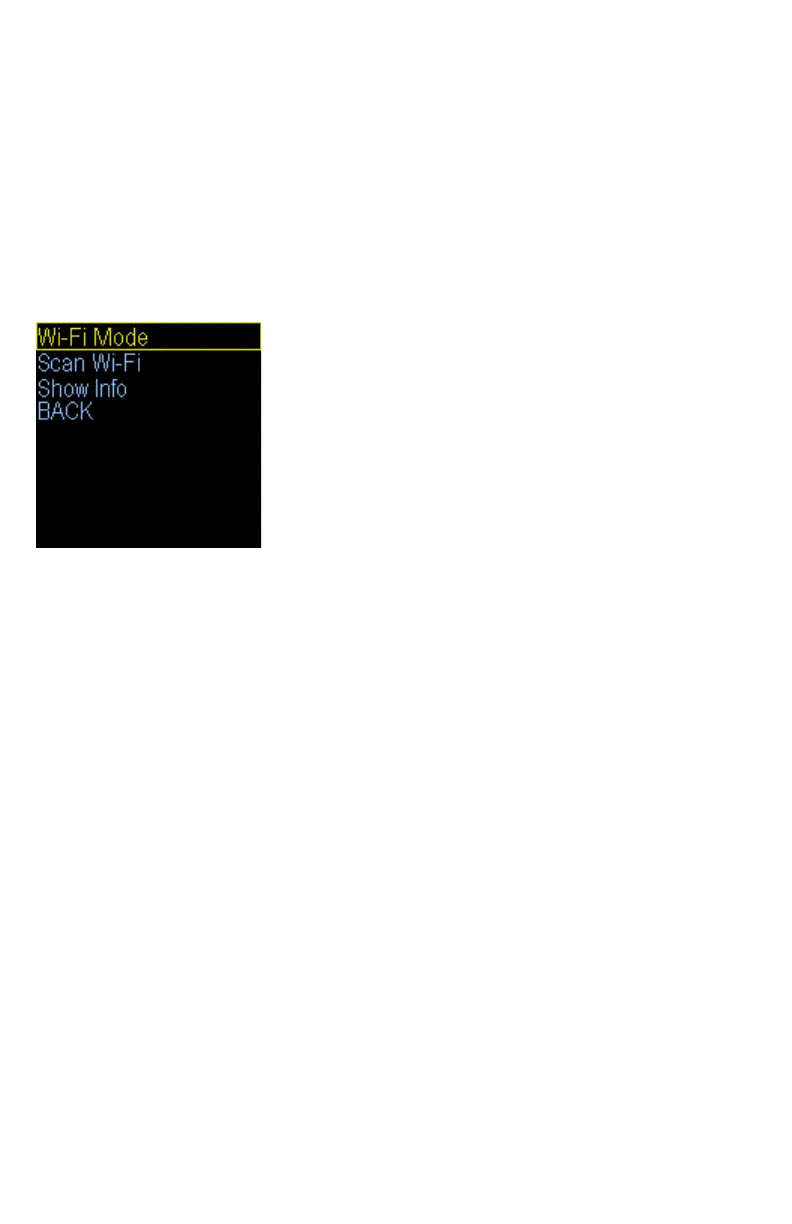
Wi-Fi Setup (menu option)
Special Requirements:
There are length limitations on some features of the SpyderWeb:
Your home router SSID: 20 Characters
Your home routers password: 16 Characters
SendTo and From email addresses: 39 Characters
Email passwords: 19 Characters
Note: The fastest way to connect your Herpstat to Wi-Fi is by selecting Access Point on the main
menu page. Then you can use your phones Wi-Fi to connect to the Herpstat and select your network
and password info.
The Herpstat uses the standard 2.4 Ghz (not 5.8) wireless connection. If you do not see your
network during the scan make sure its within range and that your routers 2.4 radio is not disabled.
From the initial menu screen select Wi-Fi using the Plus and Minus button and press Enter.
Mode: (Disable / Enable)
DISABLE: All Wi-Fi operations are turned off.
ENABLE: Enables all Wi-Fi features.
Scan Wi-Fi:
To connect to your router select the Scan Wi-Fi option. Connections that are in range will show up on the
display. Use the plus and minus button to toggle between them. Select your router and press ENTER. Then
enter your routers Wi-Fi password. PLUS and MINUS buttons will scroll through the alphabet and numbers.
Press ENTER to select the character. If you make a mistake press and hold the ENTER button and the selection
will go back one character. When finished select the DONE option (appears after every entry) and press ENTER.
The unit will then attempt to connect to the router. If successful the device will display the Herpstat’s IP
address (the unique address on your network).
Show Info:
This option will show the Herpstat’s network information including:
Signal Strength: Shows as a negative number. -40 is a better signal than -75.
SSID: Shows the ssid of the router its connected to.
IP ADDRESS: This is the unique address the Herpstat is given by your router.
MAC ADDRESS: This is the unique address that is programmed into the Herpstat
Write these settings down (or take a pic with your phone) for reference.


 To Next Page