MANAGING YOUR ACCESSORIES AND IPAD
Removing your iPad
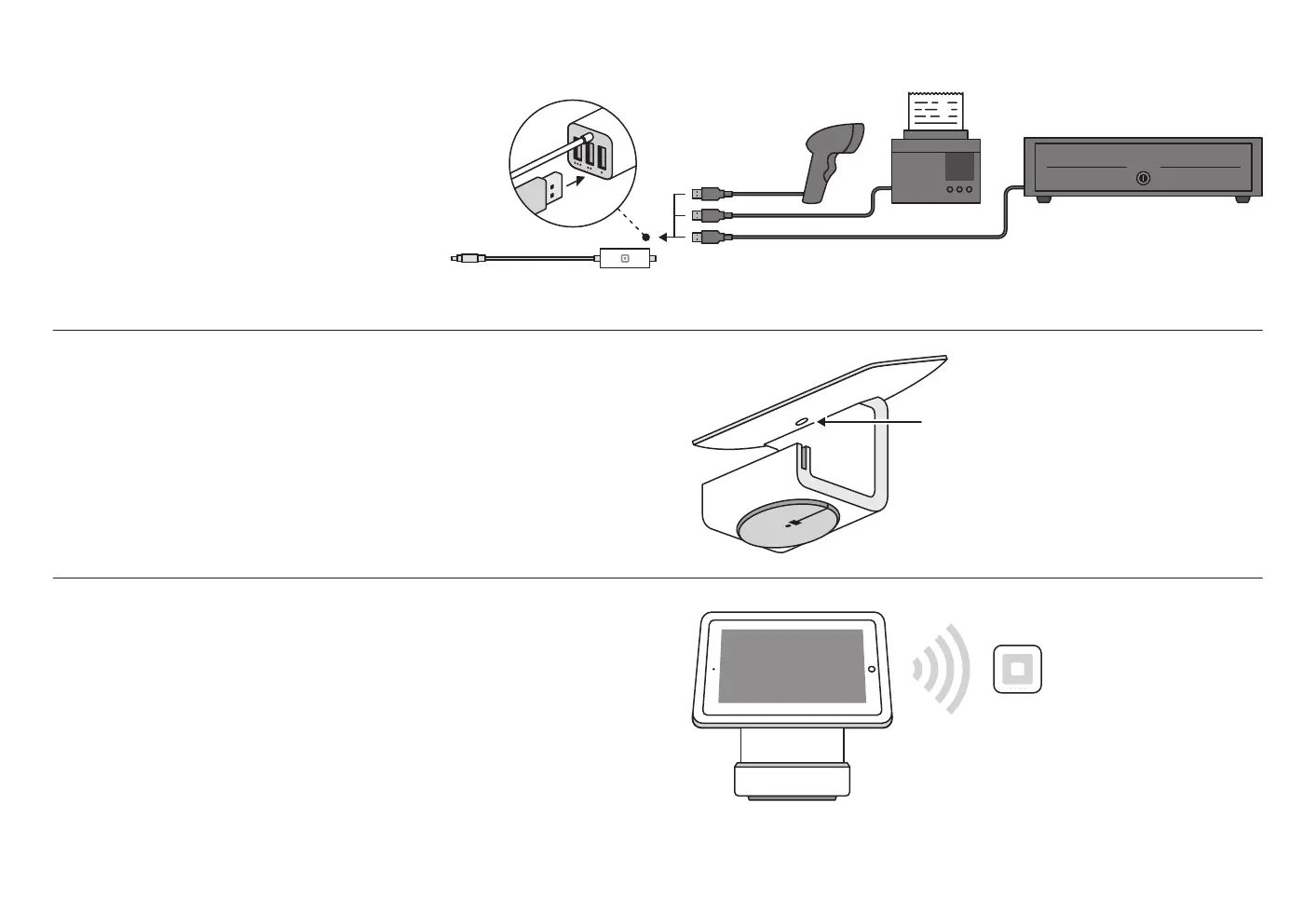
If you need to remove your iPad from Stand, remove the
security pin from the headset jack of your iPad, then press
the eject button located on the back of Stand.
Taking payments without a power source
When Stand isn’t plugged into a wall (and is just powered by
your iPad), you can swipe magstripe cards and connect to
Square Reader via Bluetooth to accept contactless and chip
payments.
Accessories
Plug any optional USB accessories into the hardware
hub, such as a bar code scanner, receipt printer, or
cash drawer. Some accessories may need you to
finish setup by going to Settings > Hardware
in the Square app.
Eject button


 To Next Page