Start/Stop Audio Streaming | 15 14 | Using the Mini Remote Microphone
Start/Stop Audio Streaming
Audio streaming from Starkey Hearing Technologies
Mini Remote Microphone may be started (or stopped)
in a variety of ways:
• Turn On the Mini Remote Mic: Audio streaming
automatically starts in hearing aid.
• Thrive Hearing Control: Open the app on your
mobile phone or tablet. Select the option to
start/stop streaming from Accessories screen.
• Starkey Hearing Technologies
Remote: If preconfigured by your
hearing professional, press the
Favorite button.
• Hearing aid user control: If preconfigured by
your hearing professional, a specific gesture
(e.g., a Long Press on a user control) can start/
stop streaming.
Audio streaming will also stop when the Mini Remote
Mic is turned off.
An audible indicator may play in your hearing aids to
signal the start/stop of audio streaming.
Using the Mini Remote Microphone
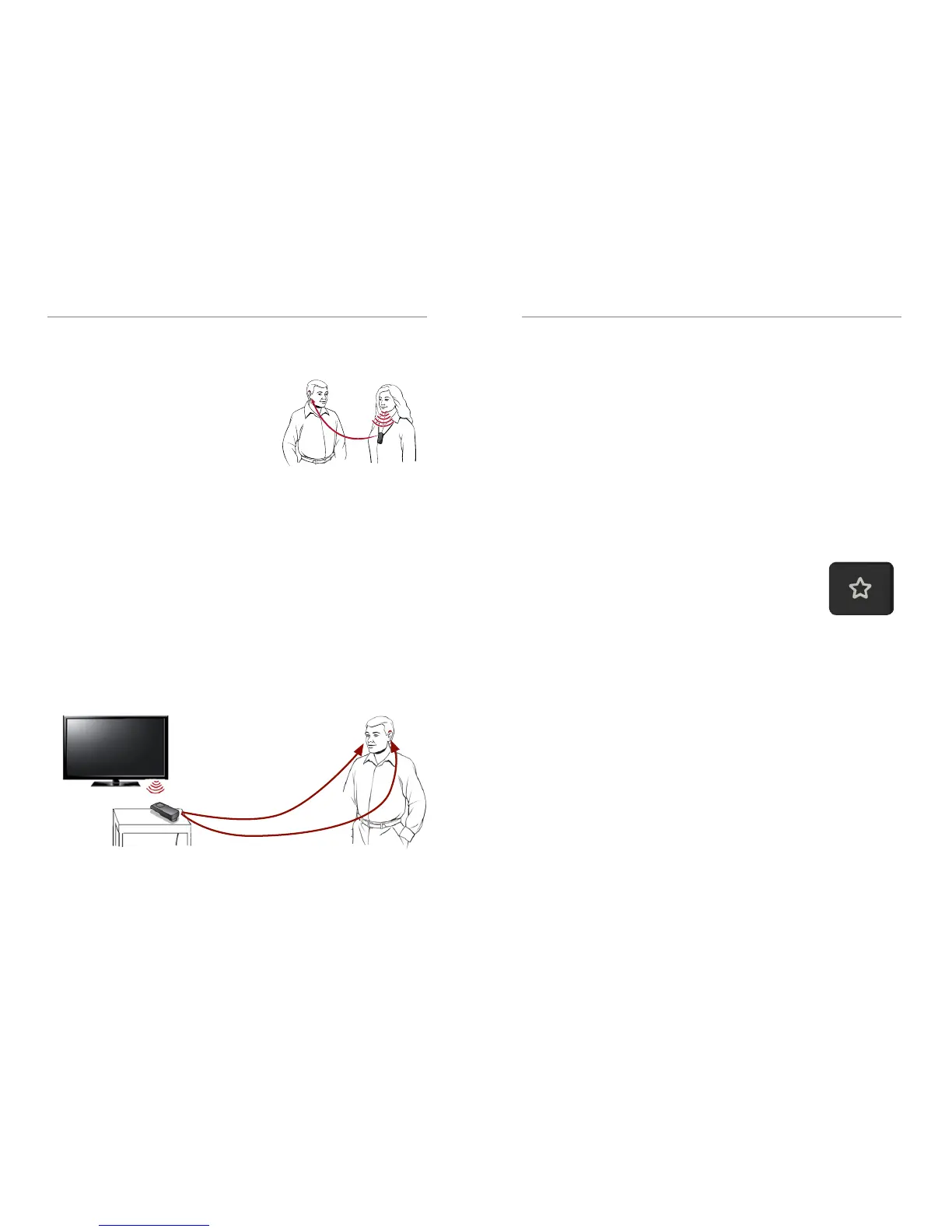
In its primary usage, the Starkey
Hearing Technologies Mini
Remote Microphone is worn
by a distant speaker in noisy
environments. This allows a
hearing aid wearer to focus on
one person when background noise is present.
While not optimized as a general-purpose
omnidirectional microphone for tabletop use,
the Mini Remote Mic may still provide benefit in
some circumstances. For example, try placing the
Mini Remote Mic near a television. To achieve a
comfortable listening level, adjust the Mini Remote
Mic distance from the television speakers or modify
the audio streaming volume level.



 To Next Page