Instruction Manual
4
Install the adapter
• The adapter is natively supported when connected to a compatible operating
system (see Requirements for supported operating systems). It automatically
detects and installs the required drivers when connected to a USB-C port on your
host laptop.
Connect the adapter
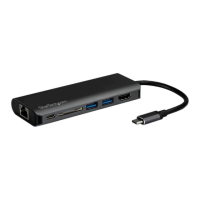
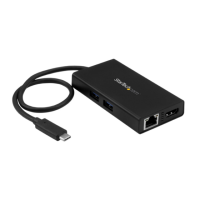
1. Connect your external HDMI monitor to the adapter’s HDMI port.
2. Connect your peripherals to the adapter (for example, a USB device such as a
keyboard, or an RJ45 network device).
3. Connect the adapter’s built-in USB-C cable to a USB-C port on your host laptop.
Power the adapter
You can power the adapter by one of the following methods.
• Without USB Power Delivery 2.0 using your computer’s bus power: The adapter
is powered by your host laptop’s USB-C port and does not require a separate power
adapter and will not charge your laptop.
• With USB Power Delivery 2.0 using your laptop’s USB-C power adapter
(Recommended to ensure sucient power): The adapter is powered using your
laptop’s power adapter (if your laptop is powered by a USB-C power adapter).
Connecting your laptop’s power adapter
1. Connect the adapter’s built-in USB-C cable to a USB-C port on your host laptop.
2. Connect the USB-C connector on your laptop’s power adapter to the USB-C female
port on the adapter.
3. The power adapter will power the multiport adapter and pass power through to
your host laptop.
Disconnecting your laptop’s power adapter
Caution! It is important to follow the below disconnection steps whenever you
disconnect power from the multiport adapter. If you disconnect the power adapter
while you’re transferring les to or from an attached storage device, the transfer
will stop, causing possible le corruption. Disconnecting the power adapter during
operation can also cause the multiport adapter to lose functionality.
1. Fully complete all data transfers over USB and to or from the SD card.
2. Disconnect the adapter from the host laptop.
3. Disconnect your laptop’s power adapter from the adapter.




 To Next Page