– 5 –
Routing Audio between VST and the DSP Factory
Audio routing with the DSP Factory is extremely flexible, allowing you
to connect channels, aux sends and buses to various physical outputs
and inputs. This is done in the special DSP Factory windows, as de-
scribed on page 13. However, first you need to “connect” Nuendo to
the DSP Factory:
Assigning Inputs
1.
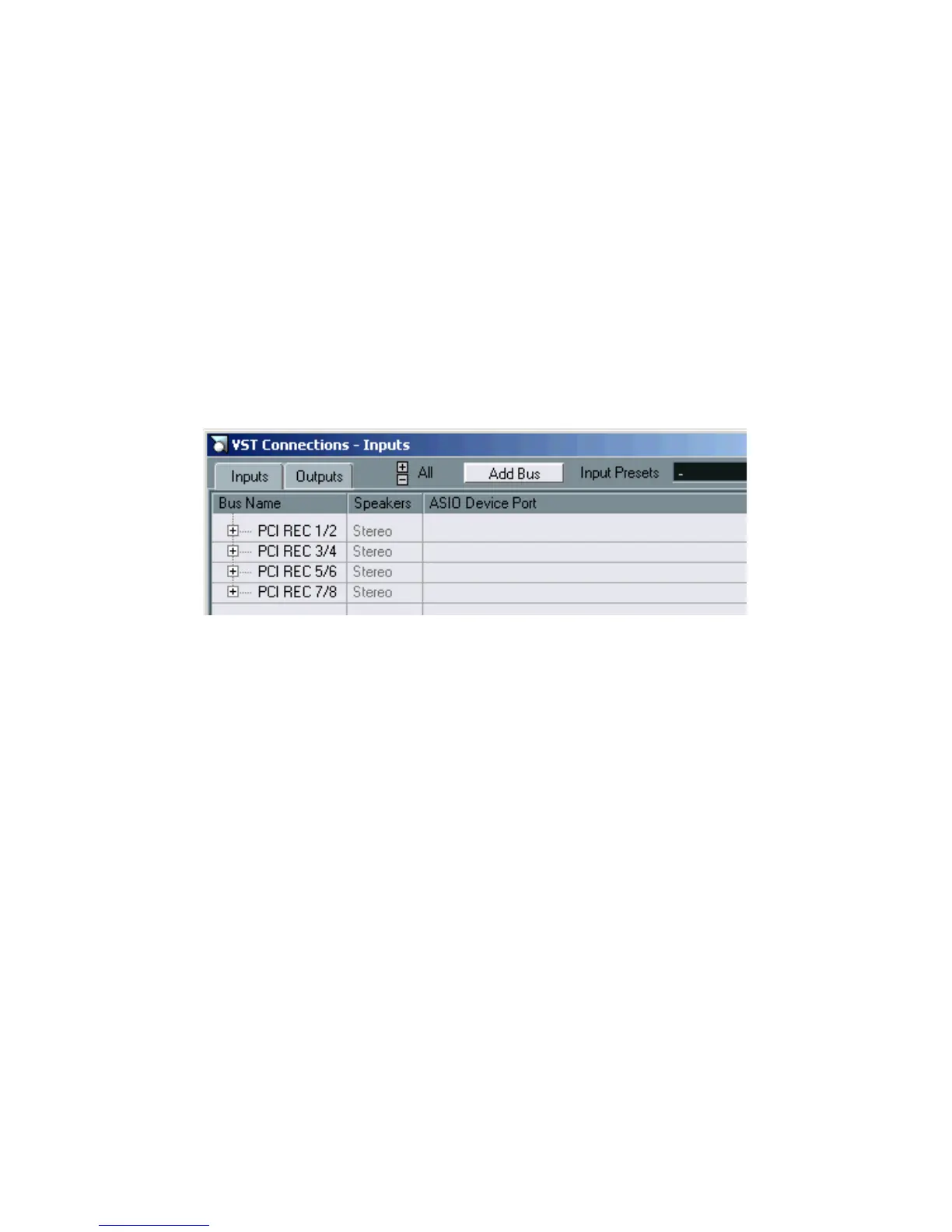
Pull down the Devices menu and select VST Connections.
The VST Connections window appears. This is where you view, add and set up input
and output busses.
2.
Open the “Inputs” tab by clicking on it.
By default, there is a stereo bus called “Stereo In”.
3.
Click the Add bus button.
The “Add bus” window is opened. Select the the Stereo format from the Speaker
Arrangement pop-up and click OK. Repeat this procedure until four input pairs are
shown for every installed DS2416 card.
4.
In the VST Connections window click the “+” button so that the indi-
vidual inputs in the bus are shown.
The ASIO Device Port column shows the physical inputs that are used by the bus.
5.
Click in the ASIO Device Port column for the “Left” channel.
A pop-up menu appears, listing all inputs on your DS2416.
6.
Select the input you want to use for the left channel in the stereo bus.
7.
Select the input for the right channel in the same way.
8.
Close the VST Connections window and open the Mixer.
In the Mixer you can now see the assigned input busses and Nuendo accepts the dig-
ital signals from the DS2416 card as input sources.



 To Next Page