2
QUICK START GUIDE
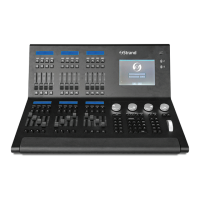
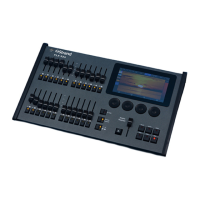
FLX S24
FLX S48
9850-000840-00
PLAYBACK WINDOW – this window displays
the current functionality of the 24 or 48
faders on the left hand side of the console.
GROUPS WINDOW – this window is used to
select xtures that are often used together.
Groups can be automatically or manually
created.
RIGSYNC
When FLX S is rst plugged into a lighting rig,
“RigSync” will set it up automatically and continue
working in the background to ensure FLX S and
your rig are always synchronized and problem free.
RigSync removes the need to understand DMX (if
your xtures support “RDM”).
GUIDANCE (HELP)
Available in multiple languages, “Guidance” steps
you through the key features of FLX S at your own
pace, to learn or refresh your skills. Guidance will
be automatically open on the bottom third of the
internal screen, and will follow your progression
through the console. If closed, Guidance can be
reopened by pressing . and choosing “Guidance”
on the internal screen.
GETTING STARTED
POWER ON
After plugging in all the relevant cables to the rear of
the console (power, DMX and possibly USB devices
or, on FLX S48, a monitor), turn on the power
supply and FLX S will power up automatically.
POWER OFF
There is no procedure to power o FLX S. Ensure
the “save” icon is green (see below) and just unplug
power.
NAVIGATING THE TOUCHSCREEN
Along the top of the touchscreen are ve square
buttons. Additional buttons (e.g. color, position
and eect controls) will appear and disappear to
the right of these depending on the capabilities
of the xtures you’re controlling. The currently
selected button is highlighted in blue.
SAVE – FLX S automatically saves you’re work
internally, indicated by a green icon. Press this icon
to save to an external USB drive
OUTPUT WINDOW – this window displays each
xture and its current intensity as a percentage.
CUE LIST WINDOW – this window displays the
list of cues on a specic playback, ready to be
progressed by pressing the GO button.
CONNECTIONS
DMX OUTPUT
Two 5-pin XLR connectors are provided.
USB PORTS
Two USB 2.0 ports are provided - one on the rear,
one on the front panel. USB ports can be used for:
• Keyboard & Mouse (mouse on external monitor
only)
• Touchscreen (DVI-D also required, FLX S48
only)
• External Storage Devices (such as Memory
Sticks)
ETHERNET PORT
An Ethernet port (RJ45) is provided for connecting
Apps to FLX S over WiFi, or connecting FLX S
to Ethernet based lighting rigs. The Ethernet
connection is designed to be used within a
dedicated, local lighting network, and not part of a
larger, building wide network.
FLX S should not be connected to the internet.
KENSINGTON LOCK
A Kensington-style lock slot is provided on FLX S
for securing the console to an operating location,
using a standard laptop lock cable.
POWER SUPPLY
FLX S is supplied with an external power supply,
which is connected to FLX S via a 2.1mm DC barrel
connector (center positive).
12V DC; MAX 1.25A, 15W
The approved Strand power supply included with
FLX S should always be used. This power supply
should be earthed. Spaces / replacements can
be ordered, listed under “accessories” on the rst
page of this guide.
This product must be earthed.


 To Next Page
 Loading...