4
QUICK START GUIDE
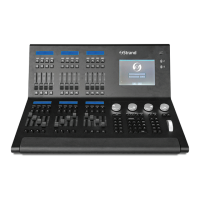
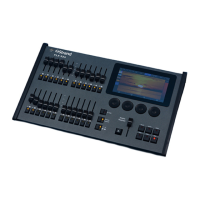
FLX S24
FLX S48
9850-000840-00
WARNINGS AND NOTICES
When using electrical equipment, basic safety precautions should always be followed including the following:
• For indoor, dry locations use only. Do not use outdoors.
• Do not mount near gas or electric heaters.
• Equipment should be mounted in locations and at heights where it will not readily be subjected to
tampering by unauthorized personnel.
• The use of accessory equipment not recommended by the manufacturer may cause an unsafe condition
and void warranty.
• Not for residential use. Do not use this equipment for other than intended use.
©2021 Signify Holding. All rights reserved.
All trademarks are owned by Signify Holding or their respective owners. The
information provided herein is subject to change, without notice. Signify does
not give any representation or warranty as to the accuracy or completeness of
the information included herein and shall not be liable for any action in reliance
thereon. The information presented in this document is not intended as any
commercial o er and does not form part of any quotation or contract, unless
otherwise agreed by Signify. Data subject to change.
CUSTOMER SERVICE
If you have any questions regarding this product,
please contact Customer Service by phone at
+1 214-647-7880 or by email at entertainment.
service@signify.com.
4
TROUBLESHOOTING
FIXTURES NOT RESPONDING?
If your xtures and dimmers are not responding to
the desk, check:
• Have you plugged the DMX cable into the back
of the console?
• If the xtures do not support RDM, they must be
added (or “patched”) manually – see the manual
for full details.
• Ensure the DMX cable is plugged into the correct
output
• Some xtures require the lamp to be “lamped
on”. If this is required, a “Macros” button will be
displayed along to top of the screen when the
xture is selected. Selecting macros will display
a “Lamp On” command.
EXTERNAL TOUCH SCREEN NOT RESPONDING?
On FLX S48, if the external touchscreen is not
responding, remember these points:
• External Touch Screens require both the USB
and DVI-D cables to be connected.
• External Touch Screen require calibration by
going to Setup > System Settings > Calibrate
REMOTE APP NOT CONNECTING?
If the remote apps are not connecting to the
console, check one of the following things:
• Is the Remote enabled in Setup > Remote?
• Is there a password set in Setup > Remote?
• Are you using a dedicated network, or
plugging into a much larger network? On larger
networks, rewalls can sometimes block the
communications.
• Is the IP address of the console in the same
range as the IP address of your remote device?
For simple setups where nothing else is using
the network apart from the remote, we suggest
either enabling DHCP on both devices (which
will set the IP address automatically) or use
the IP addresses 192.168.1.10 on FLX S and
192.168.1.20 on your remote device.
CONSOLE DOES NOT START CORRECTLY?
In this situation, follow these steps:
• Remove all USB storage devices from the
console
• Check internal monitor for any error messages
or warning information
• Hold Shift on a USB keyboard to get to
diagnostic mode. Perform a Backup Desk State
and email this to Strand (see contact details on
right).
• Hold Shift on a USB keyboard then “clear show
data”
• If all else fails, reinstall the software as a last
resort
BASIC MAINTENANCE
FLX S is designed to be relatively maintenance free,
however a few simple steps can prolong the life of
your hardware.
WARNING! - NO USER SERVICEABLE PARTS INSIDE
CLEANING THE SURFACE
Every month or so, gently wipe down the front
panel with a nonabrasive, non-corrosive surface
cleaner applied with a soft cloth.
CLEANING THE FADERS
A can of compressed air can be used to clear our
dust from the fader tracks. Do NOT use an oil based
lubricant (such as WD-40) on faders as this will
cause irreparable damage to your FLX S.
TRANSPORTATION & STORAGE
Care should be taken when transporting
FLX S. Flight cases are available (listed under
“accessories” on the rst page of this guide) for
the transportation of FLX S – the cardboard box
which FLX S is supplied in is intended only for one
or two journeys, and should not be relied upon to
keep the console safe for prolonged use.
OPERATING ENVIRONMENTS
Always observe the operating environment
information in the main FLX S manual. If this
environment is exceeded, it is likely that damage
will occur to your FLX S.


 To Previous Page
 Loading...