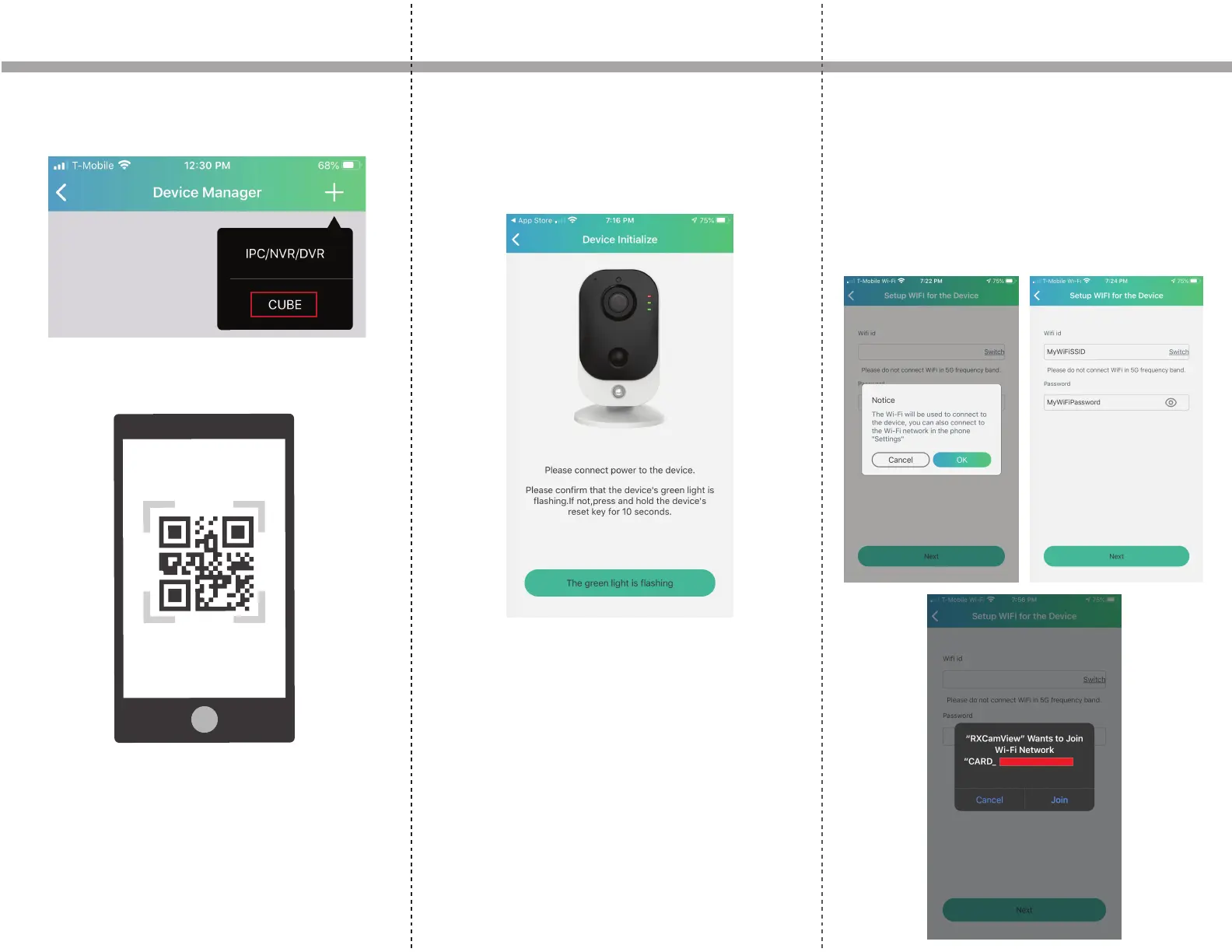
5. Click the + icon on the top right and click CUBE from
the dropdown.
7. On the next page, click the button that says, “The
green light is ashing.” NOTE: The green light does not
need to be ashing if step 2 was followed. Only the
blue LED needs to be on (static) for the quickest setup
method.
8. The next step will setup the IP camera to connect to
your wireless network. Make sure to connect it to a
2.4GHz SSID. The IP camera will not take 5GHz
networks. When asked to join Wi-Fi network
“CARD_XXXXXXXXXXXXXXXX”, go ahead and join it. This
is the IP camera’s own internal Wi-Fi SSID. It needs to
join the its own internal Wi-FI SSID in order to save your
wireless network.
6. The camera for the phone will open up. Scan the QR
code on the back of the IP camera.
Note: The green light does not need to
be ashing for setup
z
Setup Instructions


 To Next Page
 Loading...