EasyManua.ls Logo

Sungrow WiNet-S - Page 2

Sungrow WiNet-S
2 pages
Print Icon
To Previous Page IconTo Previous Page
Loading...
-
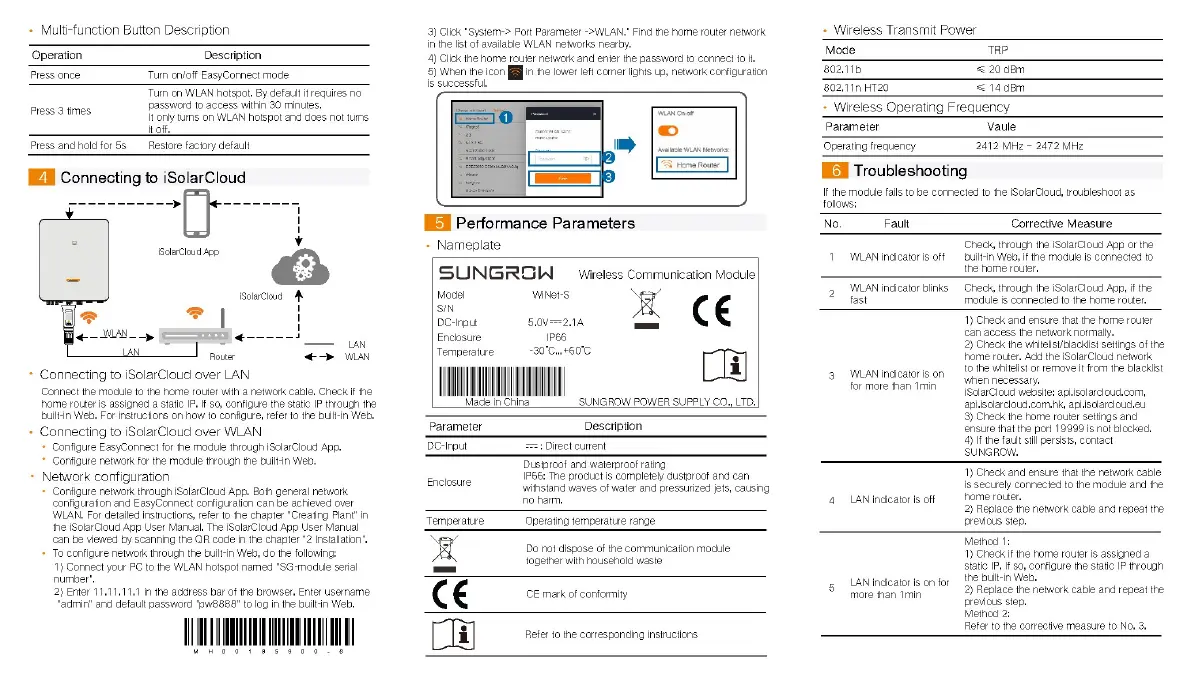
Multi-function
Button
Description
Operation
Description
Press
once
Turn
on/off
EasyConnect
mode
Turn
on
WLAN
hotspot.
By
default
it
requires
no
password
to
access
within
30
minutes.
It
only
turns
on
WLAN
hotspot
and
does
not
turns.
it
off.
Press
and
hold
for
5s
Restore
factory default
Press
3
times
Connecting
to
iSolarCloud
(SolarCloud
App.
~
LAN
Router
+>
WA
Connecting
to
iSolarCloud
over
LAN
Connect
the
module
to
the
home
router
with
a
network
cable.
Check
if
the
home
router
is
assigned
a
static
IP.
If
so,
configure
the
static
IP
through
the
built-in
Web,
For
instructions
on
haw
to
configure,
refer
to
the
fuilt-in
Web,
Connecting
to
iSolarCloud
over
WLAN
»
Configure
EasyConnect
for
the
module
through
iSolarCloud
App.
*
Configure
network
for
the
module
through
the
built-in
Web,
*
Network
configuration
*
Configure
network
through
iSolarCloud
App.
Both
general
network
configuration
and
EasyConnect
configuration can
be
achieved
over
WLAN.
For
detailed
instructions,
refer
to
the
chapter
"Creating
Plant’
in
the
iSolarCloud
App
User
Manual.
The
iSolarCloud
Apa
User
Manual
can
be
viewed
by
scanning
the
QR
code
in
the
chapter
"2
Installation".
*
To
configure
network
through
the
built-in
Web,
do
the
following:
1)
Connect
your
PC
to
the
WLAN
hotspot
named
“SG-module
serial
number".
2)
Enter
11.11.11.1
in
the
address
bar
of
the
browser.
Enter
username
“admin”
and
default
password
“pw8888"
to
log
in
the
built-in
Web,
MHoOo
18
5a00-6
3)
Click
“System->
Port
Parameter
->WLAN."
Find
the
home
router
network
in
the
list
of
available
WLAN
networks
nearby.
4)
Click
the
home
router
network
and
enter
the
password
to
connect
to
it.
5)
When
the
icon.
a
in
the
lower
left
corner
lights
up,
network
configuration,
is
successful.
VLAN
On-Off
Performance
Parameters
-
Nameplate
SUNGRSW
Model
WiNet-S
S/N
C
Wireless
Communication
Module
DC-Input
S,0V===2.14
Enclosure
IP66
Temperature
-30°C...
460°C
[i]
Made
in
China
SUNGROW
POWER
SUPPLY
CO,
LTD.
Parameter
Description
BC-Input
===;
Direct
current
Dustoroof
and
waterproof
rating
IP66;
The
product
is
completely
dustproof
and
can.
withstand
waves
of
water and
pressurized
jets,
causing
no
harm.
Enclosure
Temperature
Operating
temperature
range
-
Wireless
Transmit
Power
Mode
TRP
802,.11b
=
20dBm
802,11n
HT20
=
14dBm
-
Wireless
Operating
Frequency
Parameter
Vaule
2412
MHz
~
2472
MHz
Operating
frequency
[fal
Troubleshooting
If
the
module
fails
to
be
connected
to
the
iSolarCloud,
troubleshoot
as
follows:
No.
Fault
Corrective
Measure
Check,
through
the
iSolarCloud
App
or
the
1
WLAN
indicator
is
off
auilt-in
Web,
if
the
module
is
connected
to
the
home
router.
2
WLAN
indicator
blinks
Check,
through
the
iSolarCloud
App,
if
the
fast
module
is
connected
to
the
home
router,
1)
Check
and
ensure
that
the
home
router
can
access
the
network
normally.
2)
Check
the
whitelist/blacklist
settings
of
the
home
router,
Add
the
iSolarCloud
network
to
the
whitelist
or
remove
it
from
the
blacklist
when
necessary.
iSolarCloud
website:
apijisolarcloud.com,
apiisolarcloud.com.hk,
api.isolarcloud.eu
3)
Check
the
hame
router
settings
and
ensure
that
the
port
19999
is
not
blocked,
4)
If
the
fault
still
persists,
contact
SUNGROW,
3.
WLAN
indicator
is
on
for
more
than
Imin
1)
Check
and
ensure
that
the
network
cable
is
securely
connected
to
the
module
and
the
home
router.
2)
Replace
the
network
cable
and
repeat
the
previous
step.
4
LAN
indicator
is
off
Do
not
dispose
of
the
communication
module
together
with
household
waste
=
C
CE
mark
of
conformity
Refer
to
the
corresponding
instructions:
Method
1:
1)
Check
if
the
home
router
is
assigned
a
static
IP.
If
so,
configure
the
static
IP
through.
the
built-in
Web,
2)
Replace
the
network
cable
and
repeat
the
previous
step.
Method
2:
Refer
to
the
corrective
measure
to
No.
3,
5
_ LAN
indicator
is
on
for
more
than
Tmin

Related product manuals