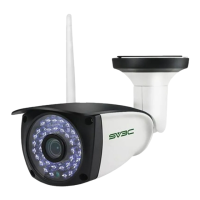
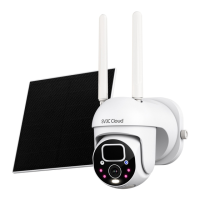
Need help?
Do you have a question about the SV3C POE HX Series and is the answer not in the manual?
Lists the items included in the product package for setup and operation.
Identifies the camera's connection ports, including reset button and power connectors.
Provides step-by-step instructions for correctly attaching the waterproof lid to the camera cable.
Guides on connecting the camera's network cable to the router and plugging in the power adapter.
Describes the camera's self-checking sequence after power-on and its operational readiness.
Instructions on downloading the 'Camhipro' mobile application from app stores or via QR code.
Instructions to long-press the reset button for 5-15 seconds to prepare the camera for pairing.
Initiates the process of adding a new device to the mobile application.
Specifies the camera type as 'IP camera' within the add device menu.
Selects the option for adding a device that is already connected to a network.
Guides the user to scan the QR code physically located on the camera unit.
Confirms the addition of the camera after its QR code has been successfully scanned.
Allows the user to assign a custom, recognizable name to the camera.
Completes the camera setup process after naming and confirmation.
Instructs how to view the real-time video stream by clicking the camera's display area.
Details the directional controls for PTZ-enabled cameras within the live view interface.
Starts the process of adding a camera to the app by searching the local network.
Chooses 'IP camera' as the device type for the LAN search addition method.
Selects the 'New device' option to add a camera not previously registered.
Confirms that the camera is powered on before proceeding with the addition.
Initiates a scan of the local network to discover connected IP cameras.
Identifies and selects the specific camera from the list of discovered devices.
Inputs the camera's username and password to complete the addition process.
Allows the user to assign a custom, recognizable name to the camera.
Finalizes the addition of the camera to the app after LAN search and naming.
Explains sharing camera access by generating and scanning a QR code on another device.
Details sharing camera access by manually inputting its UID and password on another device.
Initiates the device addition process for sharing on a different mobile device.
Chooses 'IP camera' as the device type when adding for sharing purposes.
Selects 'Device in use' to add a camera already connected to a network for sharing.
Inputs the camera's UID and password on the new device to grant access.
Assigns a custom name to the camera for easier identification when shared.
Finalizes the setup for sharing the camera access with another user.
Prepares the Micro SD card for recording by formatting it within the camera settings.
Activates the feature that triggers an alarm notification when motion is detected.
Sets the camera to automatically record footage to the SD card when an alarm event occurs.
Customizes the motion detection zone and sensitivity level for accurate triggering.
Adjusts the volume levels for the camera's microphone and speaker.
Enables receiving real-time alarm notifications on the mobile application.
Activates advanced humanoid detection for more precise alarm triggers.
Defines actions the camera takes, such as recording, when an alarm is triggered.
Allows detailed adjustments to motion detection sensitivity and coverage areas.
Suggests using motion detection recording when the Micro SD card capacity is low.
Activates the continuous recording feature for the camera.
Applies a default 24/7 recording schedule for the camera with a single selection.
Allows manual configuration of specific time periods for camera recording.
Instructs how to access the playback interface for saved video recordings.
Utilizes search filters to locate specific video recordings from the SD card.
Enables viewing recorded video files directly or downloading them for safekeeping.
Initiates the process to manually set the camera's time zone.
Guides the selection of the correct geographical time zone from a provided list.
Confirms and applies the selected time zone, prompting a camera restart.
Provides instructions for logging into the HIP2P client software on a computer.
Details the process of adding cameras to the PC client using a LAN search.
Starts the search for cameras connected to the local network via the PC client.
Runs the network scan to identify available cameras for addition.
Identifies and selects the specific camera's UID from the discovered list.
Completes the process of adding the selected camera to the PC client software.
Explains how to add a camera to the PC client by manually entering its UID.
Enters the camera's unique identifier (UID) into the PC client interface.
Enters the camera's login password into the PC client interface.
Confirms the manual addition of the camera to the PC client.
Guides on changing the camera's password using the PC client software.
Opens the specific device settings page by double-clicking the camera's UID.
Details the steps to update the camera's password and apply the changes.
Explains how to view and manage multiple cameras simultaneously on the PC client.
Provides solutions for black video feeds when cameras are online in the PC client.
Guides on how to access the camera's interface using a web browser on a PC.
Instructs to locate the camera's IP address within the mobile application settings.
Directs the user to the app's settings menu to find device information.
Opens the section displaying detailed network and device configuration data.
Identifies the camera's IP address from the displayed device information.
Explains entering the IP address, username, and password into a browser to access the camera.
Accesses the network configuration section within the camera's web interface.
Chooses the 'Fixed IP Address' option for network configuration.
Applies the selected static IP address settings to the camera.
Saves all applied network configuration changes.
 General
| Brand | SV3C |
|---|---|
| Model | POE HX Series |
| Category | Security Camera |
| Language | English |
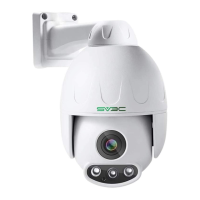

 To Next Page