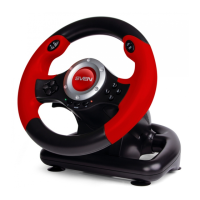
This document describes the SVEN GC-W150 Game Racing Wheel, a multi-compatible gaming wheel designed to enhance the racing game experience across various platforms.
Function Description
The SVEN GC-W150 is a fully multi-compatible gaming wheel with a dual vibration effect and power supply via USB. It features wheel-mounted switches, a gear lever, and a pedal system to upgrade your racing experience to a new level. All buttons and control elements of a gaming controller are integrated into its various controls. The wheel supports a digital/analog mode, as well as a vibration feature that can be used with PS4/PS3/Nintendo Switch/Android devices and a personal computer via USB connection.
Important Technical Specifications
- Compatibility: PS3, PS4, Nintendo Switch, Windows 7/8/10/11, Android.
- Rotation Angle: 180° rotation angle.
- Vibration Feedback: Dual vibration effect for a realistic gaming experience.
- Programmable Buttons: Allows re-assignment of acceleration/brake buttons, wheel-mounted buttons, and the gear-change lever.
- Input Modes: X-Input and Direct Input modes support.
- Gear Lever: Included for enhanced control.
- Grip: Rubberized inserts for a comfortable grip.
- Pedal Set: Wide pedal set for acceleration and braking.
- USB Port: Available for connecting pedals.
- Operational System: Windows XP/Vista/7/8/10/11, PS3, PS4, and Nintendo Switch.
- Package Contents: Gaming racing wheel (1 pc), Pedal unit (1 pc), User manual (1 pc), Warranty card (1 pc).
Usage Features
Connecting to Different Platforms:
- PS3/PS4 Console: Connect pedals to the wheel, then connect the wheel to the console via USB cable. Turn on the console power. One of the LEDs will light up red, indicating the wheel is ready.
- Nintendo Switch Console: Connect pedals to the wheel, then connect the wheel to the console using a USB cable to a docking station or via an OTG-Type-C cable. Turn on the console power. One of the LEDs will light up red. Control settings should be made via programming mode.
- Android Devices: Connect the wheel's USB cable to your Android device, Smart TV, or set-top box. Connection to a telephone or tablet requires an OTG cable (not included).
- PC (Windows XP/Vista/7/8/10/11): Connect pedals to the wheel, then connect the wheel to the PC via USB cable. One or more LEDs will light up red, indicating the wheel is ready for operation.
Input Modes:
- X-Input Mode: Turned on by default with power on. This mode does not require drivers. To check operation, go to "Control Panel" menu, then click "Devices and Printers" icon. In the displayed window, select "Controllers" shortcut, right-click on "Parameters of game control devices" (Fig. 4). Press "Properties" button in a displayed window (Fig. 5). You can check operation of axes and keys. "Parameters" tab allows to calibrate the wheel.
- D-Input Mode: Connect the wheel to the PC. Press and hold MODE button for 3 seconds; the wheel will switch to D-Input mode. When switching the modes, red LED will flash one time. To check operation, go to "Control Panel" menu, then click "Devices and Printers" icon. In the displayed window, select "Steering Wheel Controllers" shortcut, right-click on "Parameters of game control devices" (Fig. 5). Press "Properties" button and PC display will show a window "Properties: Steering Wheel Controller" (Fig. 7). Here you can check operation of axes and keys, calibrate the wheel.
Programmable Features:
- Programming: Press and hold the PROGRAM button for 3 seconds until 4 red LEDs light up on the bottom front panel. Press a functional button (pedals, wheel-mounted buttons, gear-change lever) you wish to program. LEDs will flash quickly. Press one of the functional buttons (A/B/X/Y/LB/RB/LT/RT) to assign a new feature. LEDs will stop flashing, and programming is complete.
- Cancelling a Single Programmed Button: Press and hold the PROGRAM button for 3 seconds until 4 red LEDs light up. Press the button you wish to reset, and press PROGRAM again. LEDs will stop flashing, and the button is reset.
- Cancelling All Programmed Buttons (Reset by Default): Simultaneously press and hold SELECT and START buttons for 3 seconds. The bottom 4 LEDs will blink 3 times, and the reset is complete.
Adjusting Wheel Sensitivity:
- Increase Sensitivity: Simultaneously press wheel-mounted buttons L1 and R1.
- Decrease Sensitivity: Simultaneously press wheel-mounted buttons L2 and R2.
- The indicator panel (4 LEDs) corresponds to sensitivity levels from 1 to 4. LEDs of a corresponding level will flash 3 times and then go out.
Maintenance Features
- Cleaning: To clean the device, use a clean soft cloth. Do not use solvents such as gasoline or spirit for cleaning, as these solvents can damage the surface of the device.
- Storage: Do not drop the device or expose it to heavy impacts.
- Initial Connection: Ensure the wheel steering angle is 0° (do not touch the wheel) before connecting to a gaming console or PC with the power turned on. This guarantees the wheel steering angle is centered from the start. This procedure can be repeated if the wheel is not aligned.
- Product Care: Do not disassemble or repair the device yourself. Maintenance and repairs should be carried out by qualified staff of the service center only.
- Environmental Protection: Protect the device from direct impact of high humidity, dust, strong magnetic fields, vibrations, high temperatures, toxic liquids, and gases.

 Need help?
 General

 To Next Page