EasyManua.ls Logo

Swift Swiftcam Series - User Manual

Swift Swiftcam Series
2 pages
Print Icon
To Next Page IconTo Next Page
Loading...
Quick Start Guide
. Product Components
1. 2. 3. 4.
5. 6. 7.
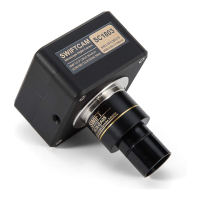
1. Swiftcam Camera
2. 0.5x Reduction Lens
3. Φ23.2-Φ30.5mm Eyepiece Tube Adapter
4. Φ23.2-Φ30mm Eyepiece Tube Adapter
5. Calibration Kit
6. Application CD
7. USB Cable
Quick Start Guide
Thank you for purchasing this Swiftcam series camera. This camera is a delicate
instrument and should be handled with care. When not in use, please store it in a
safe place with the dust cap attached. Do not let the camera get in contact with
water or expose it to extreme temperatures (below 0 or above 50 degrees
Celsius).
Should you have any questions, please do not hesitate to contact our customer
service.
. Install Swift Imaging 3.0 Application in your
computer
For Windows user, please run application CD and choose Install
Application in CD installation interface to install it to your computer
directly.
For Mac OSX user, please browse the CD and copy the file
SwiftImaging.dmg under directory MAC to anywhere on your computure
hard drive. Double click the SwiftImaging.dmg file and it will install
automatically.
For Linux user, please browse the CD and untar SwiftImaging.x64.tar.bz2
or SwiftImaging.x86.tar.bz2 under directory Linux to anywhere on your
hard drive. Running the run file will install the application. Double click
Swift Imaging 3.0 on the desktop to run the application. Root privilege is
required to install it.
. Using the camera on a microscope eyepiece
tube
Install the Swift Imaging 3.0 application program from the CD included.
Remove the dust cap from the camera and attach the reduction lens.
Choose the eyepiece tube adapter according to your microscope
eyepiece tube size and attach it to reduction lens. (The reduction lens
itself is for an eyepiece tube in internal diameter 23.2mm and adapter is
not required in this case. If your microscope eyepiece tube is in 30mm or
30.5mm internal diameter, please choose the adapters accordingly)
Attach this assembly to your microscope’s eyepiece tube.
Connect the USB cable into the camera and then plug it into the computer.
Please refer to help contents (manual) under software help menu for the
usage of the Swift Imaging 3.0.
1.
2.
3.
1.
2.
3.
4.
5.
6.
. Using the camera on a trinocular microscope
with C-Mount
Install the Swift Imaging 3.0 application program from the CD included.
Remove the dust cap from the camera and attach the microscope’s
C-Mount adapter. (Please note that the C shape C-Mount adapter is
specific to your microscope. Please consult the relevant Microscope
Accessory list and choose an appropriate adapter for your Swiftcam
camera).
Attach assembly above to microscope trinocular port and connect the
USB cable onto the camera and then plug it into the computer.
Please refer to help contents (manual) under software help menu for the
usage of the Swift Imaging 3.0.
1.
2.
3.
4.
- 1 - - 2 - - 3 -

Question and Answer IconNeed help?

Do you have a question about the Swift Swiftcam Series and is the answer not in the manual?

Summary

Install Swift Imaging 3.0 Application

Windows User Installation

Install the Swift Imaging 3.0 application by running the CD and using the installation interface.

Mac OSX User Installation

Copy the SwiftImaging.dmg file to your hard drive and double-click to install.

Linux User Installation

Untar the Linux package and run the installation script from the desktop.

Using the Camera on a Microscope Eyepiece Tube

Using the Camera on a Trinocular Microscope with Eyepiece Adapter

Overview

The Swiftcam Series Microscope Camera is a delicate instrument designed for capturing digital images through microscopes. It offers versatile compatibility with various microscope types and operating systems, making it a comprehensive solution for digital microscopy.

Function Description:

The Swiftcam camera serves as a digital imaging solution for microscopes. It connects to a microscope's eyepiece tube or trinocular port to capture images and videos, which can then be processed and analyzed using the Swift Imaging 3.0 application. This allows users to view, record, and share microscopic observations digitally.

Important Technical Specifications:

  • Model Number: SC1006-CK (as seen on the product label, though other models may exist within the series).
  • Interface: USB2.0 / C-Mount.
  • Reduction Lens: 0.5x reduction lens included, designed for eyepiece tubes with an internal diameter of 23.2mm.
  • Eyepiece Tube Adapters:
    • Φ23.2-Φ30.5mm Eyepiece Tube Adapter.
    • Φ23.2-Φ30mm Eyepiece Tube Adapter. These adapters facilitate compatibility with various eyepiece tube sizes.
  • Software: Swift Imaging 3.0 application.
  • Operating System Compatibility:
    • Windows: XP/Vista/7 (32-bit & 64-bit versions).
    • Mac OSX.
    • Linux.
  • Components:
    • Swiftcam Camera.
    • 0.5x Reduction Lens.
    • Φ23.2-Φ30.5mm Eyepiece Tube Adapter.
    • Φ23.2-Φ30mm Eyepiece Tube Adapter.
    • Calibration Kit.
    • Application CD.
    • USB Cable.

Usage Features:

I. Installation of Swift Imaging 3.0 Application:

  • Windows: Run the application CD and select "Install Application" from the installation interface.
  • Mac OSX: Copy the "SwiftImaging.dmg" file from the CD (located in the MAC directory) to your hard drive, then double-click it to install.
  • Linux: Untar either "SwiftImaging.x64.tar.bz2" or "SwiftImaging.x86.tar.bz2" from the CD (located in the Linux directory) to your hard drive. Run the executable file to install the application. Root privileges are required for installation. After installation, double-click the Swift Imaging 3.0 icon on the desktop to launch the application.

II. Using the Camera on a Microscope Eyepiece Tube:

  1. Install the Swift Imaging 3.0 application from the included CD.
  2. Remove the dust cap from the camera.
  3. Attach the 0.5x reduction lens to the camera.
  4. Select the appropriate eyepiece tube adapter based on your microscope's eyepiece tube size (23.2mm, 30mm, or 30.5mm internal diameter) and attach it to the reduction lens. The reduction lens itself is suitable for 23.2mm tubes without an additional adapter.
  5. Attach the assembled camera-reduction lens-adapter unit to your microscope's eyepiece tube.
  6. Connect the USB cable to the camera and then to your computer.
  7. Refer to the software's help menu (manual) for instructions on using Swift Imaging 3.0.

III. Using the Camera on a Trinocular Microscope with C-Mount:

  1. Install the Swift Imaging 3.0 application from the included CD.
  2. Remove the dust cap from the camera.
  3. Attach the microscope's C-Mount adapter to the camera. Note that the C-Mount adapter is specific to your microscope model; consult the relevant Microscope Accessory list to choose the correct adapter for your Swiftcam camera.
  4. Attach the assembled camera-C-Mount adapter unit to the microscope's trinocular port.
  5. Connect the USB cable to the camera and then to your computer.
  6. Refer to the software's help menu (manual) for instructions on using Swift Imaging 3.0.

IV. Using the Camera on a Trinocular Microscope with Eyepiece Adapter:

  1. Install the Swift Imaging 3.0 application from the included CD.
  2. Remove the dust cap from the camera.
  3. Attach the 0.5x reduction lens to the camera.
  4. Mount your specific eyepiece adapter to the microscope's trinocular port.
  5. Attach the assembled camera-reduction lens unit to the eyepiece adapter on the trinocular port. Note that the eyepiece adapter is specific to your microscope; consult the relevant Microscope Accessory list to choose the correct adapter for your Swiftcam camera.
  6. Connect the USB cable to the camera and then to your computer.
  7. Refer to the software's help menu (manual) for instructions on using Swift Imaging 3.0.

Maintenance Features:

  • Handling: The camera is a delicate instrument and should be handled with care.
  • Storage: When not in use, store the camera in a safe place with the dust cap attached.
  • Environmental Conditions:
    • Avoid contact with water.
    • Do not expose to extreme temperatures (below 0 degrees Celsius or above 50 degrees Celsius).
  • Support: Should you have any questions, contact customer service.

Swift Swiftcam Series Specifications

General IconGeneral
BrandSwift
ModelSwiftcam Series
CategoryDigital Camera
LanguageEnglish