INTRODUCTION
G55 is Swissvoice’s new smartphone for seniors, its many features
include:
1 - Easy-to-use interface, with two modes to choose from (Simple and
light Android)
2 - Text <=>Speech support for messages, dialling, etc
3 - SOS button
4 - Desk top easy-charging base
SMARTPHONE DESCRIPTION
1 - Turn ON/OFF the screen;
10 - Torch sliding switch
11 - Charging contacts
12 - USB Type-C
13 - Flashlight LED
14 - Headset jack
15 - Main camera
16 - Flash
17 - SOS button
18 - Speaker
19 - Lanyard bracket
Power ON/OFF ( Long press )
2 - Volume up key
3 - Volume down key
4 - Front camera
5 - Receiver
6 - Touch screen
7 - Task manager key
(Android mode)
8 - Home key
9 - Back key
PACKAGE CONTENT
1 - G55 smartphone
5 - Instructions manual
6 - Battery
7 - Battery cover
8 - Lanyard
2 - Easy-charging base
3 - Power adaptor
4 - USB cable
GET STARTED
Insert the SIM card (required) and the memory card (optional)
- With the SIM card golden contacts facing down, insert the SIM card
into one of the available slots until it stops as illustrated
- To expand the internal storage memory, you can insert a microSD
memory card (maximum capacity of 64 GB / not included). Insert the
memory card into the slot until it stops as illustrated
Note: Both card slots (SIM1=Micro, SIM2=Micro) support LTE (4G). If
nano SIM card is used, a SIM card adaptor is required ( provided by
operator )
ATTENTION:
• Risk of swallowing small objects! The SIM card & memory card can
be removed. Small children can swallow them
• Do not bend or scratch the SIM card. Prevent any contact with
water, dirt, or electrical charges
• Turn off the phone and disconnect the charger before removing the
battery cover
Insert the battery
- Insert the battery into battery compartment with golden contacts of
the battery pointing to the top right of the phone
- Press lightly on the bottom end of the battery until it snaps into place
Install the lanyard
Place the thin portion of the lanyard around the bracket located at
the right bottom part of the smartphone, as depicted.
Replace the battery cover
Replace and secure the battery cover until it clicks into place
Charging your phone
- Place the base on a flat surface. Plug the USB cable to the base and
to a wall mains socket.
- To charge your phone, simply place it on the charger as depicted.
G55 can also be charged as a regular smartphone by plugging the
USB cable directly to its USB connector (12), and the other end of the
USB cable to the power adaptor and then to a wall socket.
ATTENTION:
• Only use battery, charger and accessories that have been approved
for using with this model. Connecting other accessories may be
dangerous and may invalidate the warranty.
Getting started guide
**Please read this “Getting Started guide” CAREFULLY before start
using your Swissvoice G55. Also check the complete Instructions
Manual for more details.
**Google account is required for your phone to receive software
updates. Please sign in during phone set up or later.
1. Insert the SIM card, battery, lanyard (optional) and replace the
battery cover.
2. Power up the base (use provided adaptor and USB cable).
3. Long press ON/OFF button to power up the phone.
4. The display will be lighted up.
5. Enter the SIM PIN code (Optional : Service provider dependent)
6. Select the desired language
7. Follow the setup wizard steps on the screen
8. When completed, swipe with your finger on the touch screen
and press Select Home icon on page 2, to choose between Simple
Smartphone and light Android modes.
Simple Smartphone mode offers an extremely easy to
use interface, specifically designed for beginners or
senior users. Check next chapter to learn about phone
operation in this mode.
Light Android mode presents the user with a
simplified version of a regular smartphone. If you
chose this mode, please read “USING YOUR G55 IN
LIGHT ANDROID MODE”.
USING G55 IN SIMPLE SMARTPHONE MODE
When Simple smartphone mode is selected, your G55 will look simpler
and easier to use than a regular smartphone.
Setup Wizard
The first time you select Simple Smartphone mode, you will have
the choice to be guided along the most relevant settings by a Setup
Wizard. These are:
a. Click Duration (sets click duration for alphanumeric keyboard and
other keys**)
b. Wifi setup (if Wifi internet access is available)
c. Google Account
d. Copy Contacts
e. New Contacts
f. SOS and Support
g. Speed Dial
h. Favorite Contacts
i. WhatsApp
j. Advanced Settings
k. Exit Setup
Once you “Exit Setup”, the wizard is always available under Settings.
Please accept authorizations requested by Simple Smartphone app.
** Note all touch-screen clicks are by default long click when
using Simple Smartphone mode. A valid key press should have a
confirmation vibration.
Click duration can be changed anytime through the wizard or in
Advanced Settings.
Home Screen
1
7
2
3
4
5
6
1 - Silent / Vibrate only / Normal mode
2 - One Touch Speed Dial buttons (with picture)
3 - Calls Center
4 - Message Center - SMS, missed calls, WhatsApp, etc.
5 - Pictures Center - View photos and videos, use the camera
6 - Other functions such as Whatsapp, phonebook, applications,
settings, listen to internet radio, etc
7 - Battery level
Turn the Phone ON/OFF
- Long press ON/OFF button
- The display will be lighted up. (To turn off the phone: Power Off >
Turn off)
Call from the 3 One-Touch speed dials
- Press one of the 3 One-Touch speed dials directly (2 in above figure)
- Press to end the call
Make a call
- Press Call > Dial number > Enter the number 0......9 (Press Del to
delete)
- Press to dial
- Press to end the call
Call from phonebook
- Press Call > to search and select the number OR
- Press Call > Search > enter the 1st character of the contact > Search
> select the number
- Press to dial
- Press to end the call
Call Log
- Press Call > Call Log or Phonebook > Call Log to view the call log
- To call back the incoming call number, press the number
Receive a call
- Press to answer
- Press to end the call
Adjust the earpiece loudness
- During a call, press Volume up/Volume down keys - to adjust the
loudness
Ringer mode
- In idle mode, press > select the ringer mode between Sound /
Silent / Vibrate
Message
- All types of messages (SMS, WhatsApp, missed call, etc...) are
consolidated in Message
- When there is a new message, the button will be
highlighted with a “NEW” indication
- To read the message, press on the new items to read the details or
press Read old message......
Note: pictures received through MMS will be directly stored in
Pictures center.
Write new message
- Message > Write a new message
- Input the sending number by Dial number > Next OR
- Select from existing phonebook with
- Input from Keyboard > Send OR
- Select the pre-defined simple message by Next
- Press Yes to confirm.
Instructions Manual
G55
1

 Need help?
 General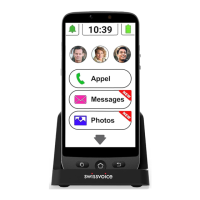

 To Next Page